Appearance
Manage users and reset passwords
There's no "forgot password" email: when someone forgets their password, you reset it for them. When someone leaves, deactivate their account. They can't sign in any more, but the documents they made still show their name.
Who can do this: Anyone whose role can edit users, usually an Administrator.
Step by step
See and change a user
Go to Administration › Users and click the user. Effective permissions shows everything their roles allow.
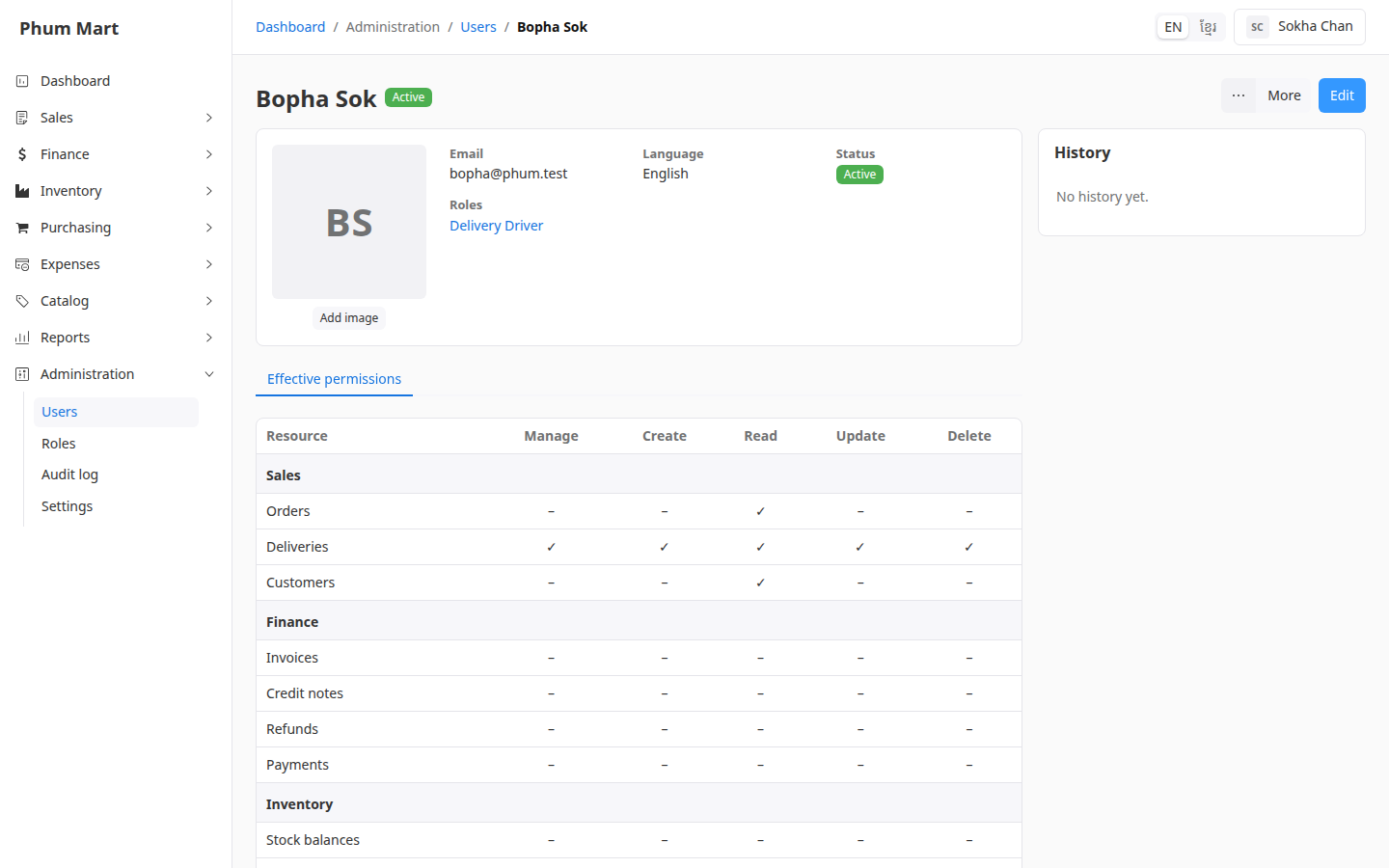
Click Edit to change their name, email, roles, language or status, then click Save.
To add, change or remove their photo, use the buttons under the picture.
Reset a password
Open the user and click More.
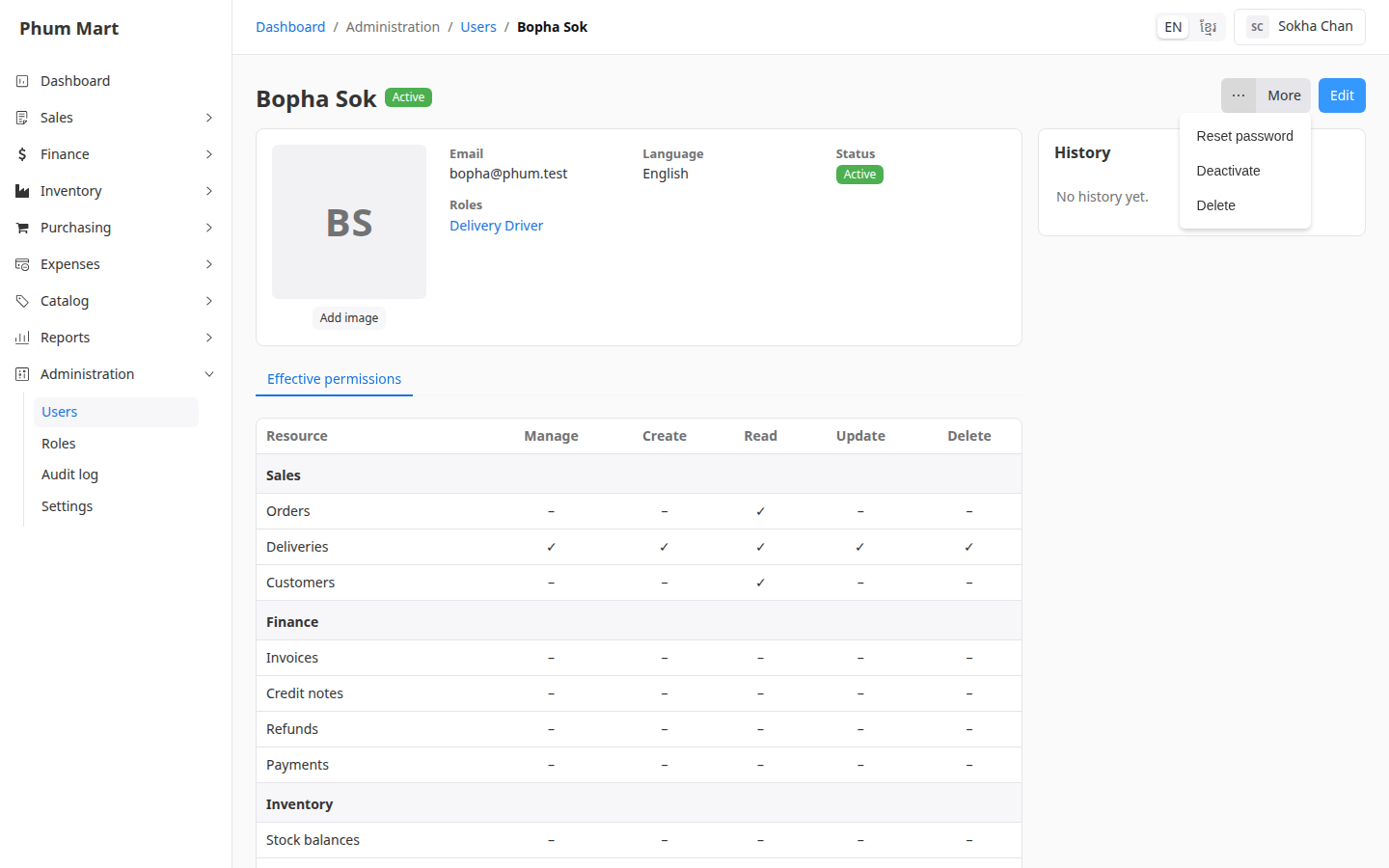
Click Reset password.
Enter a New password and type it again in Confirm new password.
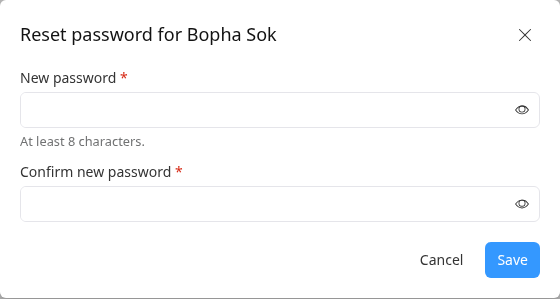
Click Save, then give the person the new password. Ask them to change it after they sign in.
Stop someone signing in
Open the user and click More › Deactivate. The message says they won't be able to use the app until reactivated.
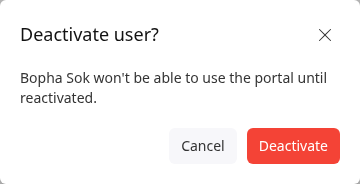
Click Deactivate.
To let them back in, set the list's filter to Inactive, open them and click More › Activate.
Good to know
- Deactivate rather than delete anyone who has worked in the app, so their name stays on their orders, payments and history. Delete only an account made by mistake.
- You can't deactivate or delete yourself. Ask another administrator.