Appearance
Print a payment receipt
A payment receipt shows your business's details, the payment number and date, the customer, the shop, the method and reference, the invoices it paid and the total received, with a "Received by" line to sign. You can print it on A4 paper or on an 80mm receipt printer.
Only posted payments have a receipt.
Who can do this: Anyone whose role can see payments.
Before you start: Confirm the payment.
Step by step
Open the posted payment and click More.
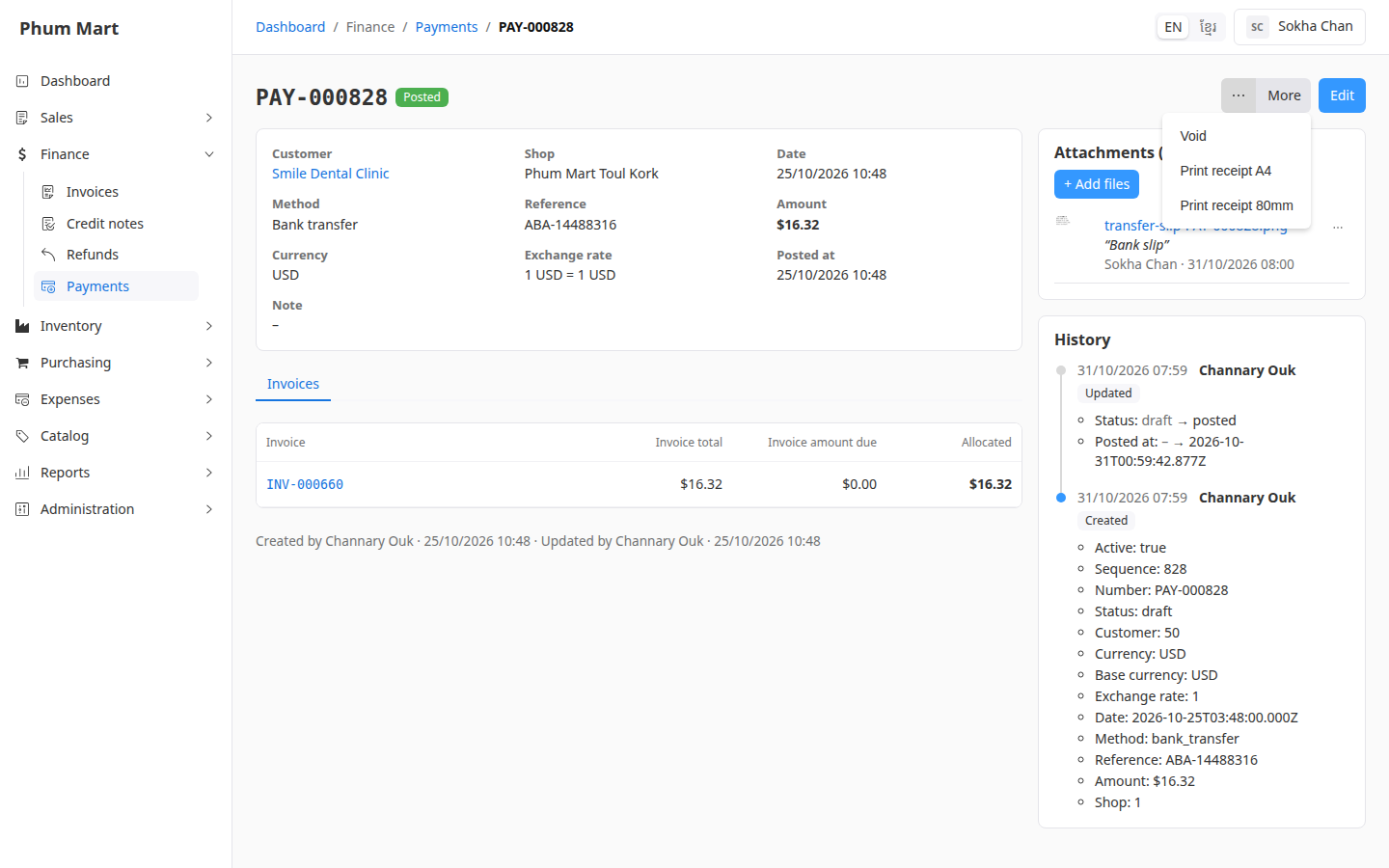
Click Print receipt A4 for a full page, or Print receipt 80mm for a receipt printer. The receipt opens in a new tab, then your browser's print dialog opens.
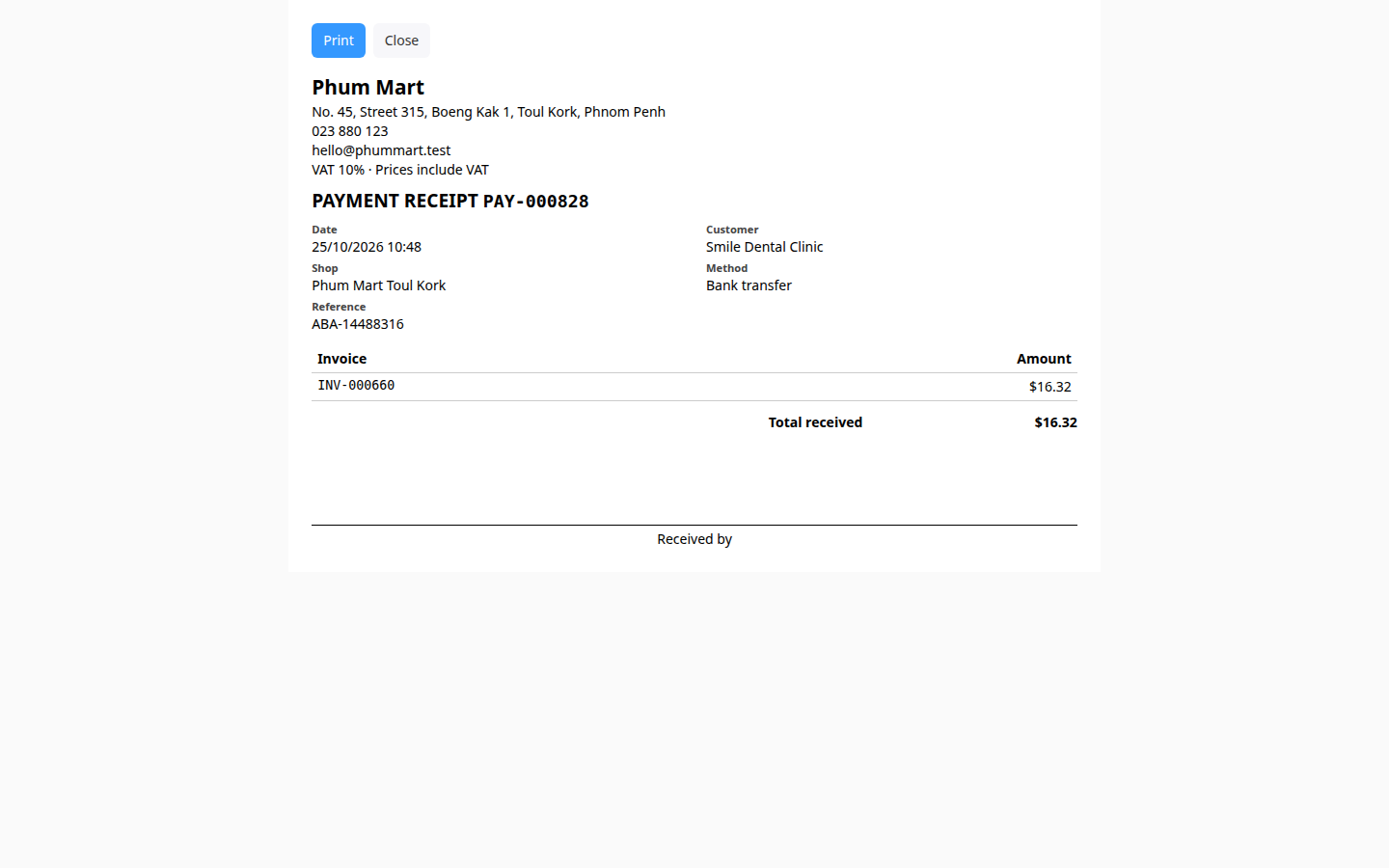
Choose the printer and print. To save it as a PDF instead, choose Save as PDF as the printer.
Click Close to close the tab.
Having trouble?
- There's no Print receipt item: the payment is still a draft, or it's void.
- The 80mm receipt is cut off or too small: in the print dialog, choose the receipt printer and its paper size, and set the margins to none.
- The address or contact details are wrong: ask your administrator to update them in Administration › Settings.
Related
- Print an invoice
- Refund a customer: refund receipts print the same way