Appearance
Check a product's price
With several rules, it isn't always obvious what a customer will pay. The Price check shows the result for one variant, unit and date, exactly as an order line would be priced.
Who can do this: Anyone who can see price books.
Step by step
Open the price book and click its Price check tab.
Choose the Variant, the Unit, and the Date. The date starts as today: change it to check a promotion's prices.
Read the result:
- List price: the variant's own price, before the book's rules.
- Sell price: the price after the book's rules.
- Discount and Discount amount: the discount, as set and in money.
- Unit price: what the customer pays per unit.
- Price set by and Discount set by: the rules they came from. Click one to see it.
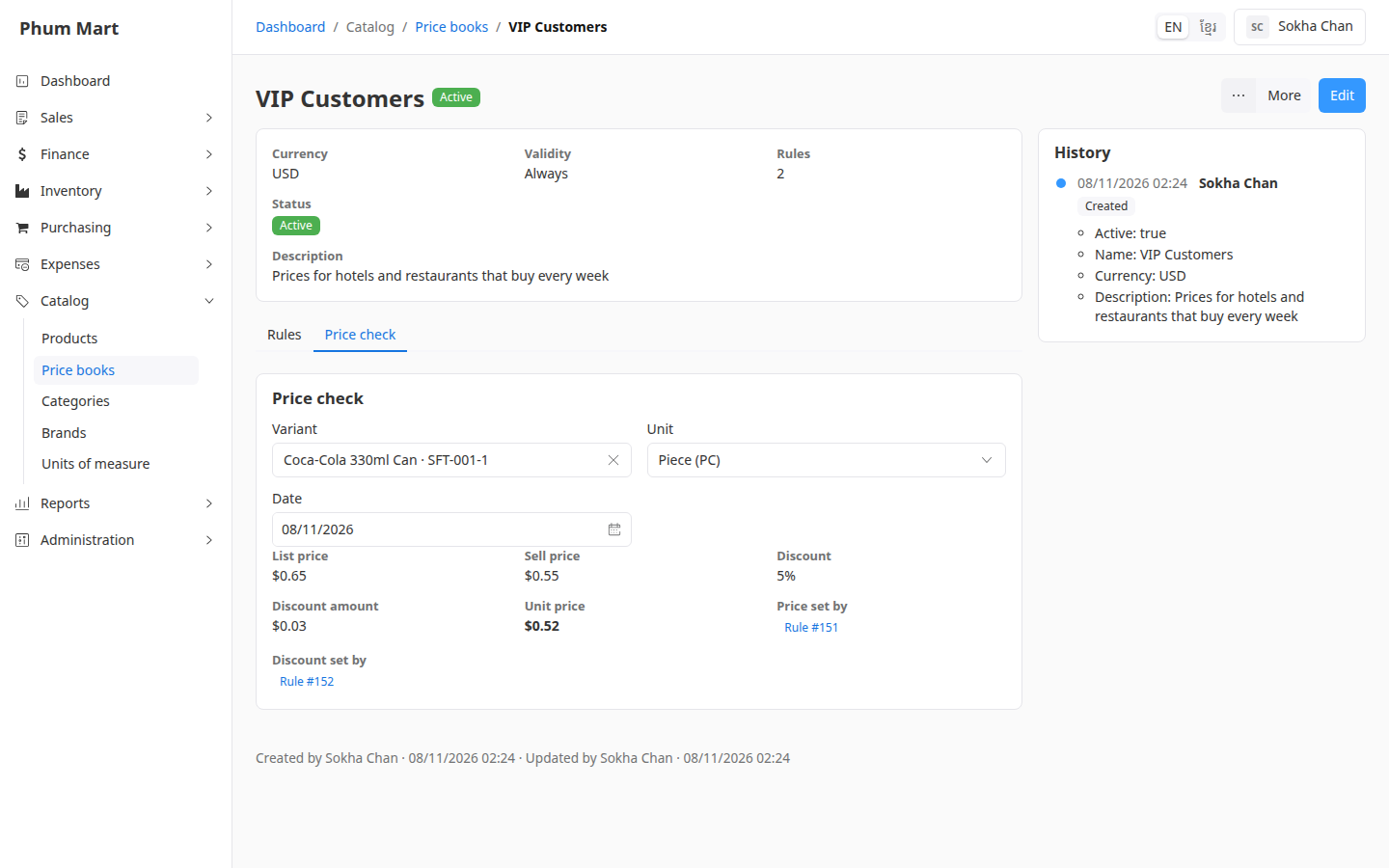
In this example, the can's price comes from one rule ($0.55) and its 5% discount from another, so the customer pays $0.52 per can.
Having trouble?
- "No price": the book's currency isn't your base currency, and no rule sets a price for this variant. Add a rule with a price.
- The price isn't what you expected: check Price set by. A variant rule wins over a product rule.