Appearance
Find your way around the app
Summary
Learn the parts of the screen: the sidebar, the header, lists and document pages.
Description
Every page has the same layout, so once you know one, you know them all. This page explains where things are and why some buttons may be greyed out for you.
Who can do this: Everyone with an account.
Step by step
Sign in. The Dashboard opens, with this month's sales, profit, money owed and top products.
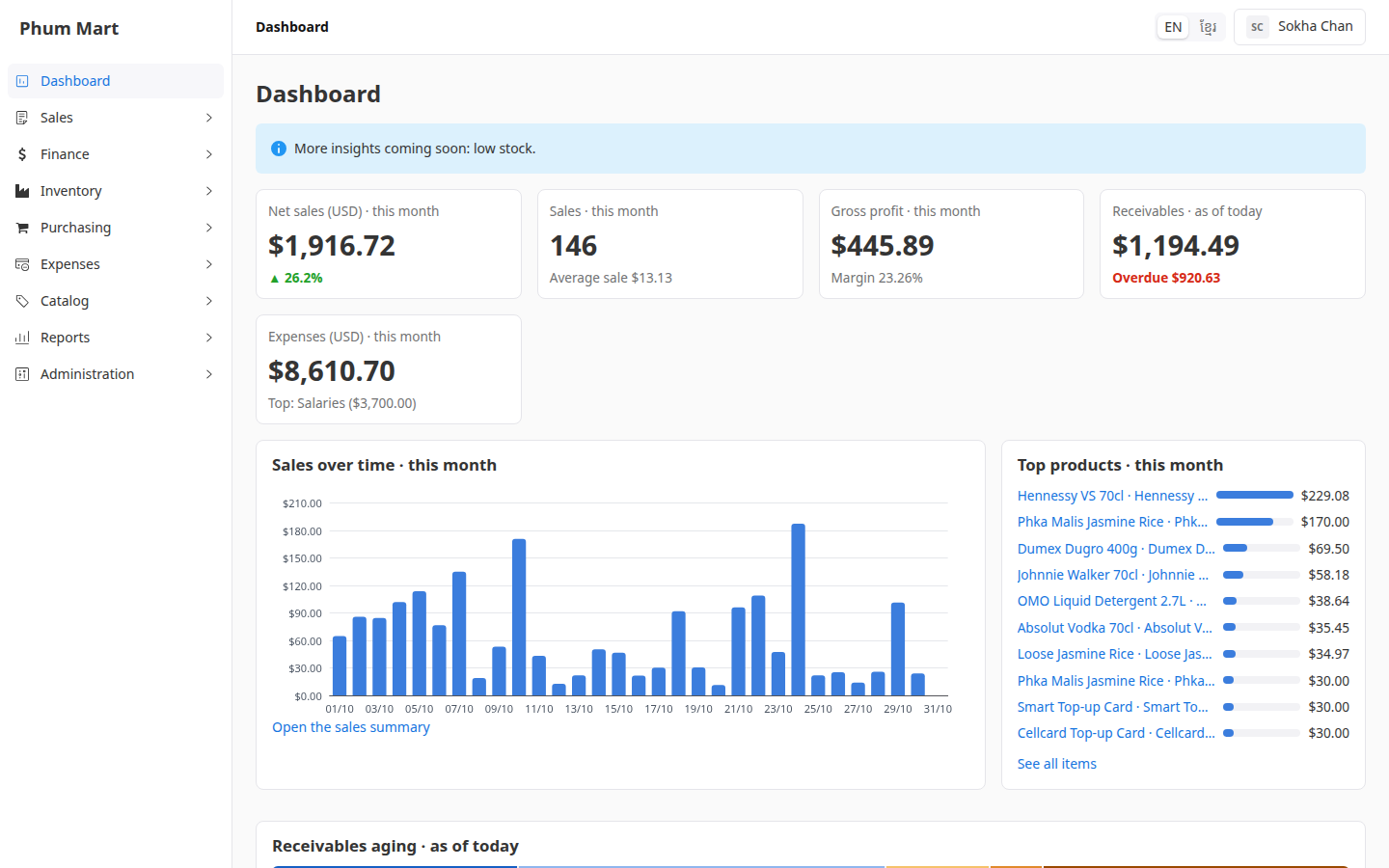
Use the sidebar on the left to move between areas. Click a group to open it:
- Sales: Orders, Deliveries, Customers
- Finance: Invoices, Credit notes, Refunds, Payments
- Inventory: Stock balances, Receipts, Transfers, Adjustments
- Purchasing: Purchases, Suppliers
- Expenses: Expenses, Expense categories
- Catalog: Products, Price books, Categories, Brands, Units of measure
- Reports: sales, money and stock reports
- Administration: Users, Roles, Audit log, Settings
Use the header at the top:
- The breadcrumb on the left shows where you are, for example Dashboard / Sales / Orders / SO-000860. Click a part of it to go back. Going back to a list keeps the search and filters you used.
- EN / ខ្មែរ switches the language.
- Your name opens a menu with My profile, Change password and Sign out.
Open a list, for example Sales › Orders. Each list has a search box and filters at the top, and New at the top right to add a record. Click a row to open it. See Search and filter lists.
Open a record. Its page shows:
- The title and status at the top, such as SO-000860 and Draft.
- Buttons at the top right for the next steps, such as Edit and Confirm. Less common actions are under More.
- The summary with the main details, then tabs such as Lines or Invoice.
- Attachments and History on the right. History shows who changed what and when.
What you see depends on your role
Your administrator gives you a role, such as Cashier or Accountant. The role decides what you can open and change:
Greyed-out menu items and buttons: your role doesn't allow them. You can still see that they exist. Here, a cashier can't open Deliveries.
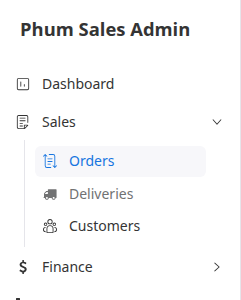
Buttons that don't appear: the record's status doesn't allow that step. For example, a confirmed order has no Edit button, because a confirmed order can't change.
Having trouble?
- You need something that's greyed out: ask your administrator to add it to your role.
- The page says "Record not found": the record was deleted, or the link is wrong. Use the link on the page to go back to the list.
- A banner says you're offline: check your internet connection. Save buttons are turned off until you're back online.