Appearance
Create a product
Summary
Add something you sell or buy, then add its variants so it can be sold.
Description
A product is the item, such as Kampot Pepper. Its variants are what you actually sell and stock, such as Kampot Pepper 100g and Kampot Pepper 250g, each with its own SKU, barcode and price. A product without variants can't be sold yet.
The product's attributes describe how its variants differ, for example Pack: 100g, 250g or Size: S, M, L. A product with no attributes has exactly one variant.
There are three types of product:
| Type | Use it for |
|---|---|
| Goods | Things you stock, buy and sell |
| Service | Work you sell, such as delivery or repair. Never stocked or bought |
| Combo | A set of other products sold as one item. See Create a combo product |
Who can do this: Anyone whose role can create products, such as a Catalog manager.
Before you start: The product's category, brand and units exist. See Manage categories, Manage brands and Set up units of measure.
Step by step
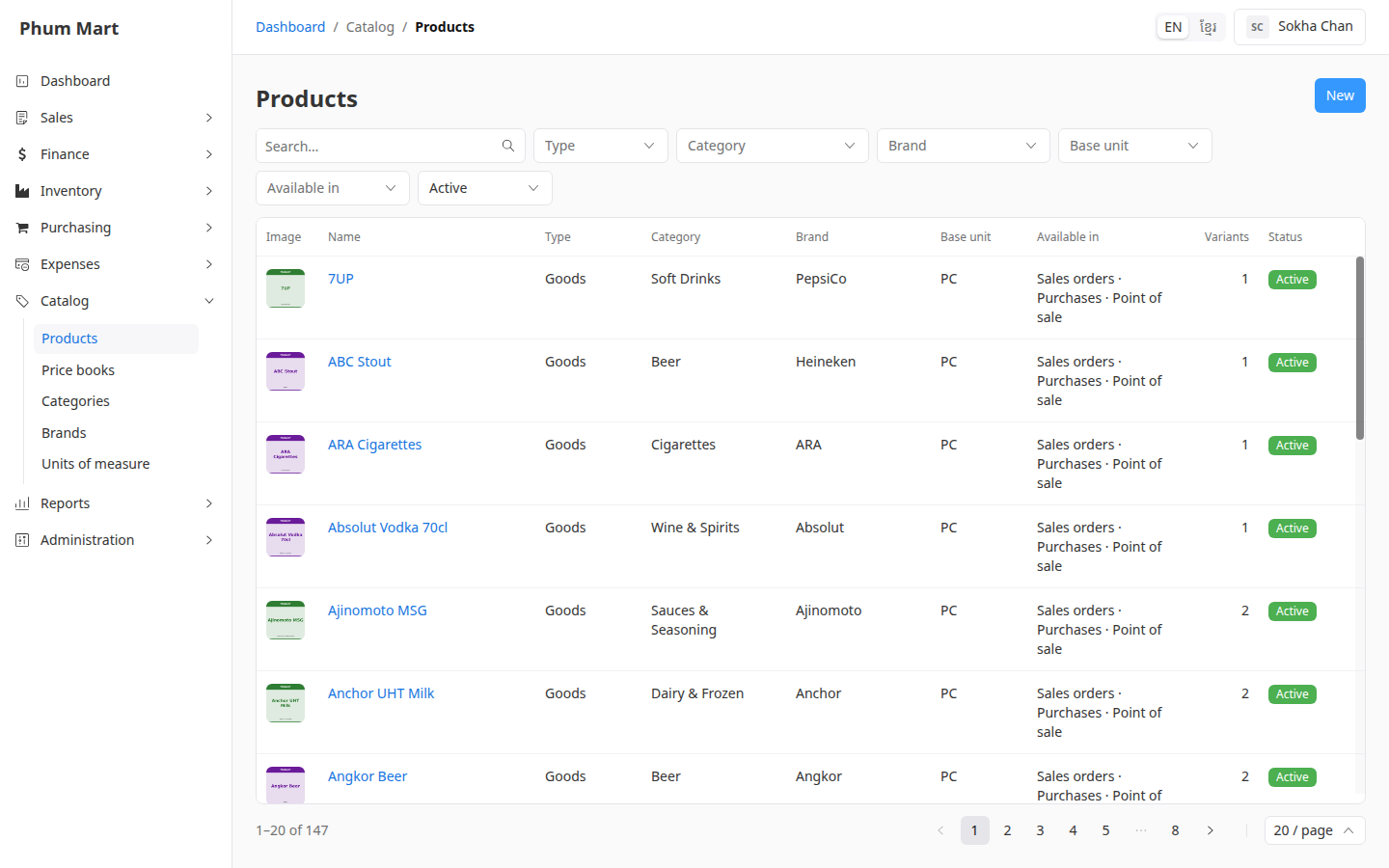
Go to Catalog › Products and click New.
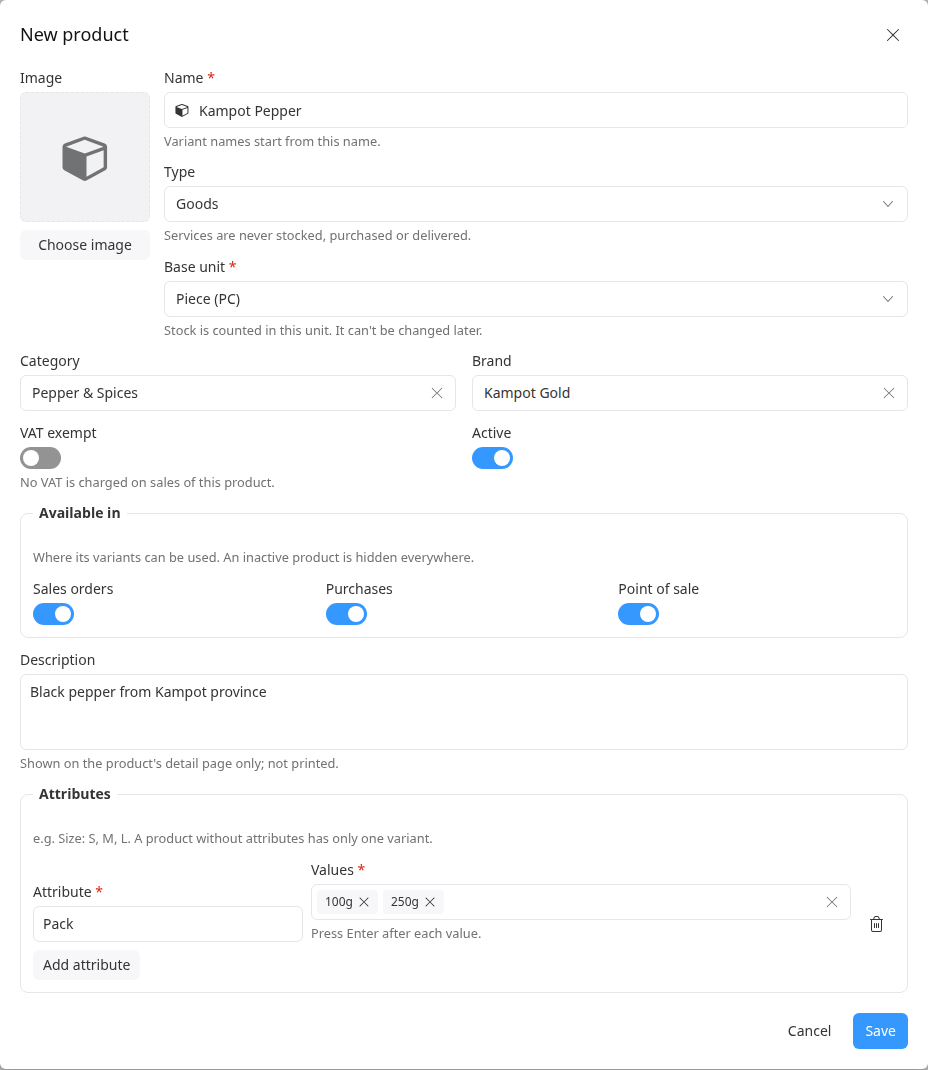
Enter the Name. Variant names start from it.
Choose the Type: Goods, Service or Combo.
Choose the Base unit that stock is counted in, for example Piece. It can't be changed later.
Choose the Category and, if it has one, the Brand.
Turn on VAT exempt if no VAT is charged on this product.
Under Available in, choose where it can be used: Sales orders, Purchases and Point of sale. See Manage products and where they're available.
Add a Description if you want. It's shown on the product's page only.
If the variants differ, click Add attribute. Enter its name, such as Pack, then type each value in Values and press Enter after each one.
To add a photo, click Choose image under Image.
Click Save. The product opens, with a reminder to add a variant.
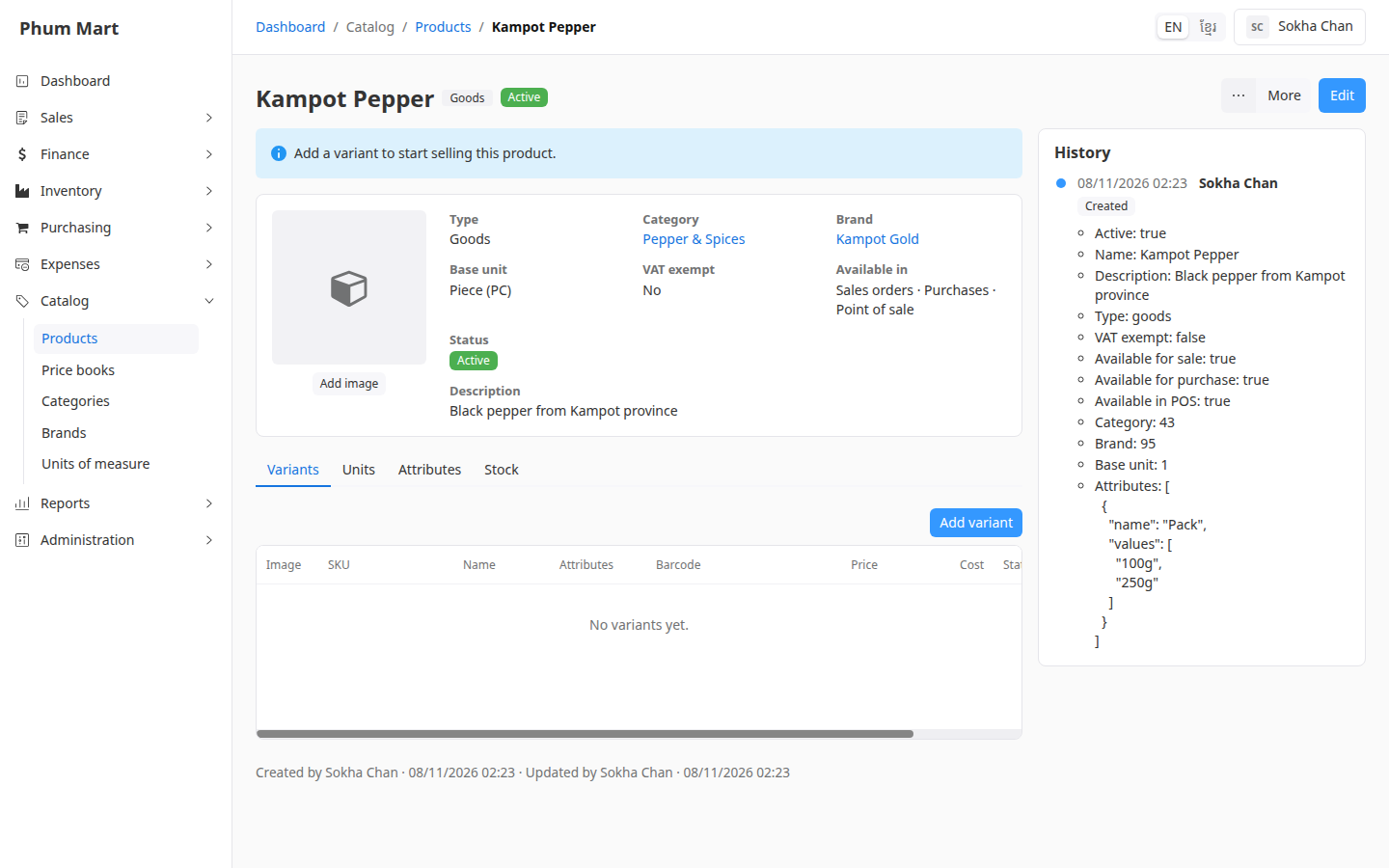
Next, add its variants.
Having trouble?
- Purchases can't be turned on: only goods can be bought. Services and combos are never purchased.
- You chose the wrong base unit: it can't be changed after saving. If the product isn't used yet, delete it and create it again.