Appearance
Add price rules and discounts
A rule changes the price of something in one price book. It can set a price, a discount, or both:
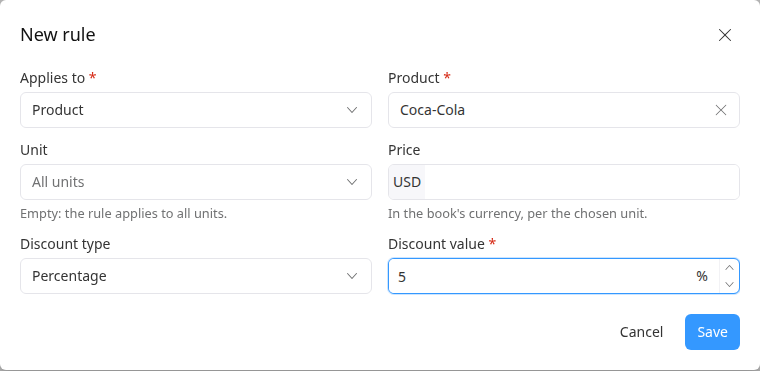
- Applies to Product: the rule covers all the product's variants, for example 5% off all Coca-Cola.
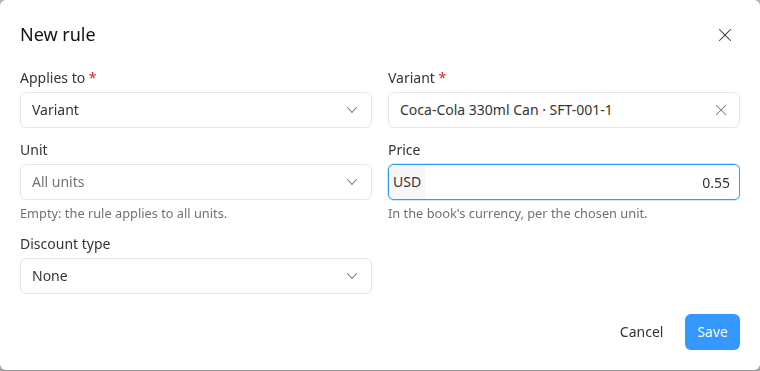
- Applies to Variant: the rule covers one variant, for example Coca-Cola 330ml Can at $0.55. A variant rule wins over a product rule.
- Unit: leave it empty for all units, or choose one, for example a lower price per Case (24).
The price and the discount can come from different rules. For example, the can's price comes from its variant rule, and the 5% discount from the product rule.
Who can do this: Anyone whose role can edit price books, such as a Catalog manager.
Before you start: Create the price book.
Step by step
Open the price book. On the Rules tab, click Add rule.
Choose what it Applies to: Product or Variant. Then pick the product or variant.
Choose the Unit, or leave All units.
To set a price, enter the Price in the book's currency, per the chosen unit.
To set a discount, choose the Discount type, Percentage or Amount, and enter the Discount value.
Click Save. The rule is listed.
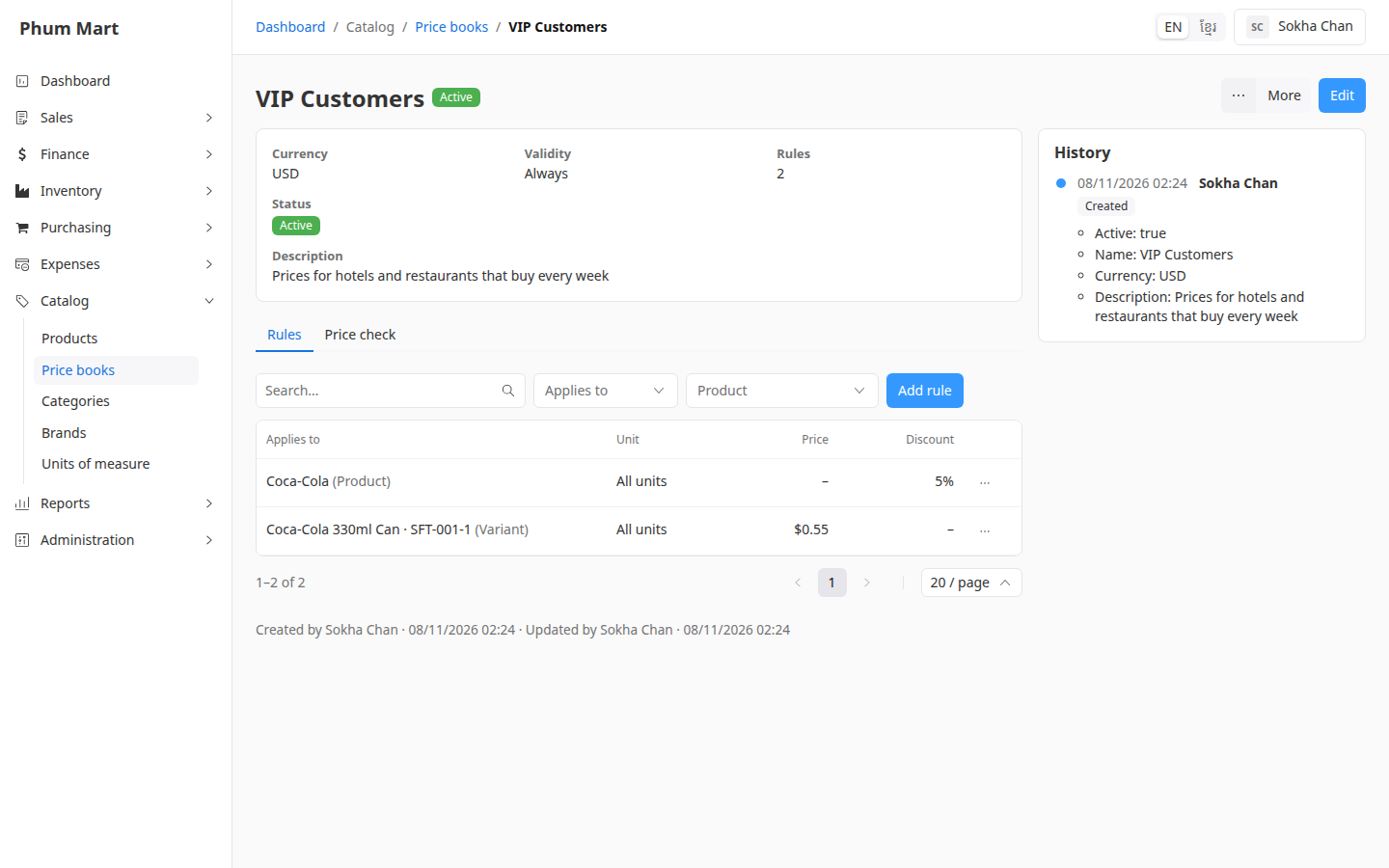
To find a rule, use the search and the Applies to and Product filters above the list. To change or remove one, click ⋯ on its row. When editing, only the price and discount can change.
Then check the result.
Having trouble?
- A message says the rule already exists: a book has one rule per product or variant and unit. Edit the existing rule instead.
- The rule needs a price or a discount: a rule must have at least one of them.
- Orders confirmed earlier didn't change: confirmed orders and their invoices keep the prices they were confirmed with.