Appearance
Correct or void a payment
Payments are never deleted. What you can change depends on the payment's status:
| Status | What you can do |
|---|---|
| Draft | Change everything except the customer: invoices, amounts, method, shop, date, reference, note |
| Posted | Change the method, date, reference and note. To change an amount, void it and record it again |
| Void | Nothing. It's kept for the record |
Voiding a posted payment reverses it: the amounts go back on the invoices, which become unpaid or partially paid again. Void payments keep their attachments.
Who can do this: Anyone whose role can edit payments, such as Accountants.
Step by step
Correct the details
Open the payment and click Edit.
Change what's wrong. For a posted payment, the popup shows only Method, Date, Reference and Note.
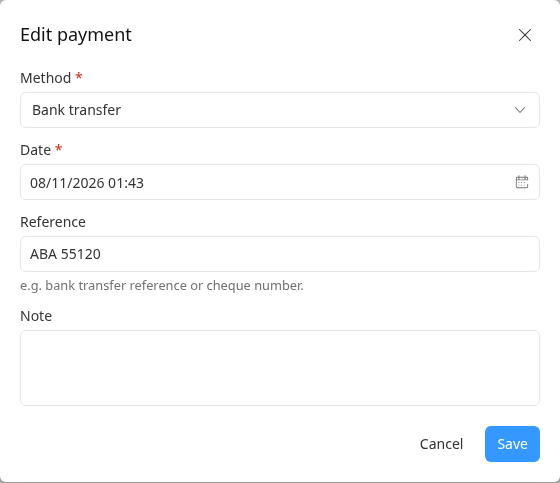
Click Save.
Void a payment
Open the payment and click More › Void. The message shows the amount that will come off the invoices.
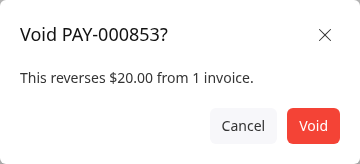
Click Void. The payment shows Void and "This payment is void."
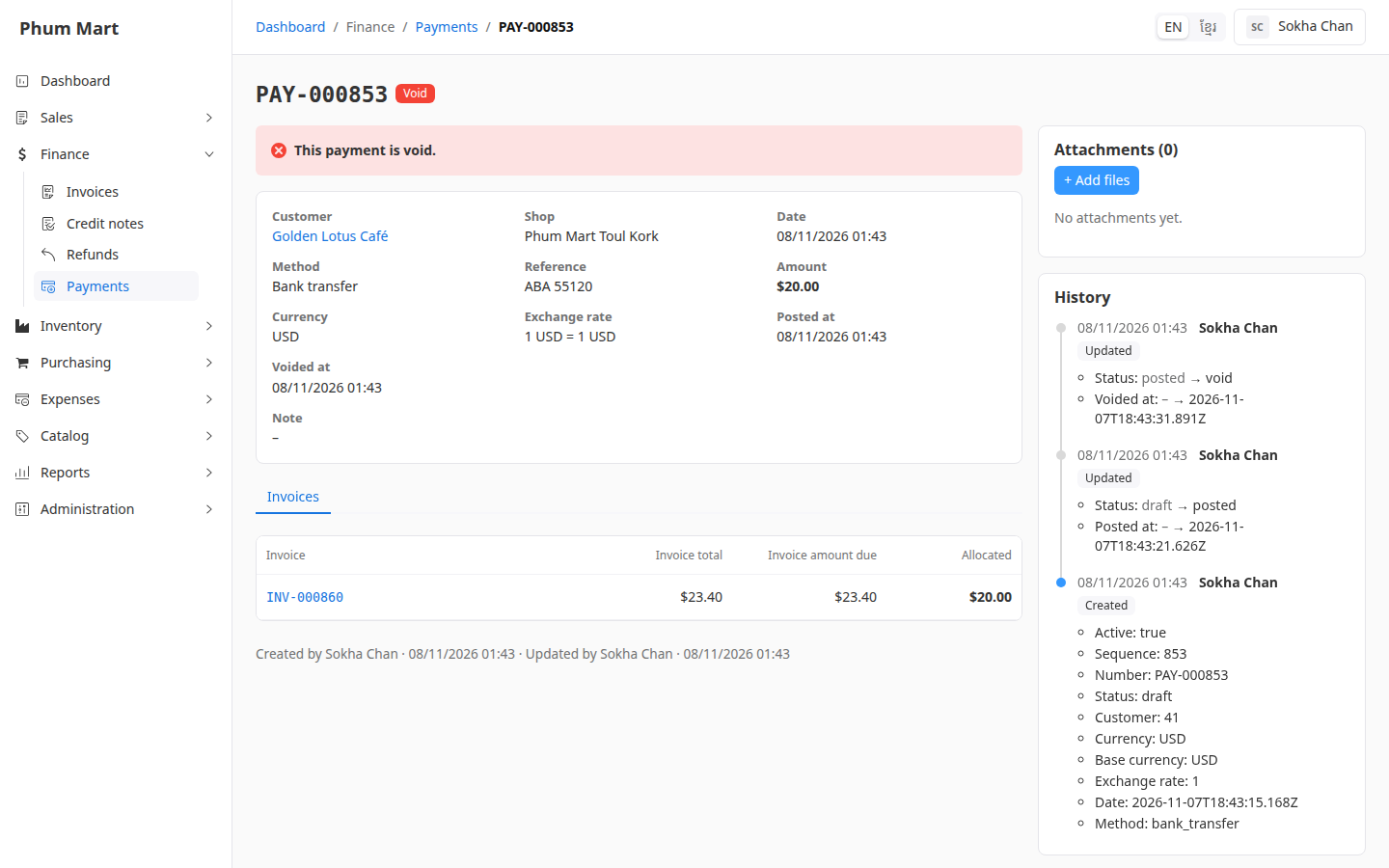
If the customer did pay, but the amount or invoice was wrong, record a new payment with the right details.
Having trouble?
- You can't change the method to or from Store credit on a posted payment: void it and record it again.
- You can't change the amount on a posted payment: void it and record it again.
- Edit isn't shown: the payment is void.