Appearance
Create a purchase order
Summary
Record what you're ordering from a supplier, with quantities and costs.
Description
A purchase order lists the goods you're buying, who from, and which shop they'll arrive at. You create it first as an empty draft, then add the goods one line at a time. A draft changes nothing yet: stock only changes when you receive the goods.
Who can do this: Anyone whose role can create purchases, such as a Purchaser.
Before you start: The supplier exists. See Add and manage suppliers.
Step by step
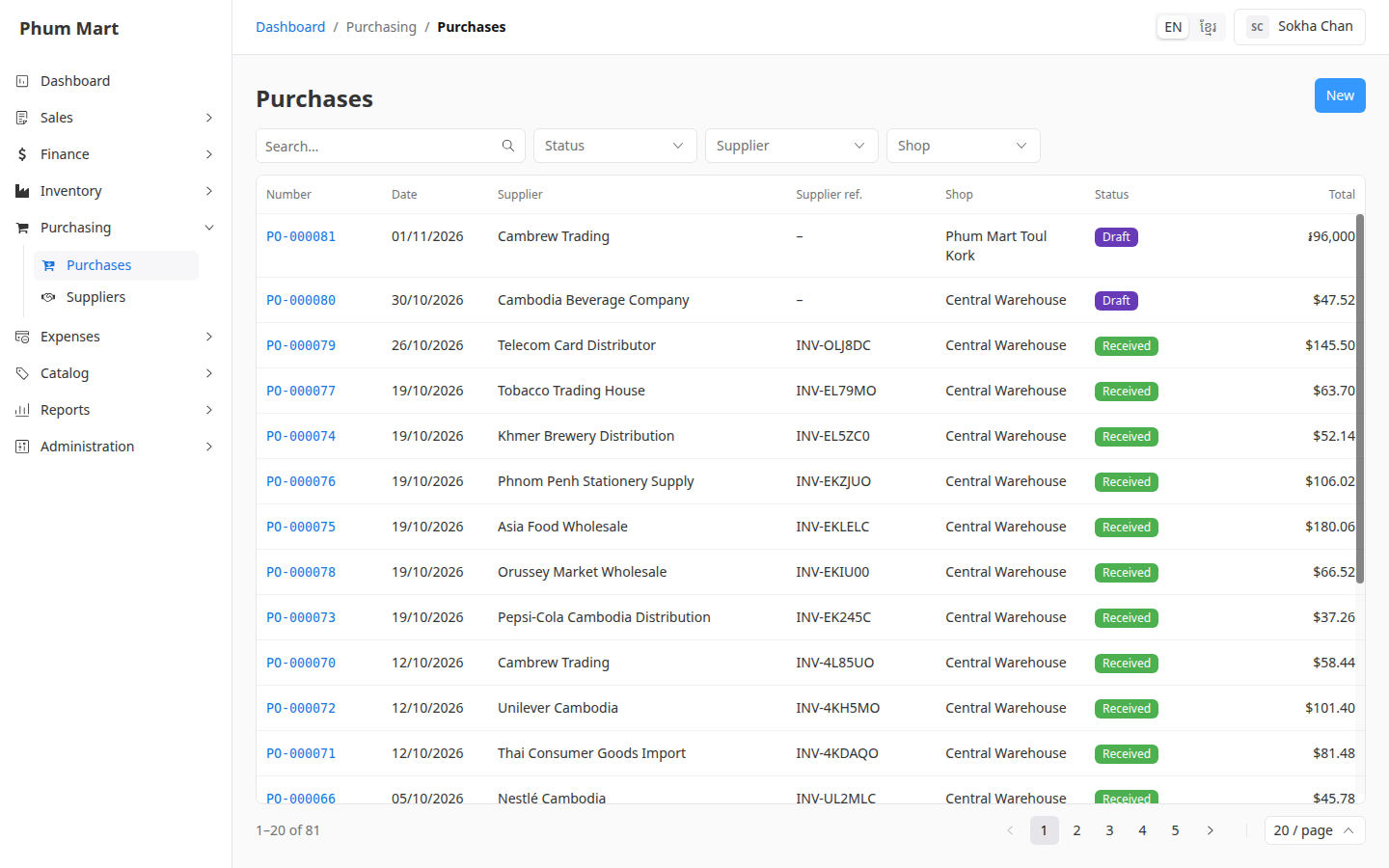
Go to Purchasing › Purchases and click New.
Choose the Supplier.
Type the Supplier ref., for example the number on their quotation.
Choose the Shop the goods will arrive at, such as your warehouse.
Check the Currency and Date, and add a Note if it helps.
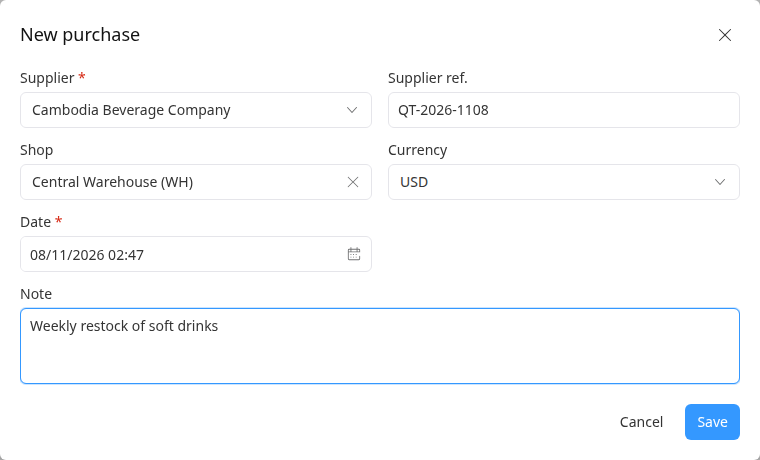
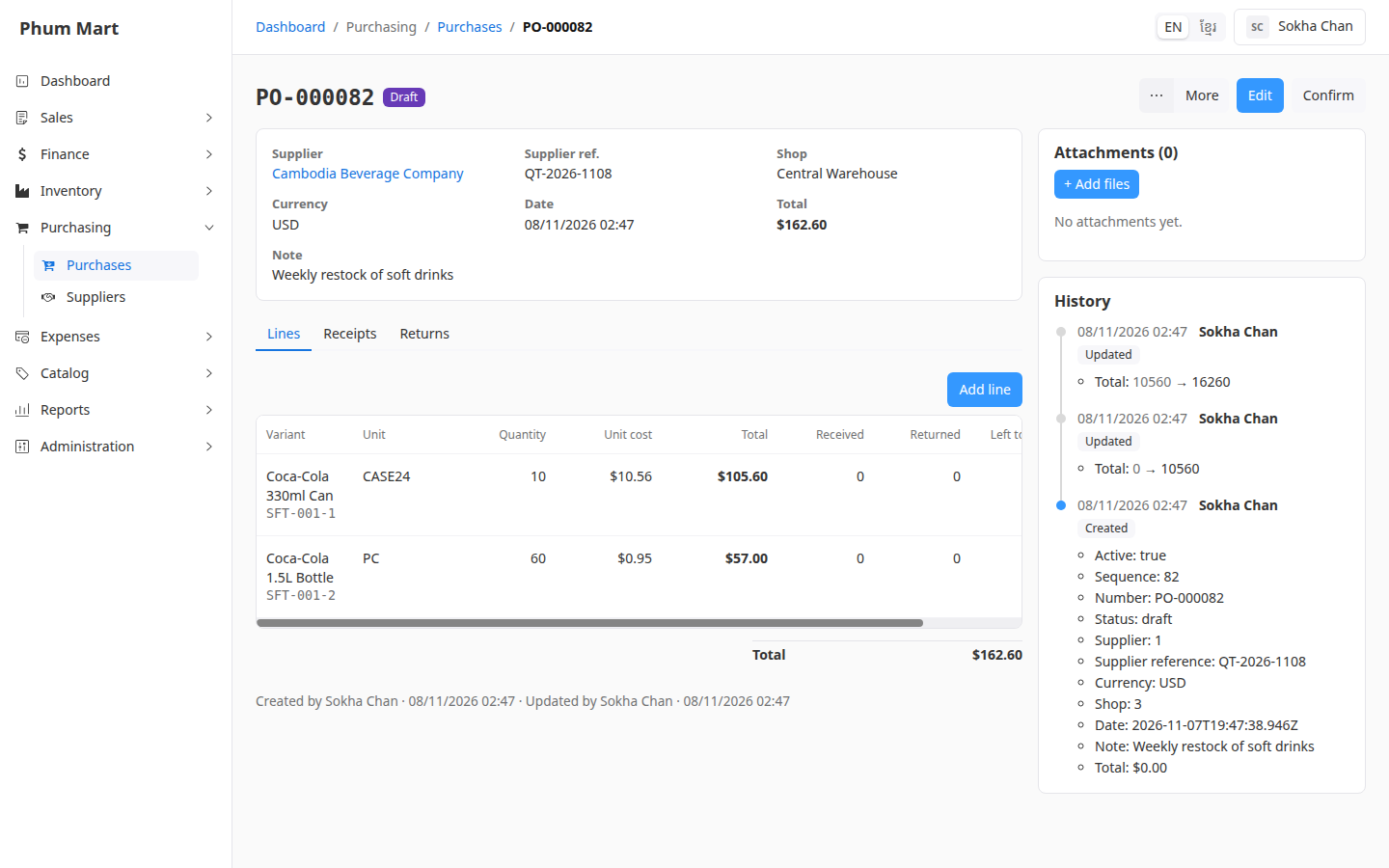
Click Save. The purchase opens as a Draft.
Click Add line. Choose the Variant, the Unit, for example Case (24), and the Quantity.
Leave Unit cost empty to use the product's cost, or type the price the supplier quoted, per the chosen unit.
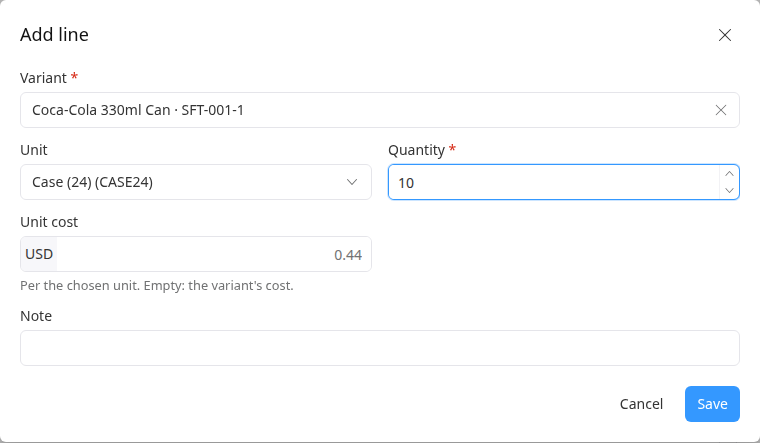
Click Save, and add the other lines the same way.
You can also start a purchase from a supplier's page: click More › New purchase.
While the purchase is a draft, Edit changes its details, and ⋯ at the end of a line edits or deletes it.
Next, confirm it and send it to the supplier.
Having trouble?
- A product isn't offered: only goods can be bought, and only those with Purchases turned on. Services and combos are never purchased. See Manage products and where they're available.
- The Unit cost hint looks too low for a case: the hint shows the cost of one base unit, such as one can. Leaving it empty still uses the right cost for the whole case.
- The currency can't be changed: remove all lines first.