Appearance
Create a delivery from an order
Summary
Prepare a delivery for a confirmed order: what goes, to whom, and when.
Description
A delivery records the goods that leave for a customer, with the address, the date and the carrier. You can deliver everything the order has left at once, or deliver in several parts, for example when some goods are still out of stock.
Creating a delivery doesn't move stock yet. The goods stay reserved until the delivery is marked delivered.
Who can do this: Anyone whose role can create deliveries, such as Warehouse staff.
Before you start: The order is confirmed, with delivery. See Confirm an order with delivery.
Step by step
Open the order and click its Deliveries tab.
Click Create delivery. The popup lists the order's goods with how many were Ordered, how many were Delivered already and how many are Left.
To deliver everything that's left, leave Deliver everything left on. To deliver part, turn it off and enter a Quantity on each line.
Check the Recipient, Phone and Address. They're filled in from the customer.
Set the Scheduled date, and the Carrier and Tracking number if you have them. Add a Note for the driver if needed.
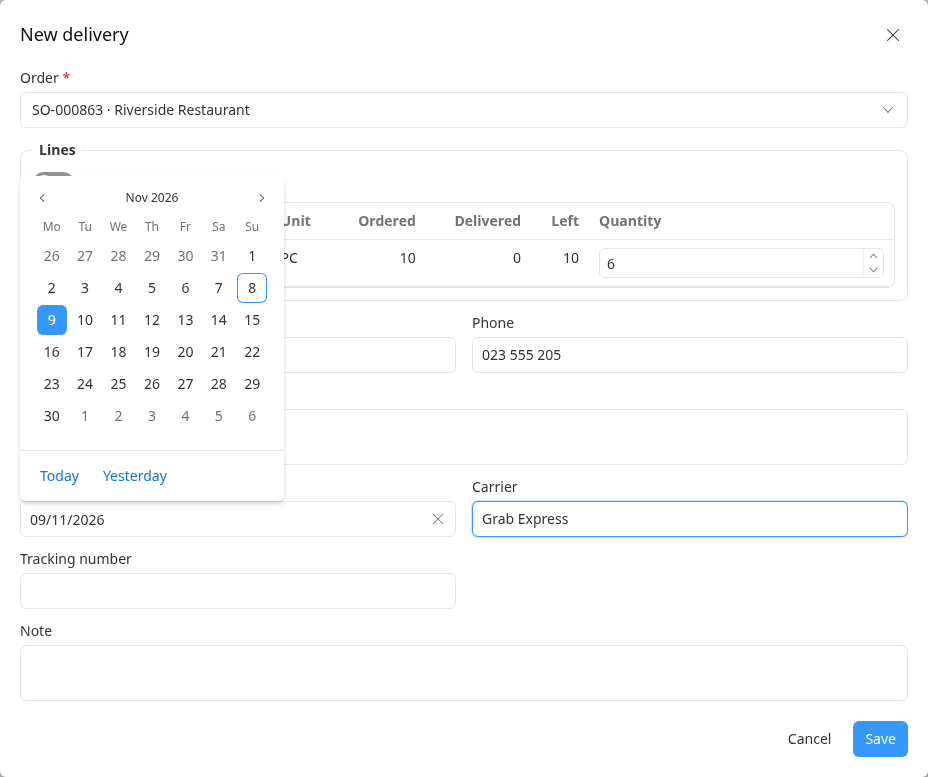
Click Save. The new delivery opens as a Draft.
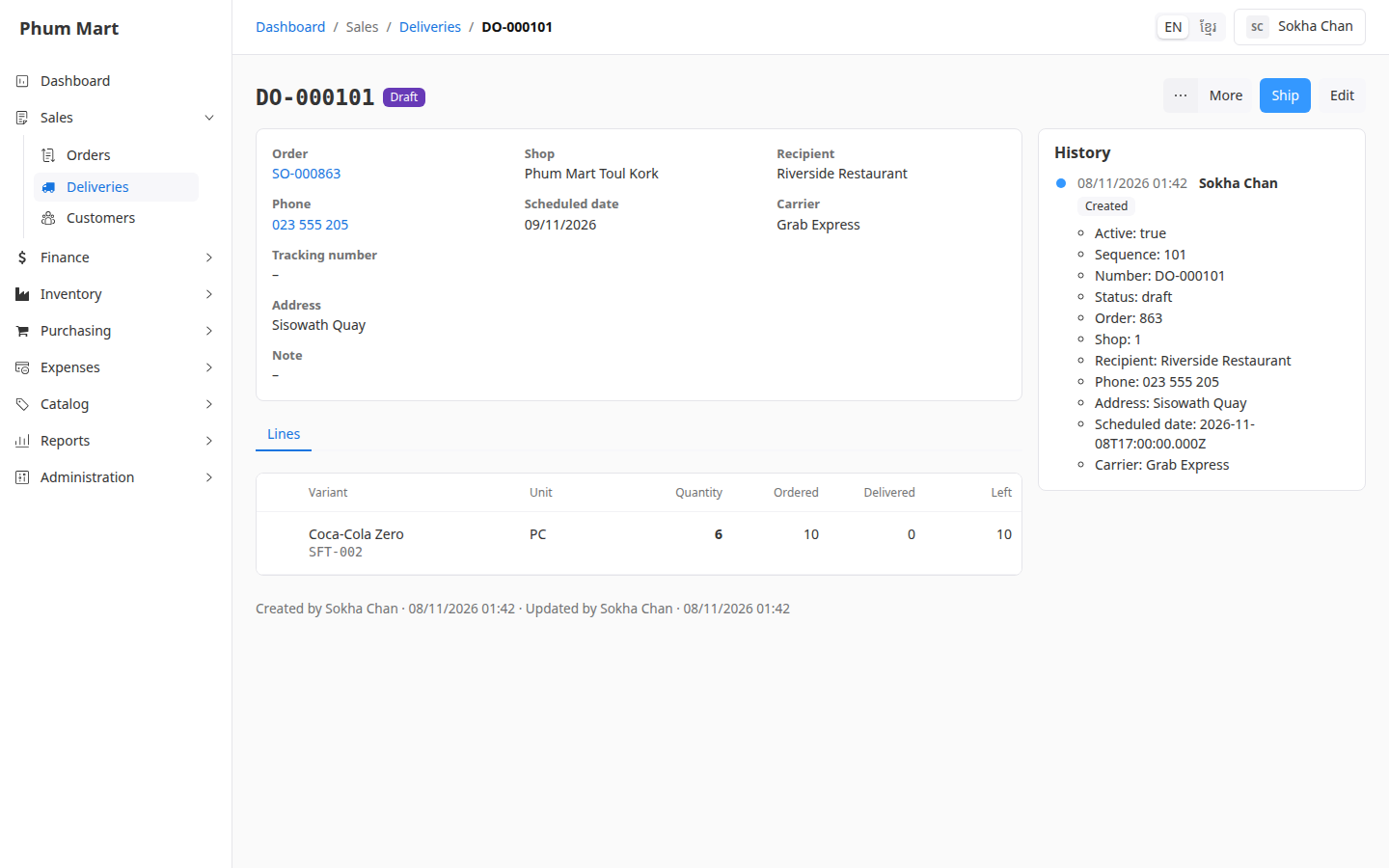
You can also start from Sales › Deliveries › New and pick the order there.
While a delivery is a draft, click Edit to change its quantities or details. After it's shipped, you can still change the details, such as the tracking number, but not the quantities.
Having trouble?
- There's no Create delivery button: the order isn't confirmed, it was placed without delivery, or everything has been delivered already.
- A product isn't in the delivery's lines: services aren't delivered, so they're never listed. Goods already on another open delivery aren't counted in Left.
- You need a delivery note to print: printing delivery notes isn't available yet.