Appearance
Cancel or delete a delivery
- Cancel stops a draft or shipped delivery, for example when the customer wasn't home. The goods stay reserved for the order, so you can put them on another delivery.
- Delete removes a draft or cancelled delivery completely.
A delivered delivery can't be cancelled or deleted.
Who can do this: To cancel, anyone whose role can edit deliveries. To delete, anyone whose role can delete deliveries.
Step by step
Cancel a delivery
Open the delivery and click More › Cancel delivery. The message says the goods stay reserved for the order.
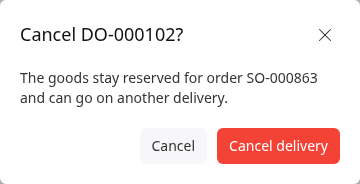
Click Cancel delivery. The status is Cancelled.
To try again, create a new delivery from the order.
Delete a delivery
- Open the draft or cancelled delivery and click More › Delete.
- Confirm. You're back on the deliveries list.
Having trouble?
- Cancel delivery isn't in the More menu: the delivery is already delivered or cancelled.
- Delete isn't in the More menu: the delivery is shipped or delivered. Cancel a shipped delivery first, then delete it.
- The customer doesn't want the goods any more: cancelling the delivery keeps the goods reserved for the order. To free them, cancel the order too. See Cancel or delete an order.