Appearance
Manage shops and choose the default
You always have exactly one default shop. New orders, payments and other documents start with it, and you can still pick another shop on each document.
When a shop closes, deactivate it instead of deleting it. Its past documents keep it, but it isn't offered on new ones. A shop can only be deleted if nothing ever used it.
Who can do this: Anyone whose role can edit shops, usually an Administrator.
Step by step
Edit a shop or make it the default
Go to Administration › Settings › Shops and click the shop.
Click Edit.
Change the details. To make this the default shop, turn on Default. The previous default shop stops being the default.
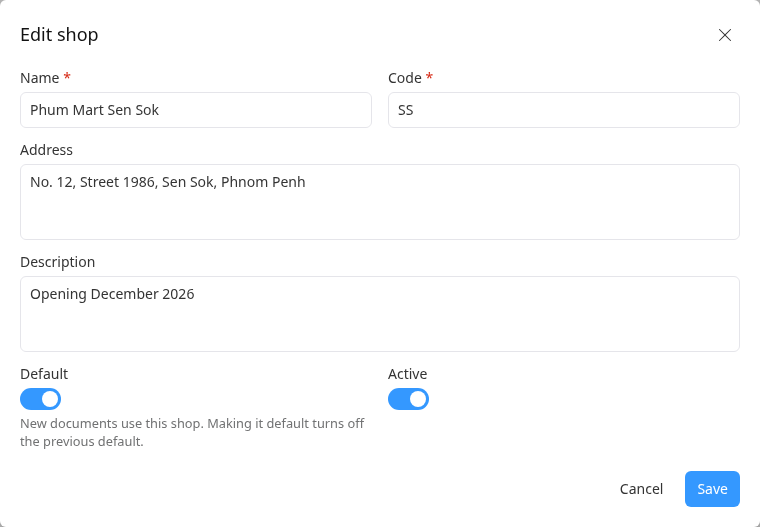
Click Save.
To add, change or remove the shop's photo, use Add image, Change or Remove under the picture on the shop's page.
Close or delete a shop
Open the shop and click More.
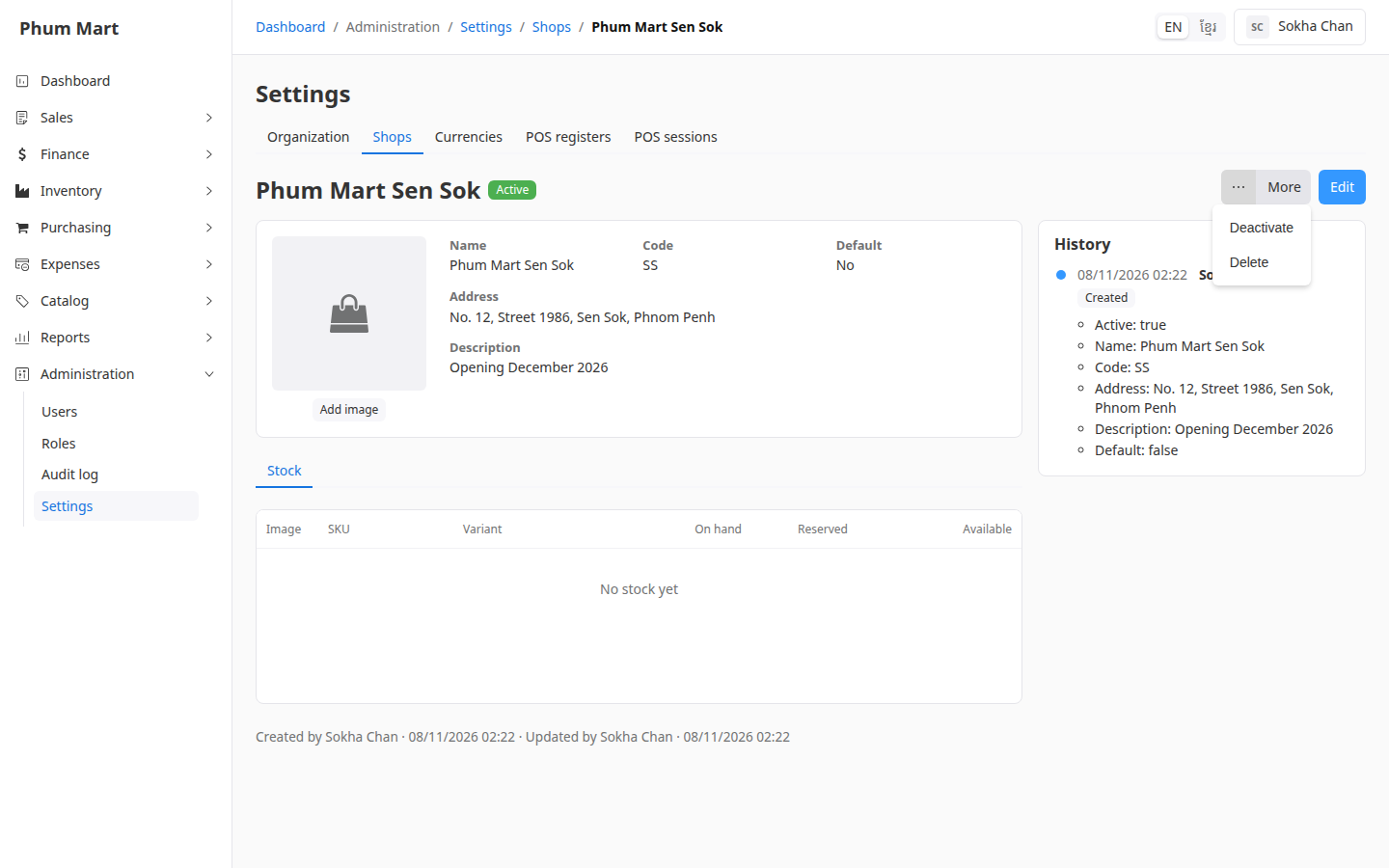
Click Deactivate to close it, or Delete to remove a shop you added by mistake. Confirm.
To open a closed shop again, set the list's filter to Inactive, open the shop and click More › Activate.
Having trouble?
- You can't turn off Default: there must always be a default shop. Make another shop the default instead.
- You can't deactivate or delete the default shop: make another shop the default first.
- A message says the shop is in use: it has documents, stock or POS registers, so it can't be deleted. Deactivate it instead.