Appearance
Manage roles
Changes to a role apply to every user who has it. If someone is signed in while you change their role, ask them to reload the page.
Who can do this: Anyone whose role can edit or delete roles, usually an Administrator.
Step by step
Change a role's permissions
- Go to Administration › Roles and click the role.
- Click Edit, tick or untick permissions in the matrix, and click Save.
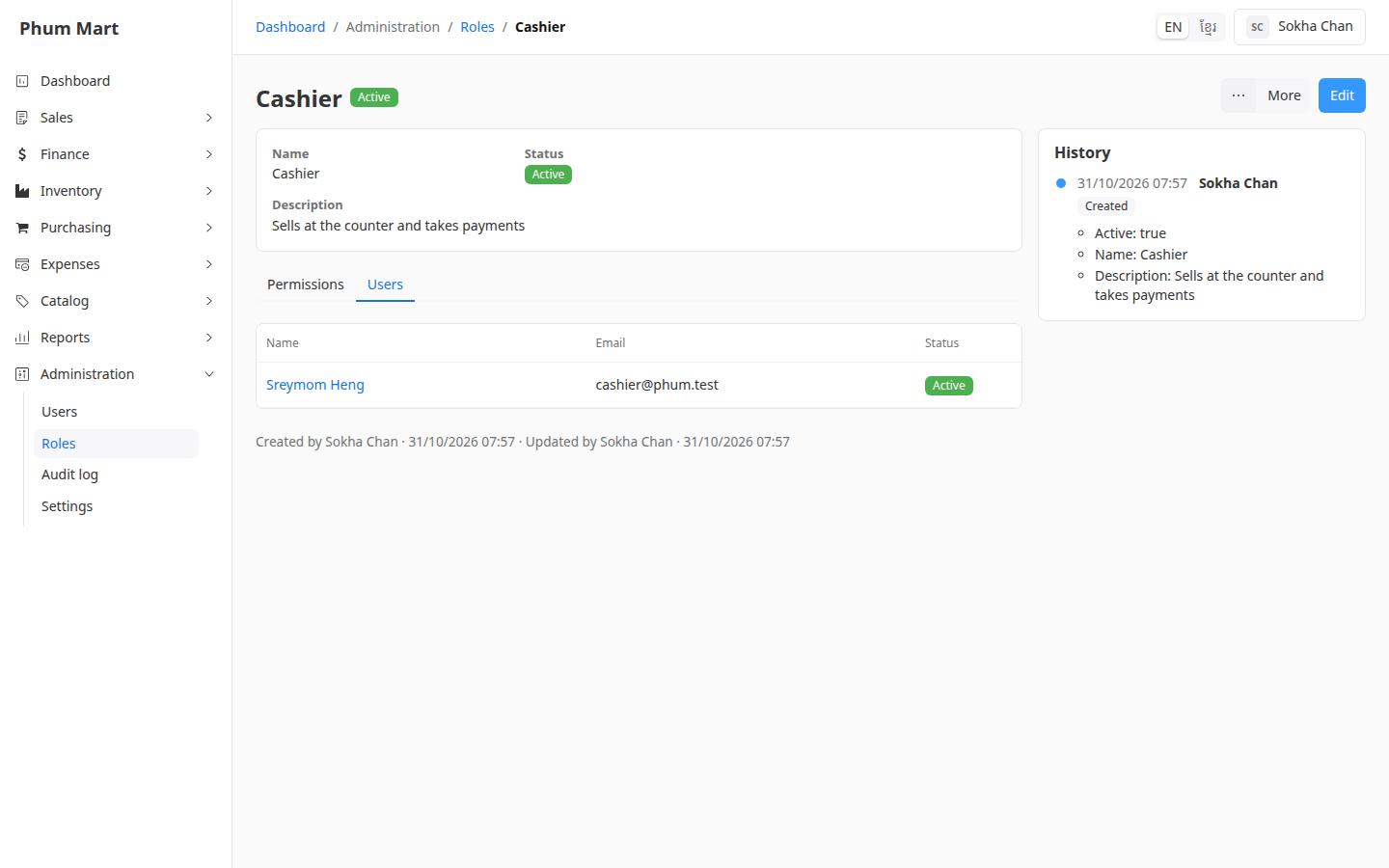
See who has a role
Open the role and click its Users tab.
Stop using a role
- Open the role and click More.
- Click Deactivate to stop giving it to new users, or Delete to remove it. The delete message says how many users have it. Confirm.
Inactive roles aren't offered when you add or edit users. To use one again, set the list's filter to Inactive, open it and click More › Activate.
Having trouble?
- After deleting a role, a user can't open anything: they have no other role. Give them a role in Manage users.
- You changed your own role: the menu and buttons follow your new permissions as soon as you save.