Appearance
Follow shifts with X and Z reports
A session is one cashier's shift on one register. The cashier opens it in the POS app with a starting float in the drawer, sells, and closes it by counting the drawer. Here you can follow the shifts:
- The X report shows an open shift's totals so far.
- The Z report shows a closed shift's final totals, including whether the drawer was over or short.
Who can do this: Anyone whose role can see POS sessions, such as a shop manager.
Step by step
Go to Administration › Settings and open the POS sessions tab. Each shift shows its register, shop, cashier, times, status and drawer Difference.
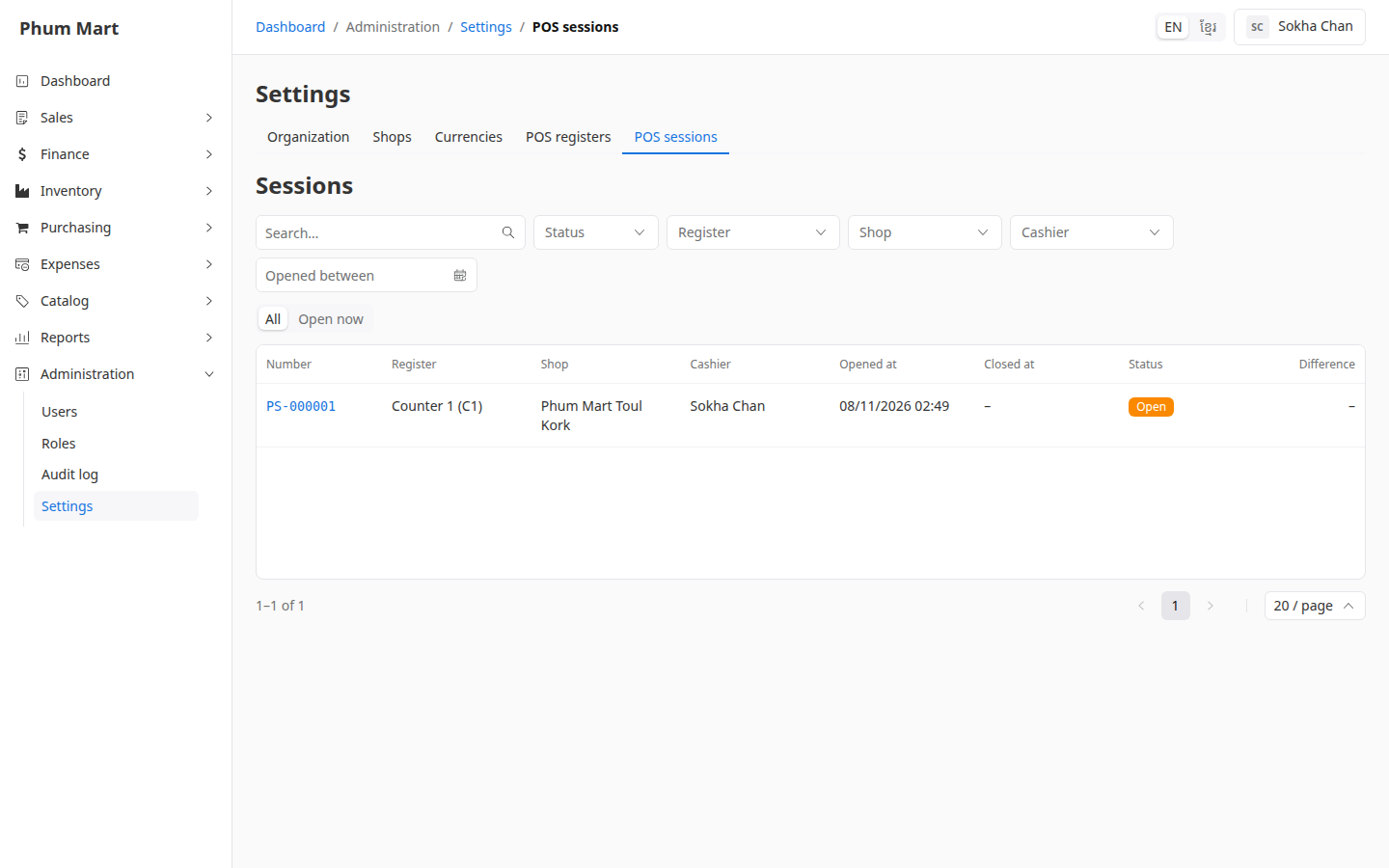
Click Open now to see only the shifts that are selling now.
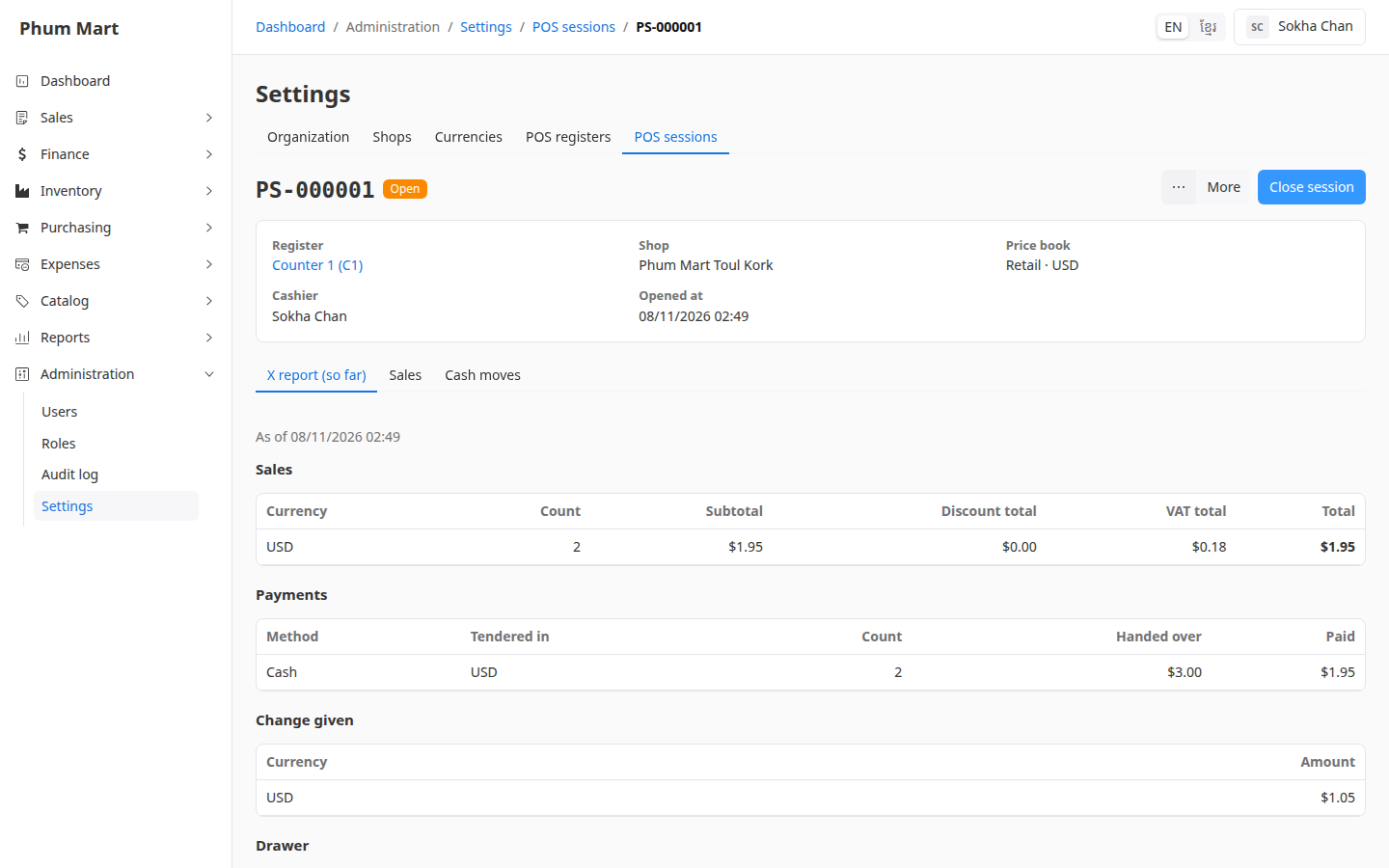
Click a shift. The X report (so far) tab shows:
- Sales: the number of sales and their totals, by currency.
- Payments: each method and the currency it was paid in, with what customers handed over.
- Change given: the change handed back.
- Drawer: the opening float and what should be in the drawer now.
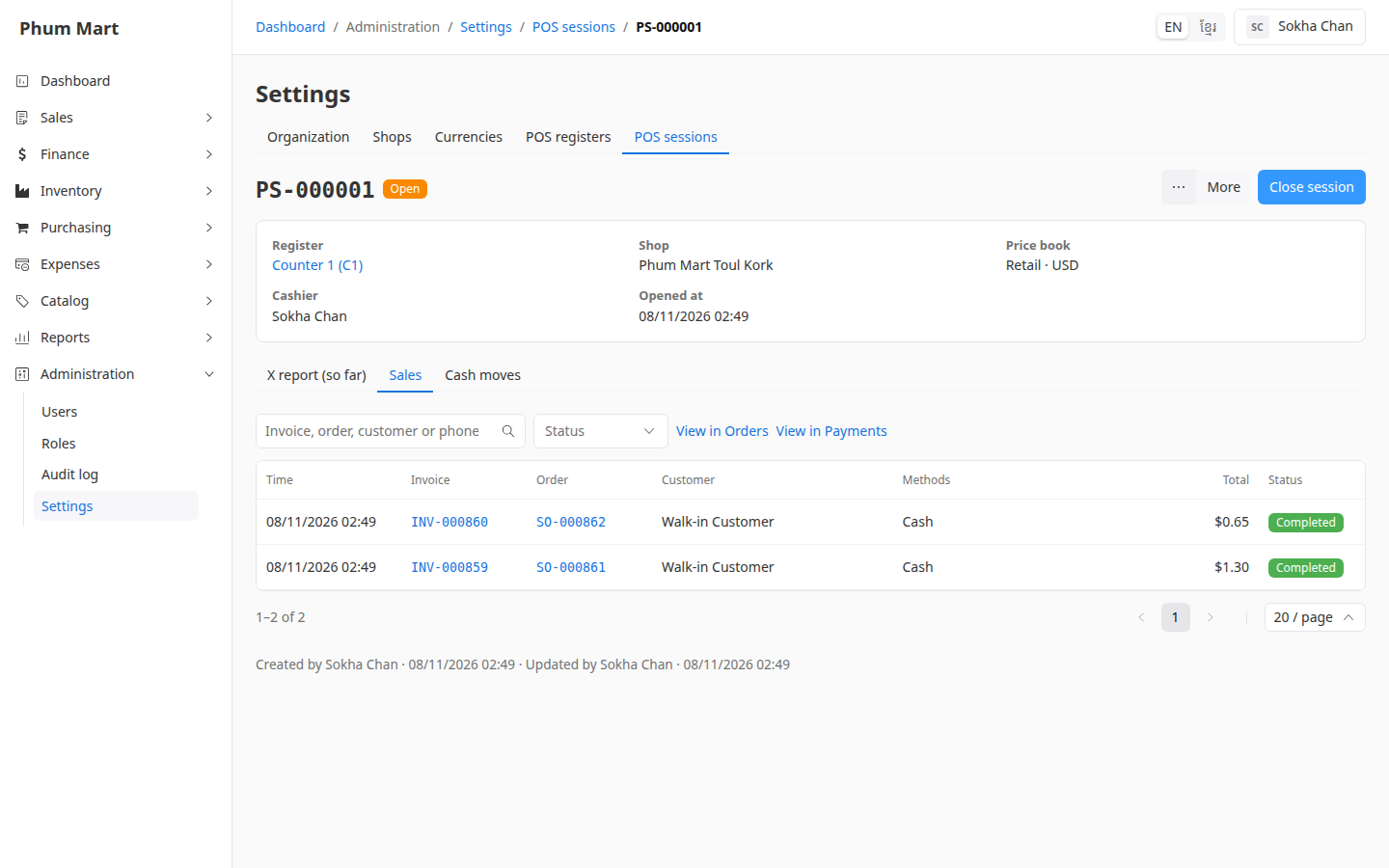
Open the Sales tab to see each sale, with its invoice, order, customer and payment methods. Click View in Orders or View in Payments to open them in those lists.
Open the Cash moves tab to see cash put into or taken out of the drawer during the shift.
Once a shift is closed, its report tab becomes the Z report, with the counted drawer and the difference. To print it, click More › Print report (A4) or Print report (80 mm).
POS sales also appear in Sales › Orders and Finance › Payments, with a POS badge.
Having trouble?
- A shift has been open since yesterday: the cashier forgot to close it. See Close a forgotten shift.
- The difference is in red: the drawer was short. Check the shift's cash moves and sales with the cashier.