Appearance
Print an invoice
The invoice opens in a viewer in a new browser tab, as it will look on A4 paper. From there you can print it or download it as a PDF. It shows your business's address and contact details, the shop, the customer, the lines, the totals, what's been paid and what's still due, and the invoice's note.
You can print an invoice in any status. A void invoice prints with a VOID mark.
Who can do this: Anyone whose role can see invoices.
Step by step
Open the invoice and click More › Print. The viewer opens in a new tab.
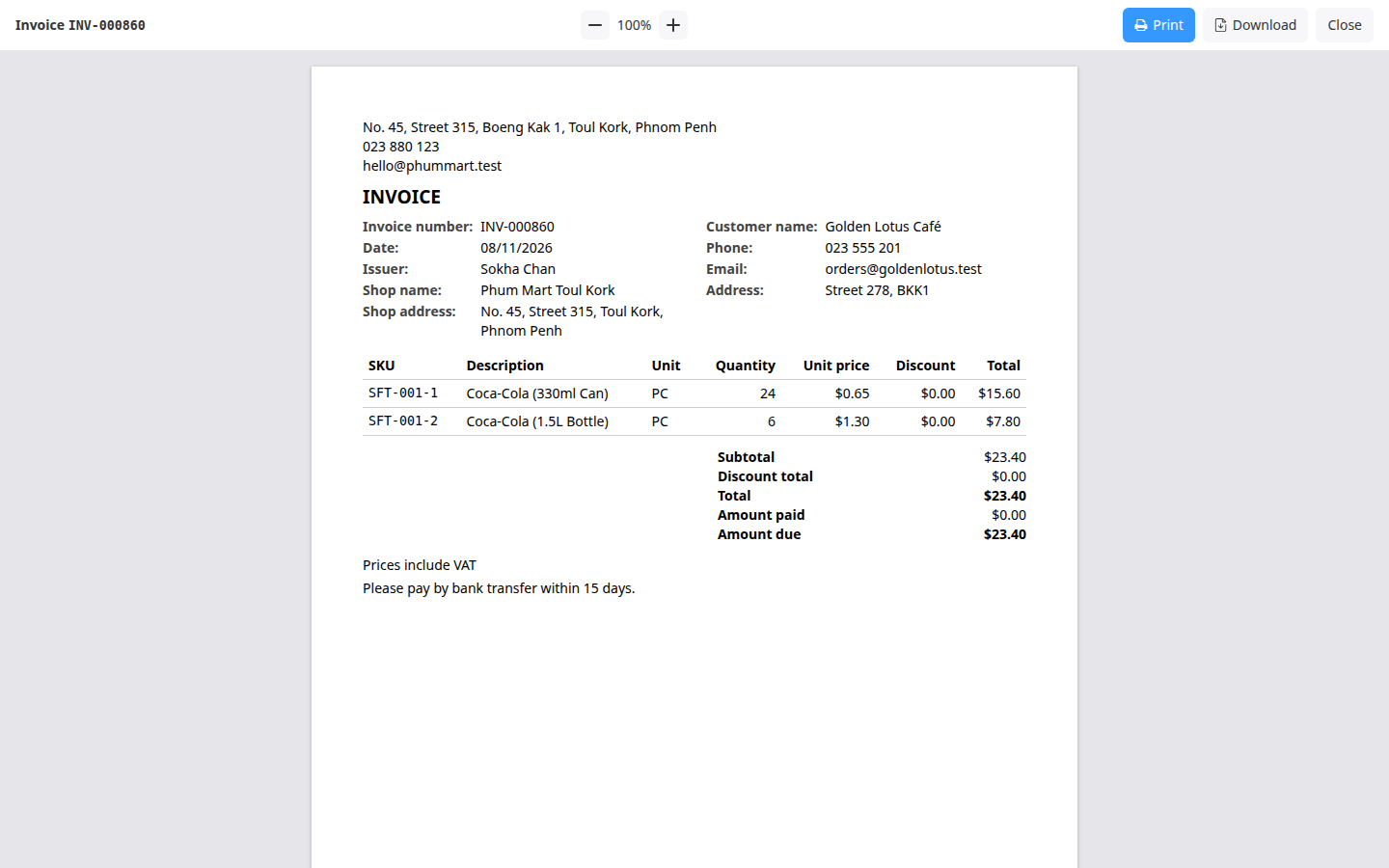
Use − and + at the top to zoom in or out.
Click Print to open your browser's print dialog, choose the printer and print.
Or click Download to save the invoice as a PDF file, for example
INV-000860.pdf, and send it by email or chat.Click Close to close the viewer.
Having trouble?
- The address or contact details are wrong: they come from your organization's settings. Ask your administrator to update them in Administration › Settings.
- The printout has extra headers or page numbers: in your browser's print dialog, turn off Headers and footers.
- You're looking for an order printout: orders aren't printed. Print the invoice instead.