Appearance
Update your profile and password
Your profile shows your name, email and roles. Only your administrator can change those. You can change your own language and password at any time.
Who can do this: Everyone with an account.
Step by step
Change your language
Click your name in the top-right corner.
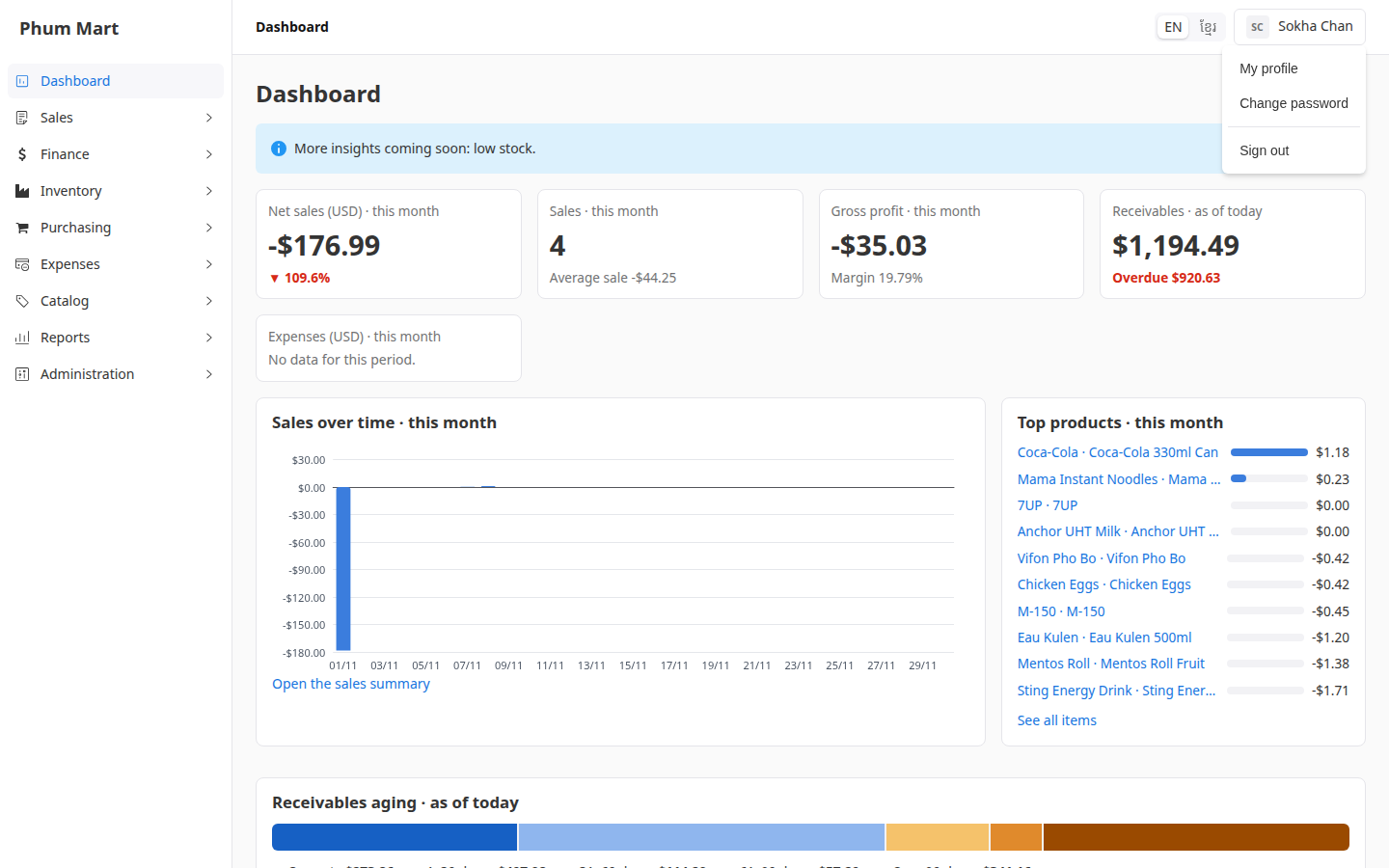
Click My profile. It shows your name, email and roles.
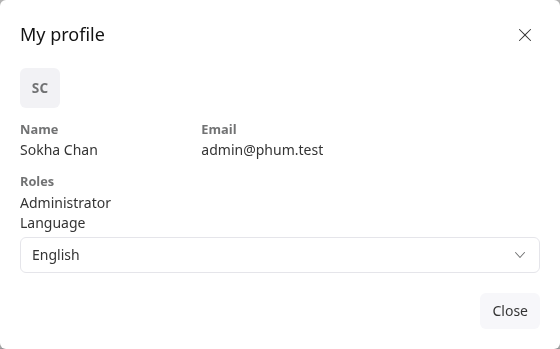
Choose a Language: English or ខ្មែរ. The app switches straight away, and opens in that language every time you sign in.
Click Close.
Change your password
Click your name in the top-right corner, then click Change password.
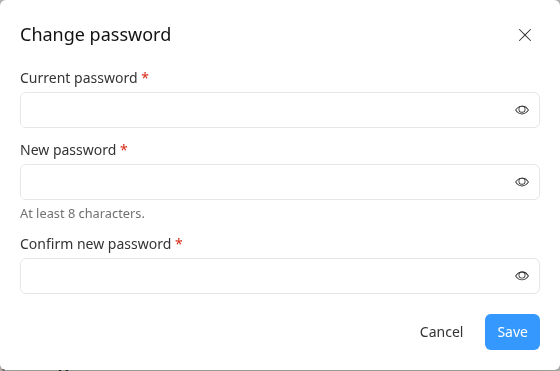
Enter your Current password.
Enter a New password of at least 8 characters, then type it again in Confirm new password.
Click Save. "Password changed" appears. You stay signed in here, and you're signed out everywhere else, such as on another computer.
Having trouble?
- "Wrong current password": type your current password again. If you've forgotten it, ask your administrator to reset it.
- The two new passwords don't match: type the same new password in both fields.
- You want to change your name, email or picture: ask your administrator.