Appearance
Void an invoice and issue a new one
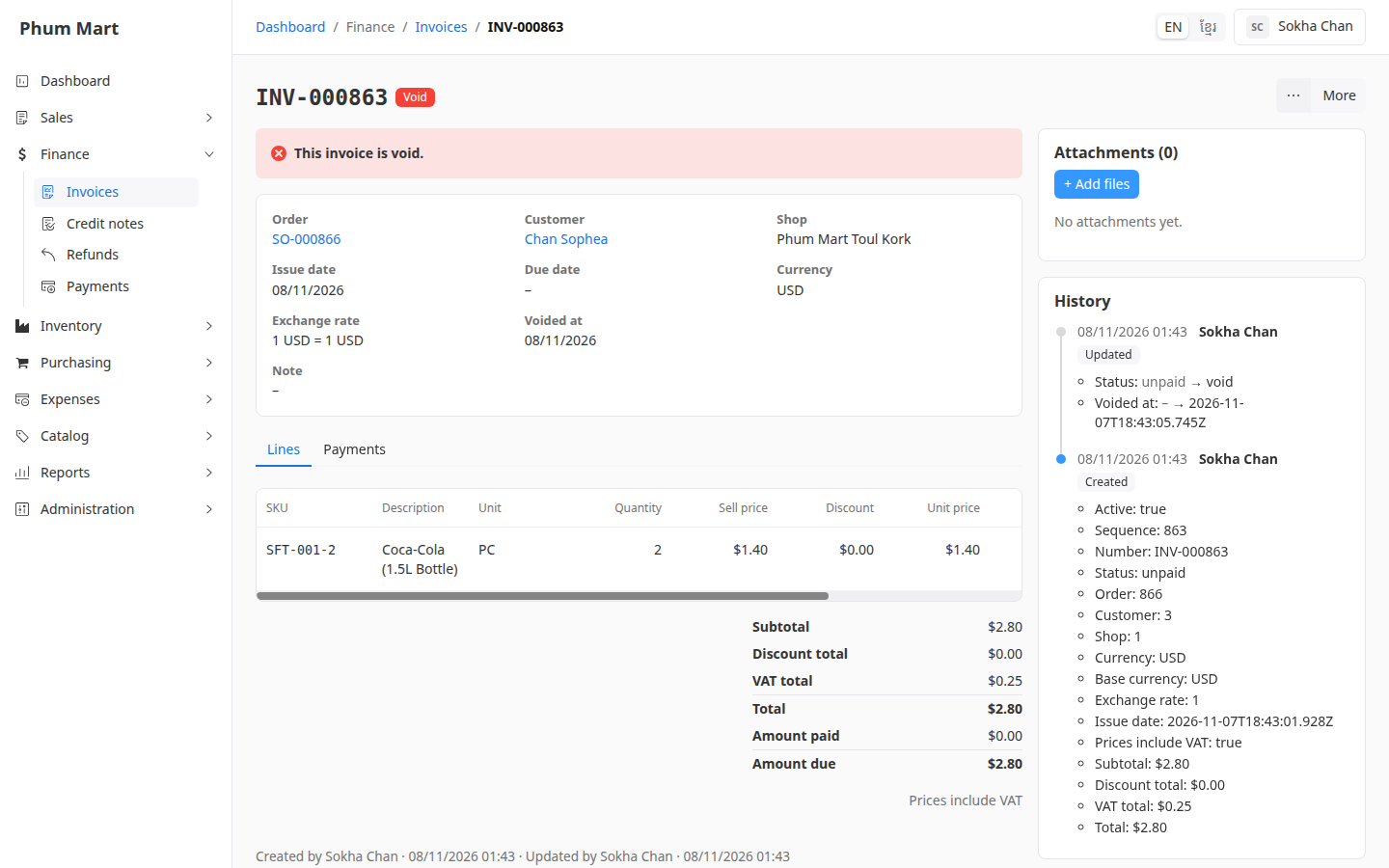
Invoices are never deleted. To cancel one, you void it. A void invoice stays in the list, marked Void, but no longer counts as money owed.
After voiding, you can:
- Cancel the order, if the sale is off. See Cancel or delete an order.
- Issue a new invoice for the same order, for example with a new issue date.
Who can do this: Anyone whose role can edit invoices, such as Accountants.
Before you start: Void the invoice's posted payments and posted credit notes first.
Step by step
Void the invoice
Open the invoice and click More › Void. The message says the order can then be cancelled or invoiced again.
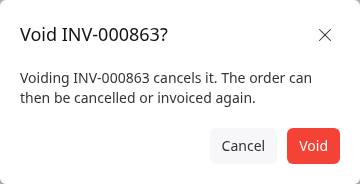
Click Void. The invoice shows Void and "This invoice is void."
Issue a new invoice
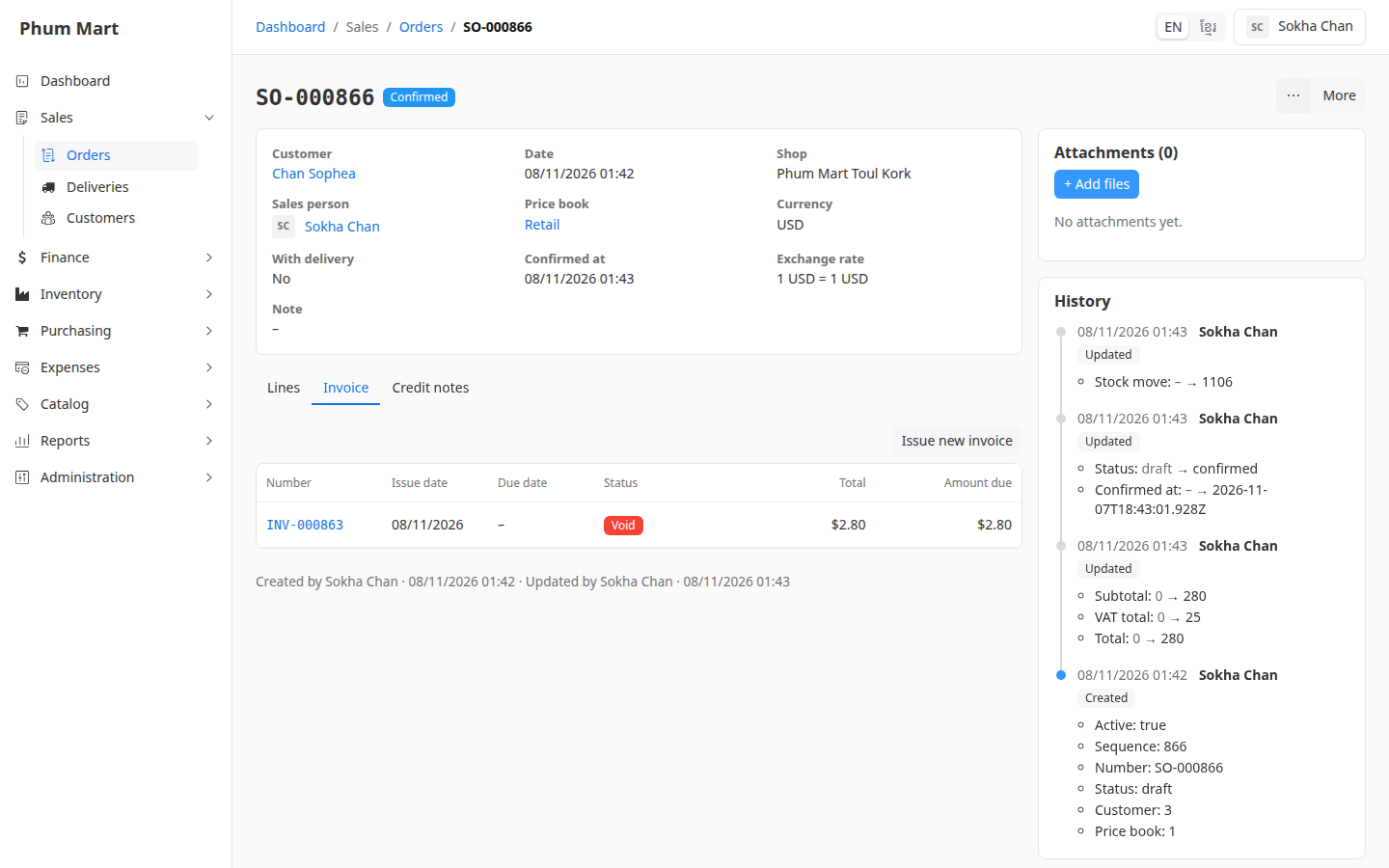
Open the invoice's order (click the order number in the summary), then its Invoice tab. The void invoice is listed, with Issue new invoice.
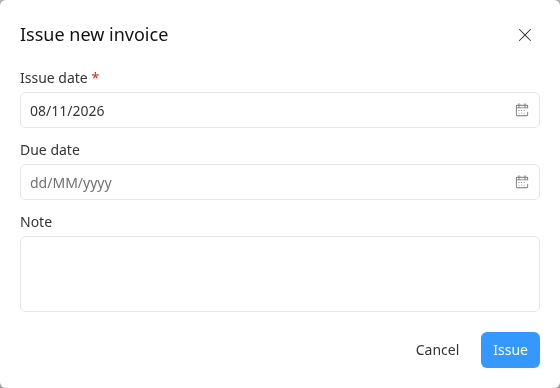
Click Issue new invoice. Check the Issue date, and set a Due date and Note if needed.
Click Issue. The new invoice is listed as Unpaid, with the order's lines and total.
Having trouble?
- Void is greyed out, with "Void its payments first": the invoice has posted payments. Open each one from the invoice's Payments tab and void it, then void the invoice.
- Void is greyed out because of credit notes: goods were returned on this invoice. Void its credit notes first. See Void a refund or credit note.
- There's no Issue new invoice button: the order already has an active invoice. Only one invoice can be active per order.