Appearance
Validate or cancel a stock move
Receipts, transfers and adjustments are stock moves. Each one starts as a draft, which changes nothing:
| Status | Meaning |
|---|---|
| Draft | Being prepared. It can be edited |
| Done | Validated: stock has changed. It can't be changed any more |
| Cancelled | Dropped without changing stock. It can be deleted |
Who can do this: Anyone whose role can edit stock moves, such as Warehouse staff.
Step by step
Validate a move
Open the draft move, for example from Inventory › Transfers.
Check its lines. To change them, click Edit.
Click Validate. The message asks you to confirm, because done moves can't be changed.
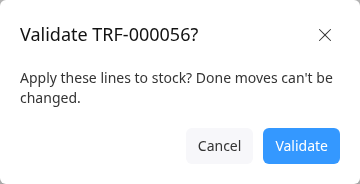
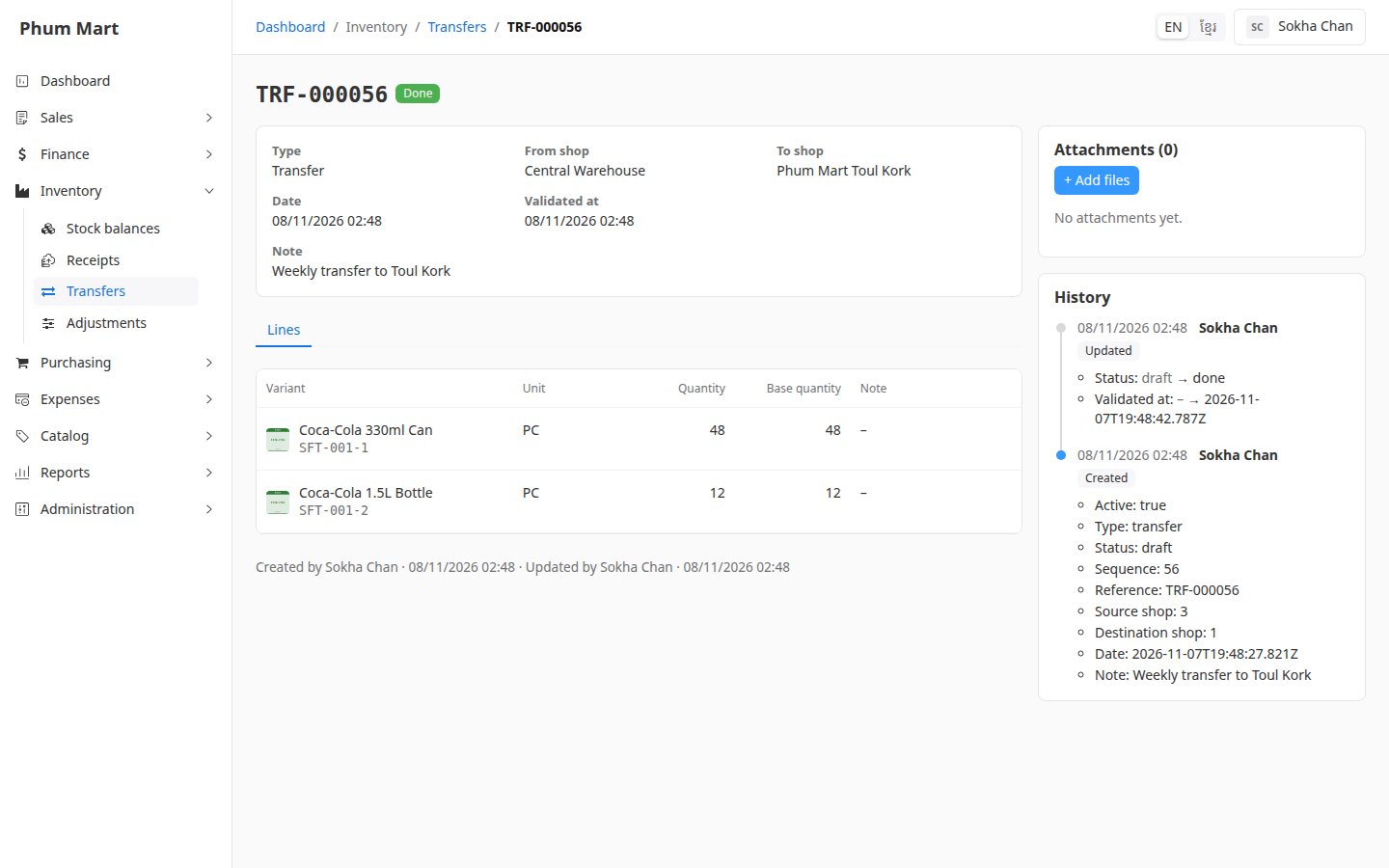
Click Validate. The status is Done, and stock has changed.
Cancel or delete a move
Open the draft move and click More.
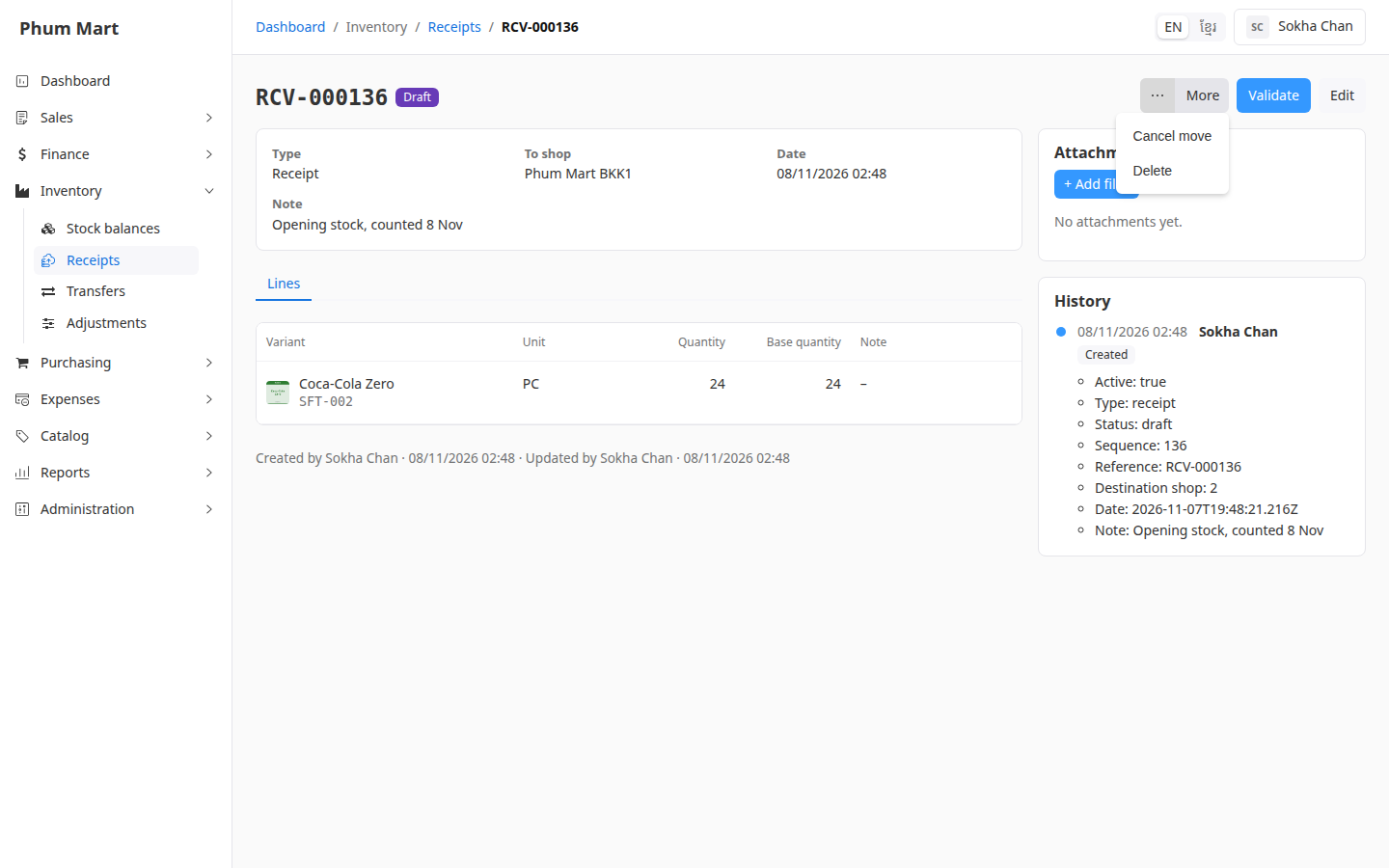
Click Cancel move to drop it, or Delete to remove it completely. Confirm.
A cancelled move can be deleted later.
Having trouble?
- A message lists items that are short of stock: validating would take the shop below zero, or take stock reserved for orders. Nothing changed, and the move is still a draft.
- A done move was wrong: it can't be undone. Make a new move the other way, for example a transfer back, or an adjustment.
- There's no Edit or Validate on a receipt: it was made by a purchase. See Receive goods from a supplier.