Appearance
Find unpaid invoices
Summary
See which customers still owe money, and how much.
Description
An invoice is issued automatically when an order is confirmed, so there's no New button on the Invoices list. Each invoice has a status that follows what's been paid:
| Status | Meaning |
|---|---|
| Unpaid | Nothing paid yet |
| Partially paid | Some paid, some still due |
| Paid | Fully paid |
| Credited | Everything was returned before anything was paid |
| Void | Cancelled. It no longer counts |
Who can do this: Anyone whose role can see invoices, such as Accountants and Sales staff.
Step by step
Go to Finance › Invoices.
Click Unpaid + partially paid above the list. Only invoices with something still due are listed, and the Amount due column shows what's left on each.
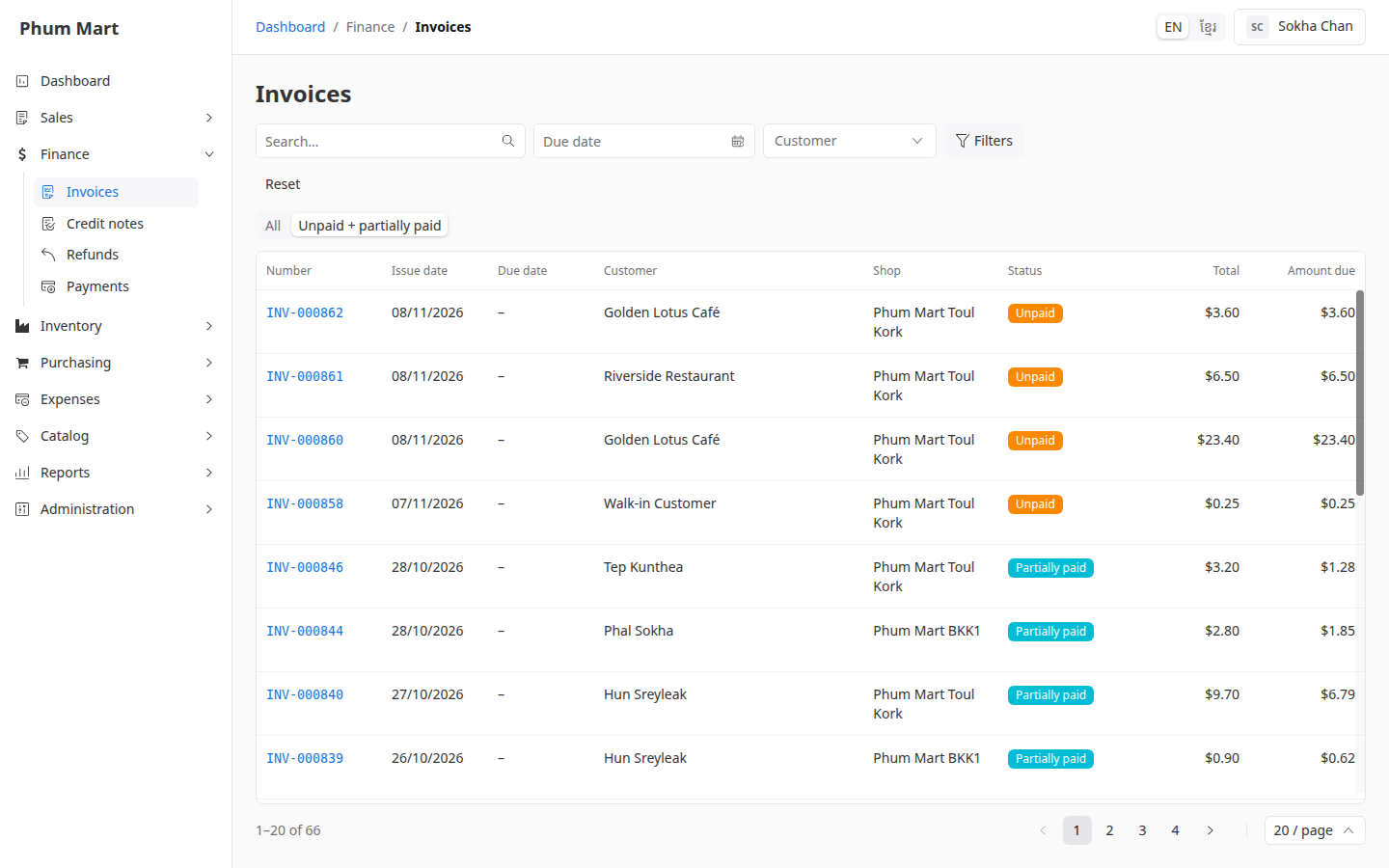
To see one customer's invoices, choose them in Customer.
To find invoices that are late, set Due date to a range that ends today. Invoices without a due date never match a due date filter.
For more filters, such as Issue date, Shop or Order, click Filters.
Click an invoice to open it. Its Payments tab lists the payments made on it.
Click All to see every invoice again, whatever its status.
You can also see all of one customer's invoices on the customer's page, in its Invoices tab.
Having trouble?
- The Status filter disappeared: it's hidden while Unpaid + partially paid is on. Click All to bring it back.
- An invoice you expected isn't listed: its order may not be confirmed yet, since drafts have no invoice. Or it's paid already. Click Reset to clear the filters.