Appearance
Manage products and where they're available
Available in decides where a product's variants are offered:
| Switch | When it's off |
|---|---|
| Sales orders | It isn't offered when adding lines to orders |
| Purchases | It isn't offered on purchase orders. Only goods can be purchased |
| Point of sale | It isn't offered at the till |
For example, an ingredient you buy but never sell has only Purchases on. The products list shows each product's Available in.
To stop selling a product everywhere, deactivate it. It stays on past documents. Delete only a product nothing uses.
Who can do this: Anyone whose role can edit products, such as a Catalog manager.
Step by step
Edit a product
Go to Catalog › Products and click the product. Use Search… and the filters, such as Category, Brand, Type and Available in, to find it.
Click Edit.
Change the details, the Available in switches or the attributes. The base unit can't be changed.
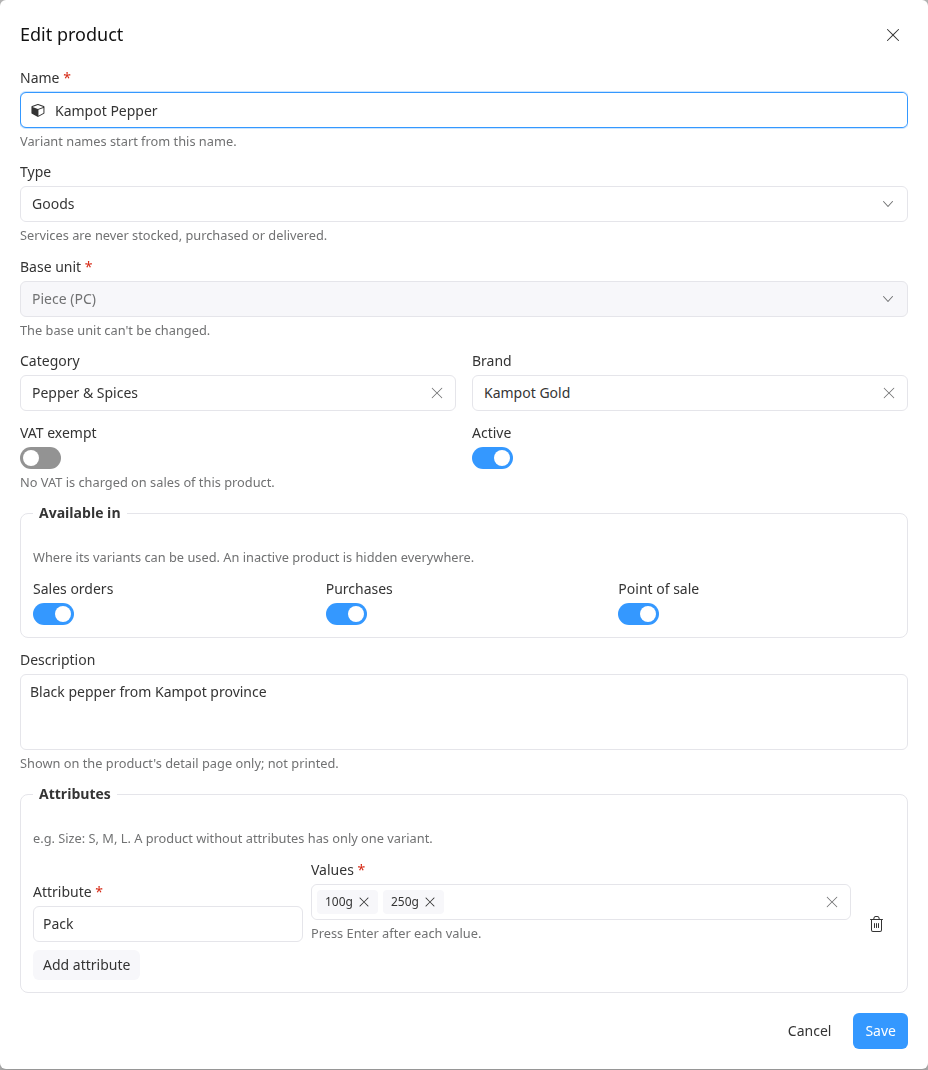
Click Save.
To add, change or remove the product's photo, use the buttons under its picture. Variants without their own photo use the product's photo.
Stop selling a product
Open the product and click More.
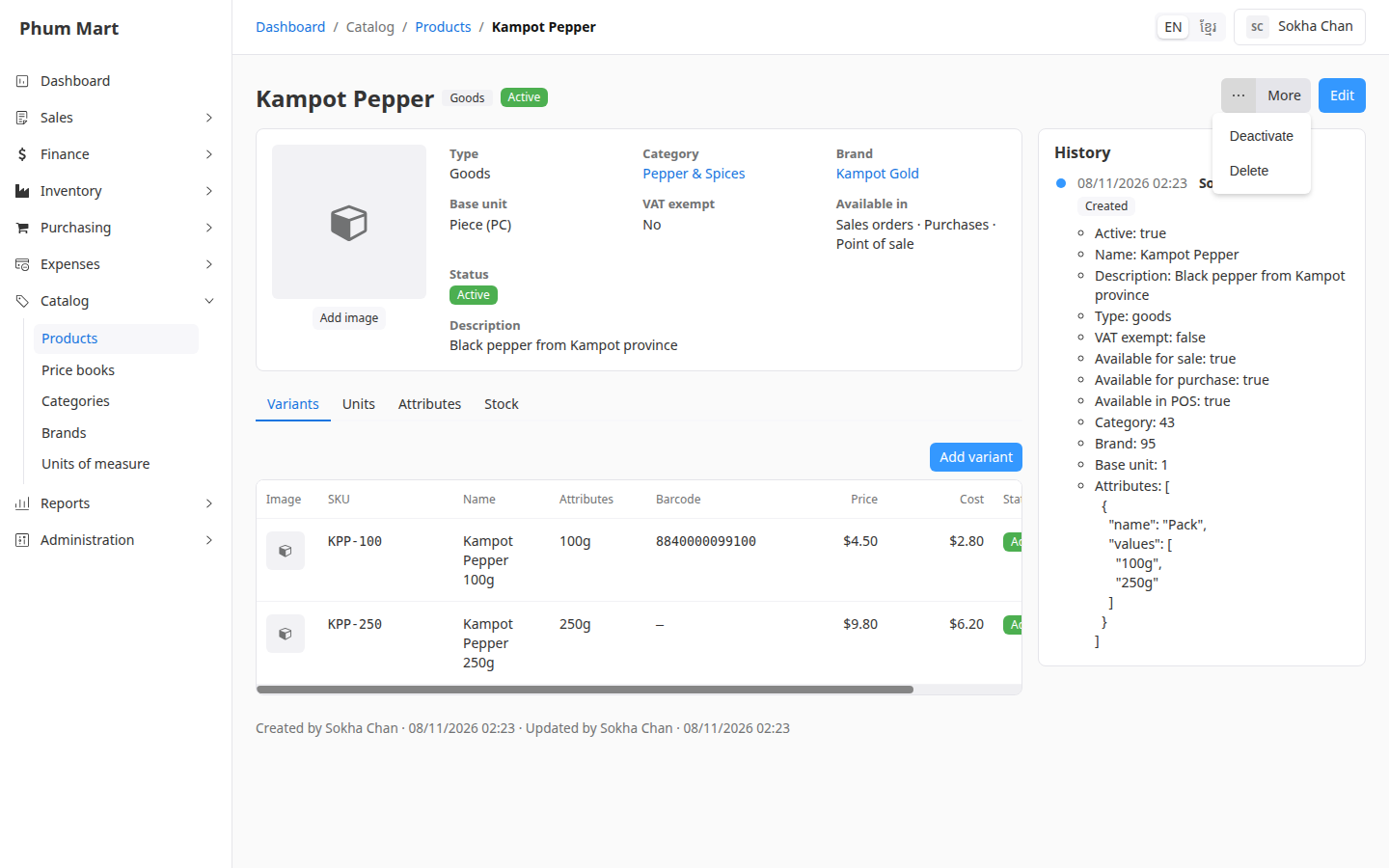
Click Deactivate and confirm. The product and its variants aren't offered anywhere any more.
To sell it again, set the list's filter to Inactive, open it and click More › Activate.
The product's tabs
- Variants: what's sold, with SKU, barcode, price and cost. See Add product variants.
- Units: the units it's sold or bought in. See Add product units.
- Attributes: how its variants differ.
- Stock: how many of each variant each shop has. Combos have Availability instead.
Having trouble?
- A message says the product is in use: it's on orders, purchases or stock, so it can't be deleted. Deactivate it instead.
- A product isn't offered on an order: check that it's active, that Sales orders is on, and that its variant is active.