Appearance
Return items from a sale
Summary
Record goods a customer brings back, put them back in stock, and lower what they owe or give their money back.
Description
When a customer returns goods, you record a credit note on their order. The order itself doesn't change. The credit note lists what came back, at the prices the customer was charged, and when you post it:
- Restocked goods go back into the shop. Untick Restock for damaged goods you throw away.
- What the customer still owed is taken off the invoice.
- What the customer had already paid is settled in one of two ways:
- Refund: you hand the money back. See Refund a customer.
- Store credit: the customer keeps it to spend later. See Exchange items with store credit.
For example: 3 shirts at $10, all paid. One comes back. The credit note is $10, nothing was still owed, so the whole $10 is refunded or kept as store credit.
Who can do this: Anyone whose role can create credit notes, such as Sales staff. Posting needs permission to edit credit notes.
Before you start: The order is confirmed and its invoice isn't void. For an order with delivery, only delivered goods can come back.
Step by step
Open the order (or its invoice) and click More › Return items. The New credit note popup opens for that order.
In the lines table, see what was Sold, what was Returned already, and what's Left. In Return, enter how many come back. Click Return all if everything comes back.
Leave Restock ticked if the goods can be sold again, and check the Restock shop. Untick it for goods that are damaged.
Type a Reason, for example "Dented cans".
Choose the Settlement for what was already paid: Refund or Store credit. For a refund, choose the Refund method, such as Cash, and a Refund reference for a bank transfer.
Under Return form, attach the signed return form or a photo of the goods, if you have one.
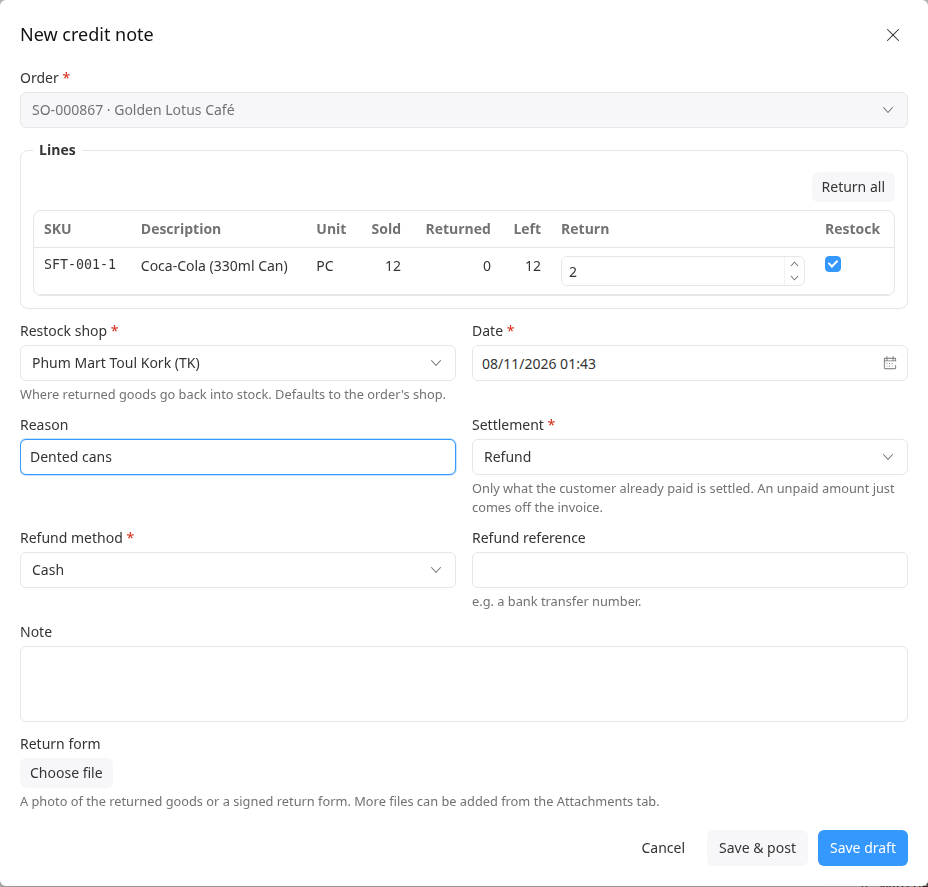
Click Save draft to check it later, or Save & post to post it now. The credit note opens.
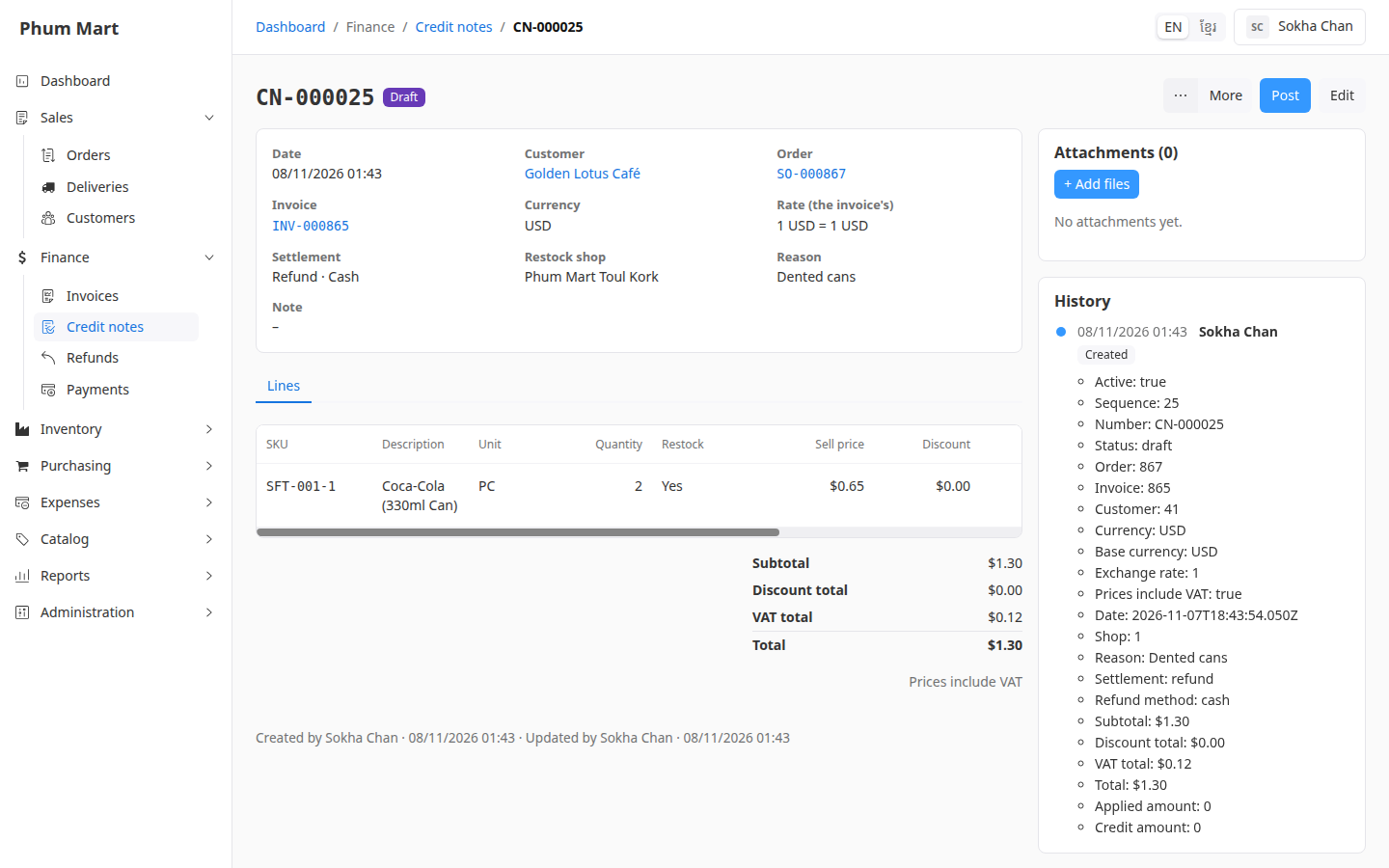
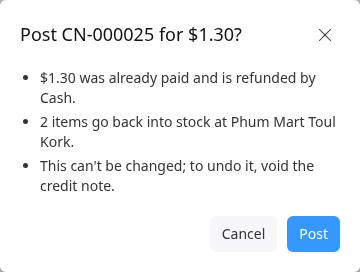
Post a draft credit note
Open the credit note and click Post. The message says what will happen: how much is refunded or added to store credit, and how many items go back into stock.
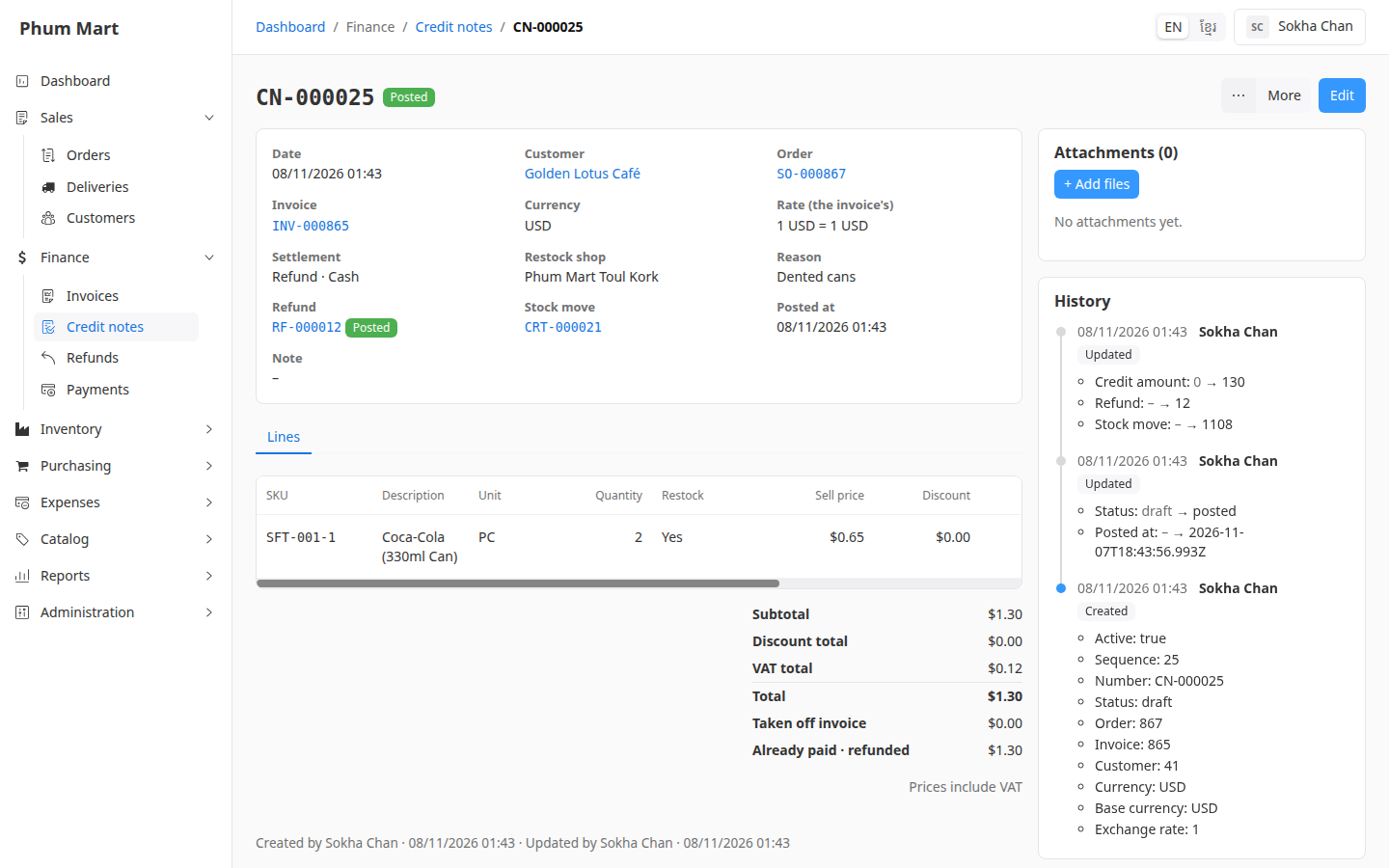
Click Post. The status is Posted. The summary links to the refund (for a refund) and the stock move (for restocked goods). The totals show Taken off invoice and Already paid.
On the order's Lines tab, each line now shows how many were Returned, and its Credit notes tab lists the credit note. The invoice shows the amount as Credited.
Change or delete a draft
While it's a draft, click Edit to change it, or More › Delete to remove it. Once posted, you can change only its note. To undo a posted credit note, see Void a refund or credit note.
Having trouble?
- Return items isn't in the More menu: the order isn't confirmed, its invoice is void, or everything has already been returned.
- "Enter a quantity to return on at least one line": type a quantity in Return on at least one line.
- The quantity changes by itself: you can't return more than is left. It's lowered to the most you can return.
- Goods not delivered yet can't be returned: for an order with delivery, cancel its open deliveries, void the invoice and cancel the order, then sell again.
- Credit notes can't be printed yet. For the customer, print the refund receipt instead.