Appearance
Manage brands
A brand is optional on each product. Brands help you filter the product list and see all the products of one brand together.
Who can do this: Anyone whose role can create or edit brands, such as a Catalog manager.
Step by step
Add a brand
Go to Catalog › Brands and click New.
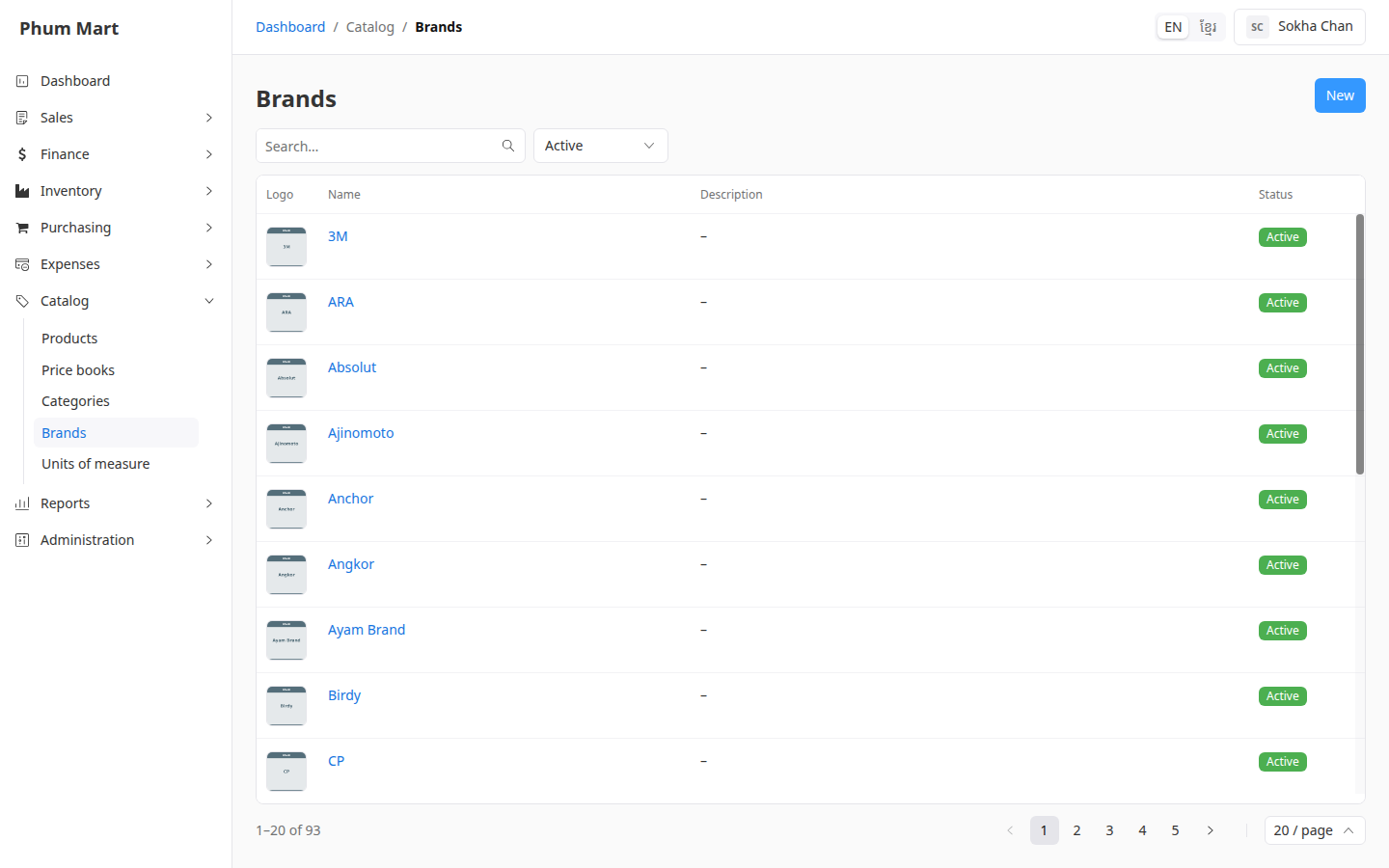
Enter the Name and, if you want, a Description.
To add the brand's logo, click Choose image under Logo.
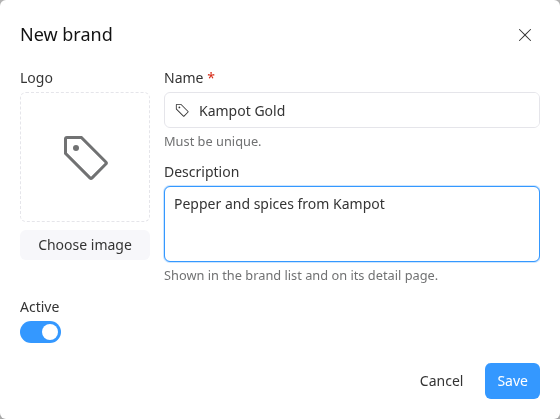
Click Save. The brand appears in the list.
See a brand's products
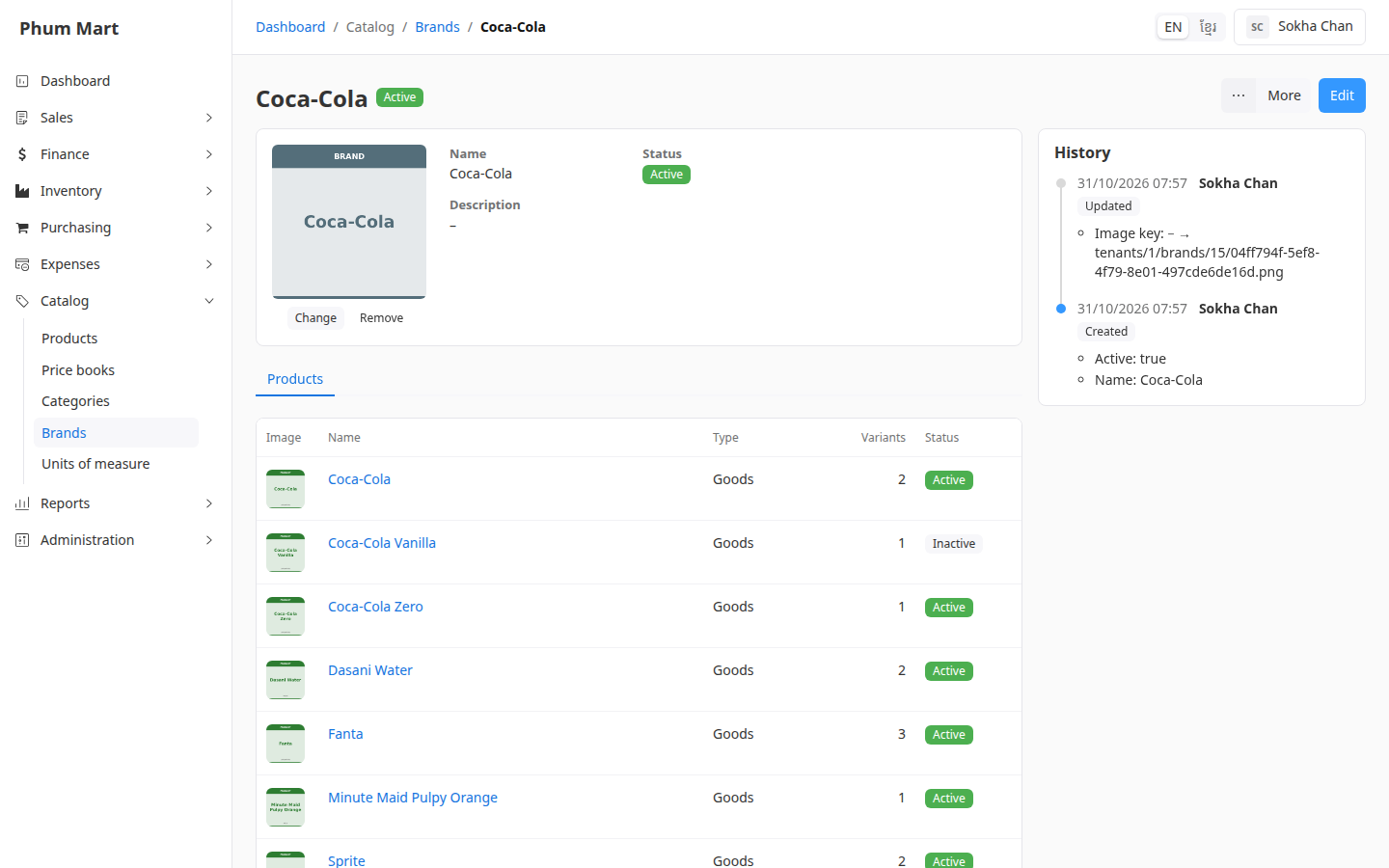
Click the brand. Its Products tab lists every product of that brand. Click one to open it.
Change or remove a brand
- Edit changes its name or description.
- Change or Remove, under the logo, changes the logo.
- More › Deactivate stops offering the brand on products. Its products keep it.
- More › Delete removes a brand that no product uses.
Having trouble?
- A message says the brand is in use: products use it, so it can't be deleted. Deactivate it instead.
- A brand is missing from the list: set the filter to Inactive.