Appearance
Cancel or delete an order
- Cancel keeps the order, marked Cancelled, so you can still see it later. Any stock it took goes back, and any stock it reserved is freed.
- Delete removes the order completely. You can delete only a draft, or a cancelled order that never had an invoice.
A confirmed order already has an invoice, so it takes one more step: void the invoice first, then cancel the order.
Who can do this: To cancel, anyone whose role can edit orders. To delete, anyone whose role can delete orders.
Step by step
Cancel a draft order
Open the order and click More.
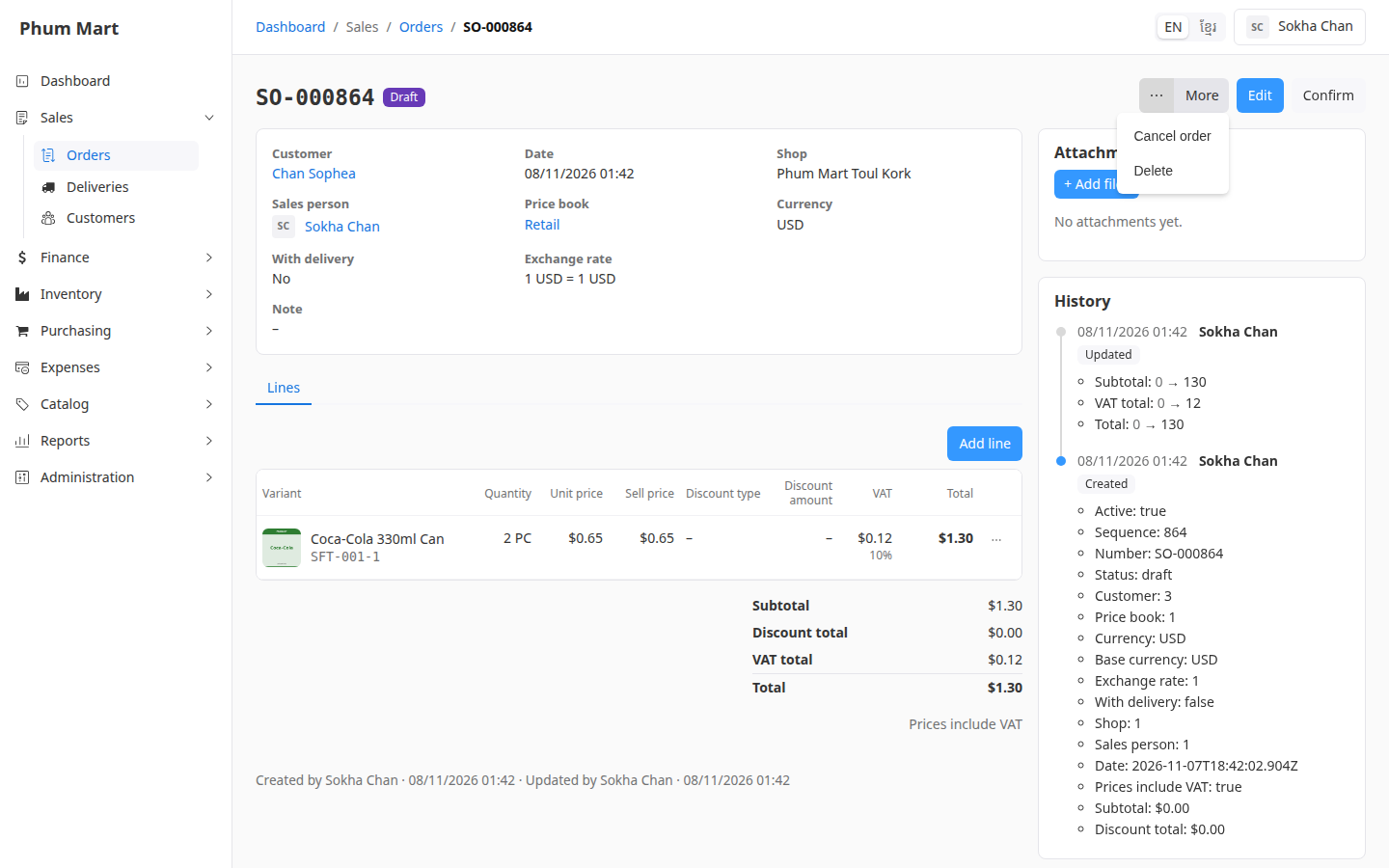
Click Cancel order. A message says the draft will be cancelled.
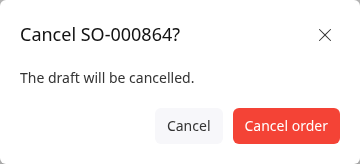
Click Cancel order. The status is Cancelled, and the order can't be edited any more.
Cancel a confirmed order
- Open the order's Invoice tab and click the invoice number.
- Void the invoice. If it has payments, void them first.
- Go back to the order and click More › Cancel order, then confirm.
For an order with delivery, cancel or deliver its open deliveries first.
Delete an order
Open the draft or cancelled order and click More › Delete.
The message names the order. If it has attachments, it says they'll be deleted too.
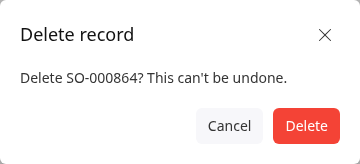
Click Delete. You're back on the orders list.
Having trouble?
- Cancel order isn't in the More menu: the order is confirmed and its invoice is still active, or goods were returned from it. Void the invoice first. Once a return is posted, the order can't be cancelled.
- Delete isn't in the More menu: the order is confirmed, or it was invoiced before. Cancel it instead, and it stays in the list as Cancelled.
- The order was sold at the POS: a POS sale can only be cancelled after its shift is closed and its payments and invoice are voided.