Appearance
Set up your business with the welcome guide
When you sign up your business, Phum Sales creates it with the basics already in place: a first shop, common units of measure, a Standard price book and a Walk-in customer for sales to people you don't know by name. The first time you open the app, a welcome guide helps you check the shop, add your first product, and make your first order. It's shown once only.
Who can do this: The business owner who signed up.
Before you start: Sign up on the Phum Sales registration page, which is linked from the sign-in page as Create an account.
Step by step
On the registration page, enter your business details: its name, its main currency (Khmer riel or US dollar) and its VAT. Then enter your own details: name, email, password and language.
Open the confirmation email and click its link. The link works once, for 5 minutes.
The app opens with "Setting up your business…", then signs you in and shows the welcome guide.
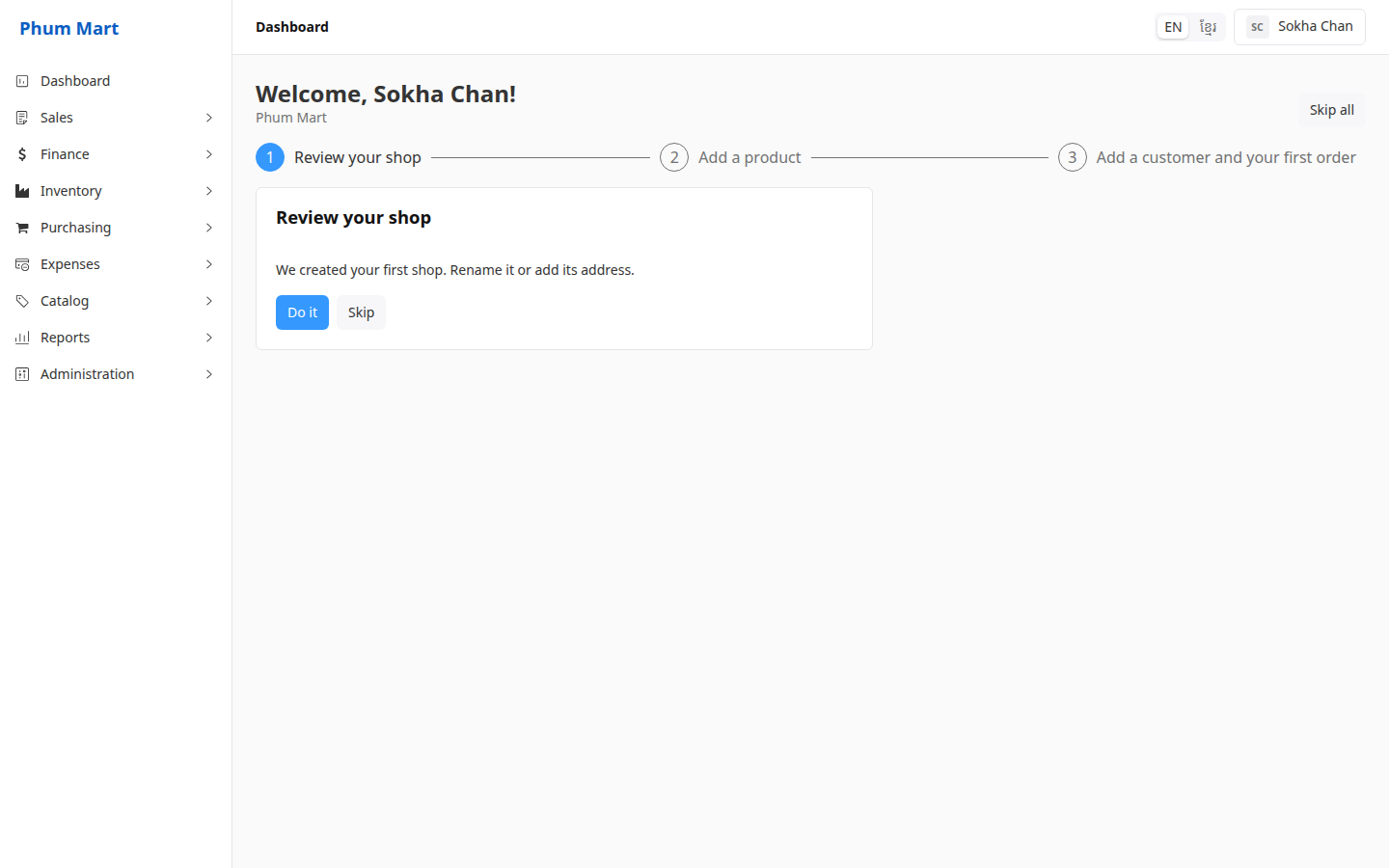
On Review your shop, click Do it. Rename the shop or add its address, then click Save. The step gets a tick.
On Add a product, click Do it, fill in the product and click Save. To finish the product later, click Open product.
On Add a customer and your first order, click Do it and create the customer. The order popup then opens with that customer and the Standard price book. Click Save.
"You're all set" appears. Click Open order to add lines to the order (see Add and edit order lines), or Go to dashboard.
To leave a step for later, click Skip. To close the guide, click Skip all. Everything the guide does can also be done later from the sidebar.
Having trouble?
- The link doesn't work any more: it may have expired or been used already. Sign in with the email and password you chose instead.
- "You're already signed in": you clicked the link in a browser where someone is signed in. Click Continue to sign them out and sign in as the new owner, or Cancel to stay as you are.
- The guide doesn't come back: it's shown only once. Use the sidebar to do the same things.