Appearance
Confirm an order without delivery
Confirming makes the order final. For an order without delivery, confirming does two things at once:
- It takes the goods out of stock at the order's shop.
- It issues the invoice, which shows what the customer owes.
A confirmed order can't be edited. Check the lines and totals before you confirm.
Who can do this: Anyone whose role can edit orders, such as Sales staff.
Before you start: The order is a draft with at least one line, and With delivery is off.
Step by step
Open the draft order and check its lines and totals.
Click Confirm. A message says the stock will be taken from the shop and an invoice issued.
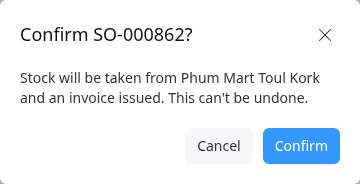
Click Confirm. "Order confirmed" appears, and the order's status is Confirmed.
Open the Invoice tab to see the new invoice. Its status is Unpaid and its amount due is the order's total. Click its number to open it.
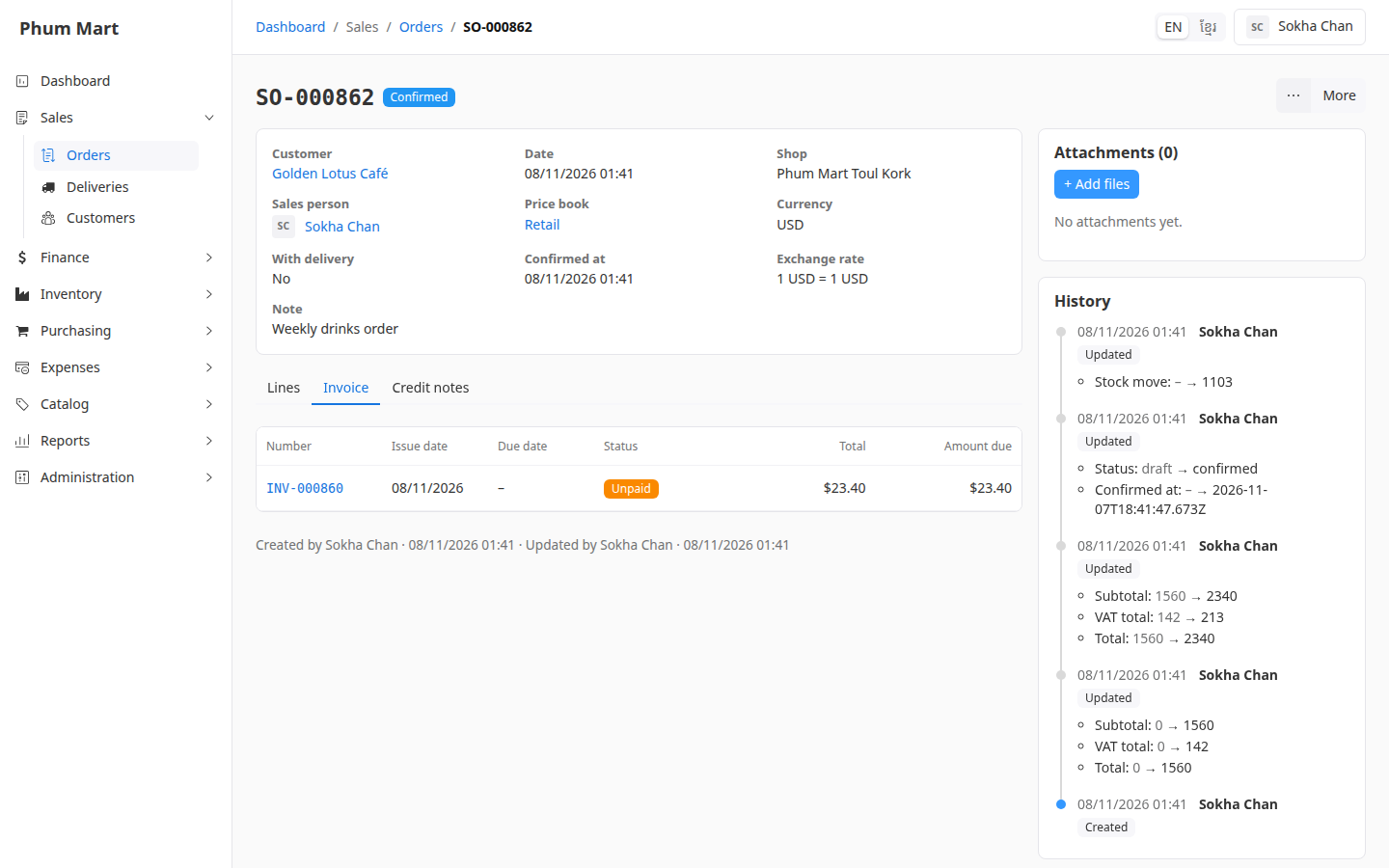
Next, take the payment: click More › Take payment. See Record a customer payment. To print the invoice, see Print an invoice.
Having trouble?
- There's no Confirm button: add at least one line first.
- A message lists items that are short of stock: the shop doesn't have enough of them. Nothing changed and the order is still a draft. Lower the quantity, choose another shop, or record the stock that's arrived (in Inventory), then confirm again.
- You confirmed by mistake: the order can't go back to a draft. Void its invoice, then cancel the order. See Cancel or delete an order.