Appearance
Add currencies and update rates
Your business has one base currency, for example US dollars. Reports and totals are counted in it. Other currencies, such as Khmer riel, have a rate: how many units of that currency one unit of the base currency buys. For example, 1 USD = 4,100 KHR.
Documents keep the rate they were confirmed with, so changing a rate only affects new documents.
Who can do this: Anyone whose role can create or edit currencies, usually an Administrator or Accountant.
Step by step
Add a currency
Go to Administration › Settings and open the Currencies tab.
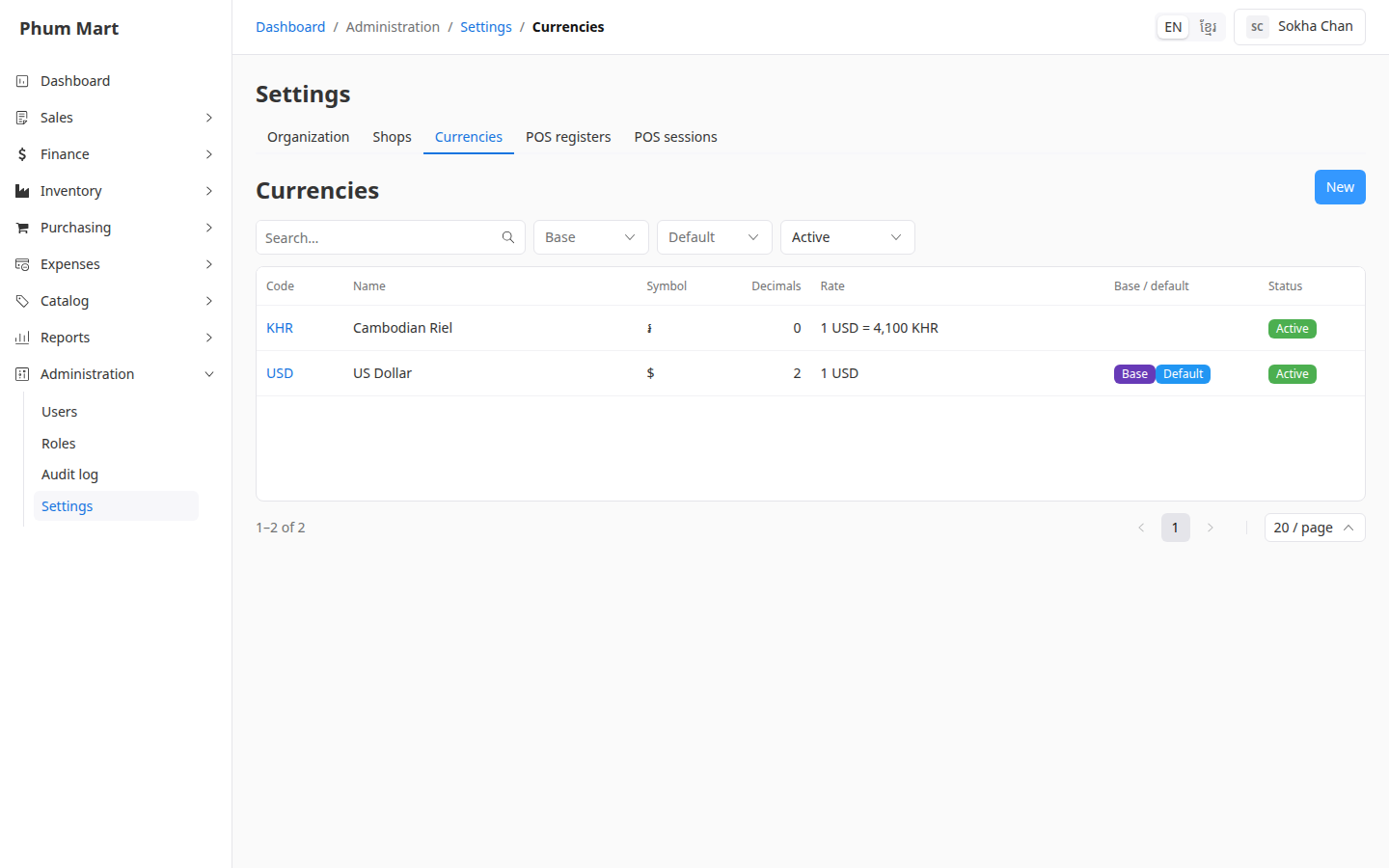
Click New.
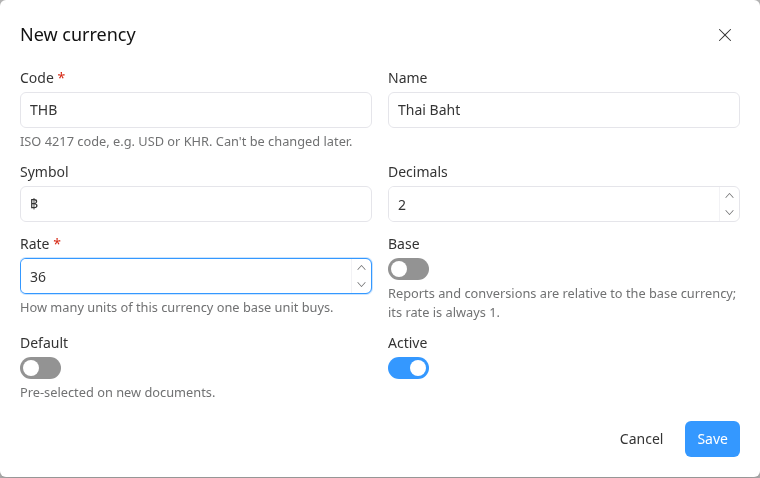
Enter the Code, the international 3-letter code such as
THB. It can't be changed later.Enter the Name, the Symbol (for example
฿) and the number of Decimals shown, such as 2 for baht or 0 for riel.Enter the Rate: how many of this currency one unit of your base currency buys, for example
36.
Click Save.
Update a rate
- Click the currency in the list, then click Edit.
- Change the Rate and click Save.
Convert an amount
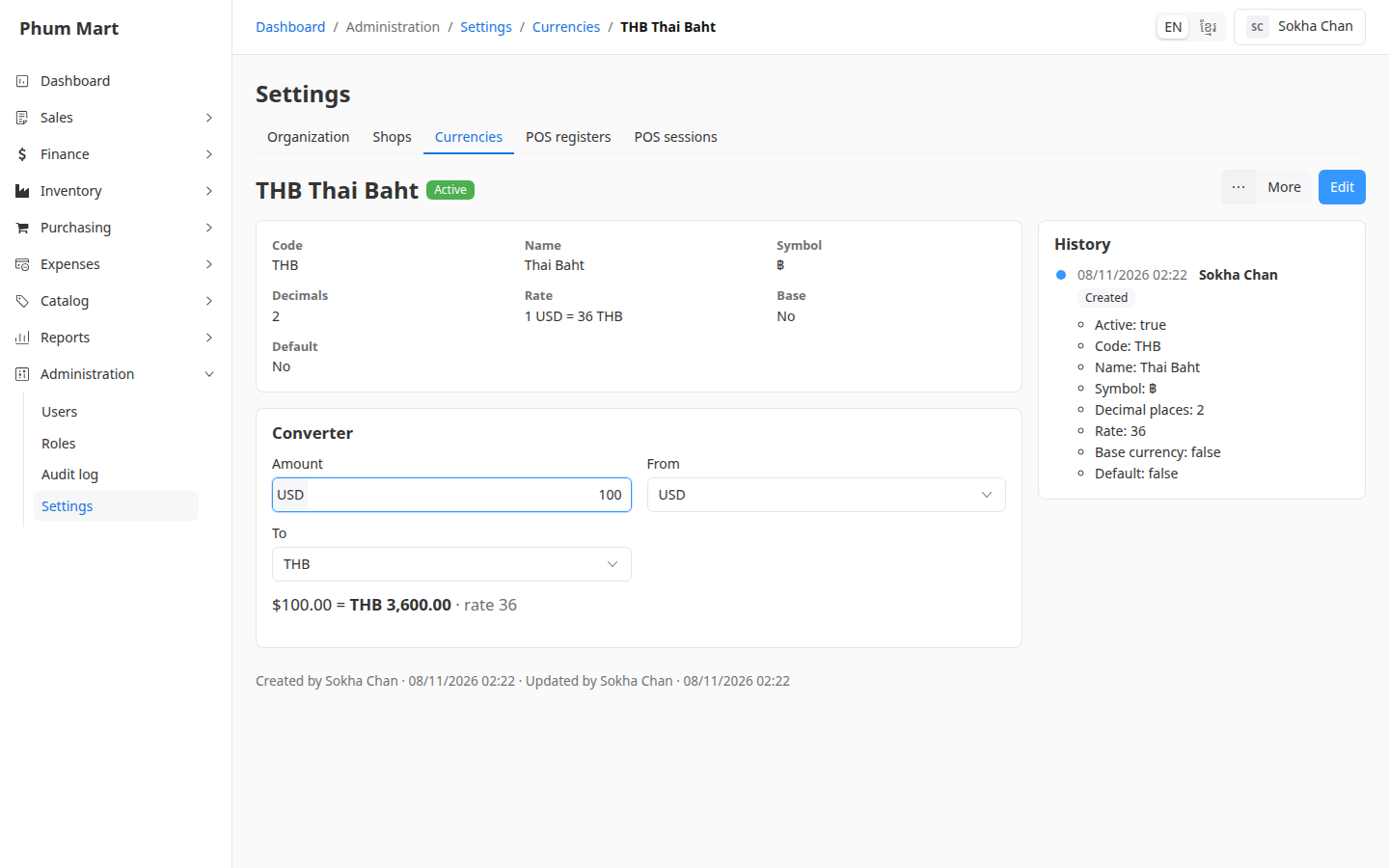
On a currency's page, use the Converter: enter an Amount, choose From and To, and read the result.
Having trouble?
- The base currency's rate can't be changed: it's always 1. Update the other currencies instead.
- A currency isn't offered on price books: check that it's Active.