Appearance
Ship and mark a delivery delivered
A delivery goes through three steps:
| Status | What it means |
|---|---|
| Draft | Being prepared. Quantities can still change |
| Shipped | On its way. Quantities are locked |
| Delivered | The customer has the goods. They've left stock and the order is updated |
Shipping is optional: if the customer collects the goods, you can mark a draft delivered straight away.
Who can do this: Anyone whose role can edit deliveries, such as Warehouse staff.
Before you start: Create the delivery.
Step by step
Ship the delivery
Open the delivery and click Ship. A message says the lines will be locked.
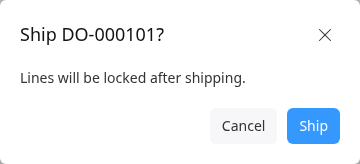
Click Ship. The status is Shipped, with the time under Shipped at.
Mark it delivered
When the customer has the goods, open the delivery and click Mark delivered. For a draft delivery, it's under More.
Check Delivered on: the date and time the customer received them.
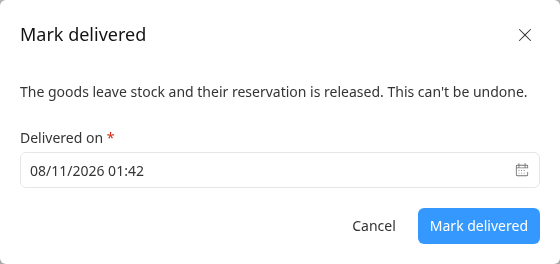
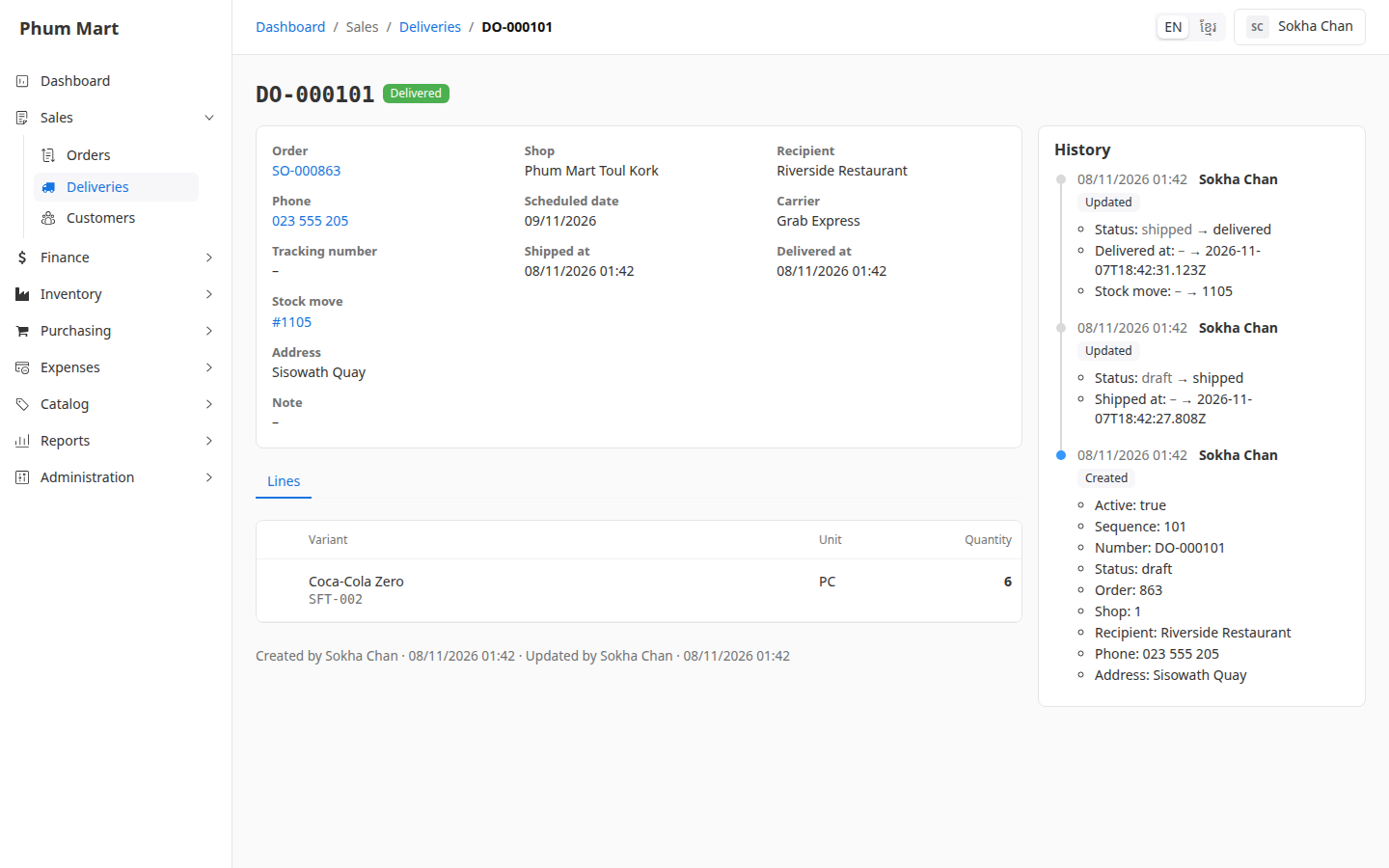
Click Mark delivered. The status is Delivered. The goods have left stock, and the summary links to the stock move.
Open the order. On its Lines tab, each line shows how much was Delivered. The order's delivery status is Partially delivered until everything has gone, then Delivered.
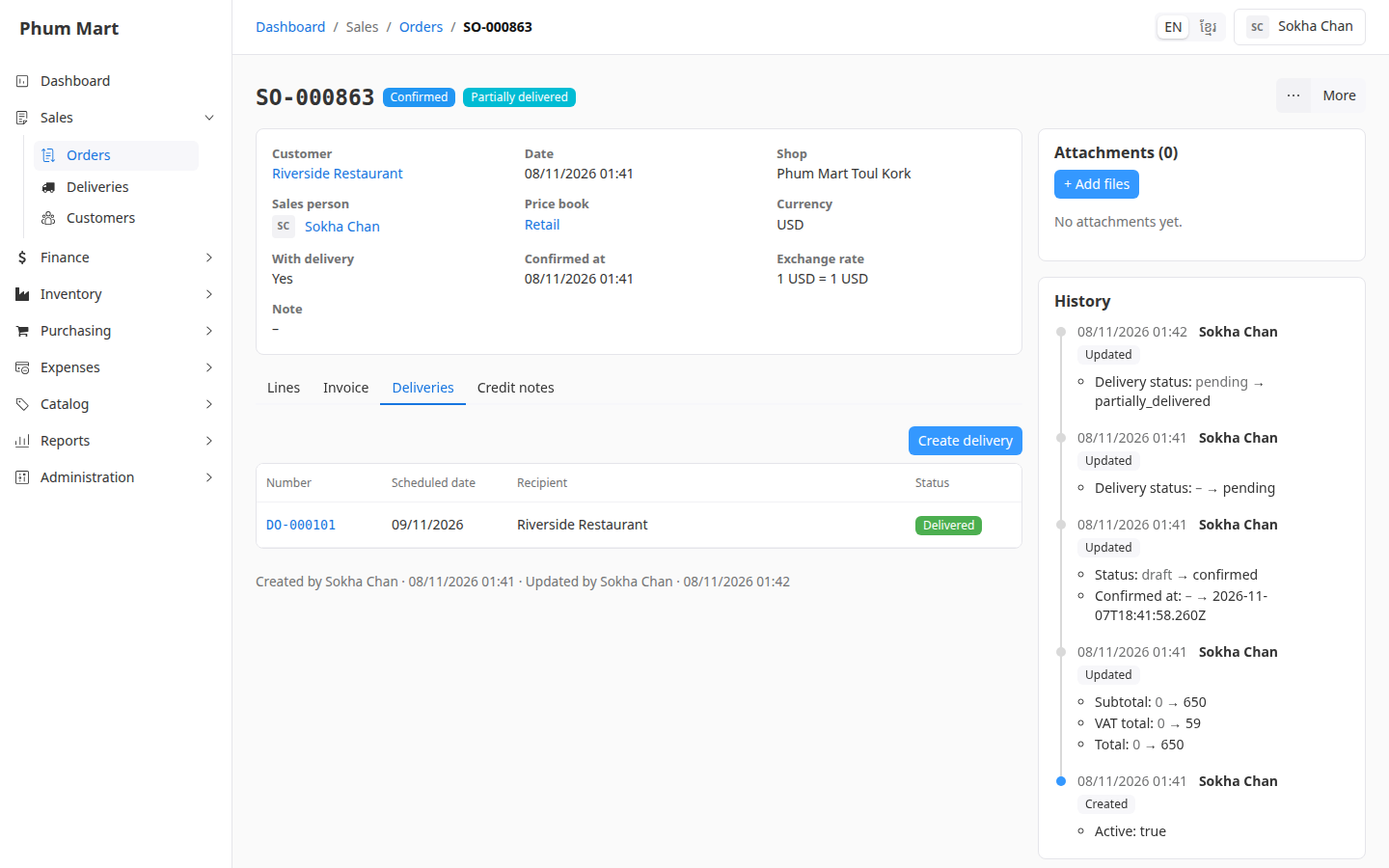
To deliver the rest, create another delivery from the order.
Having trouble?
- Mark delivered can't be undone. If the customer sends goods back, record a return on the order.
- Ship isn't shown: the delivery is already shipped, delivered or cancelled.
- The stock numbers look wrong: until a delivery is marked delivered, its goods are counted as Reserved in Inventory › Stock balances, not taken away.