Appearance
Confirm and print a purchase order
Confirming a purchase locks its lines and costs, so what you receive can be checked against what you ordered. It doesn't change stock yet.
You can print a purchase order in any status, for example to send a draft to the supplier for checking.
Who can do this: Anyone whose role can edit purchases, such as a Purchaser.
Before you start: The purchase is a draft with at least one line. See Create a purchase order.
Step by step
Confirm
Open the draft purchase and check its lines and total.
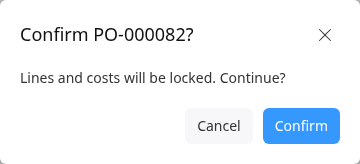
Click Confirm. The message says lines and costs will be locked.
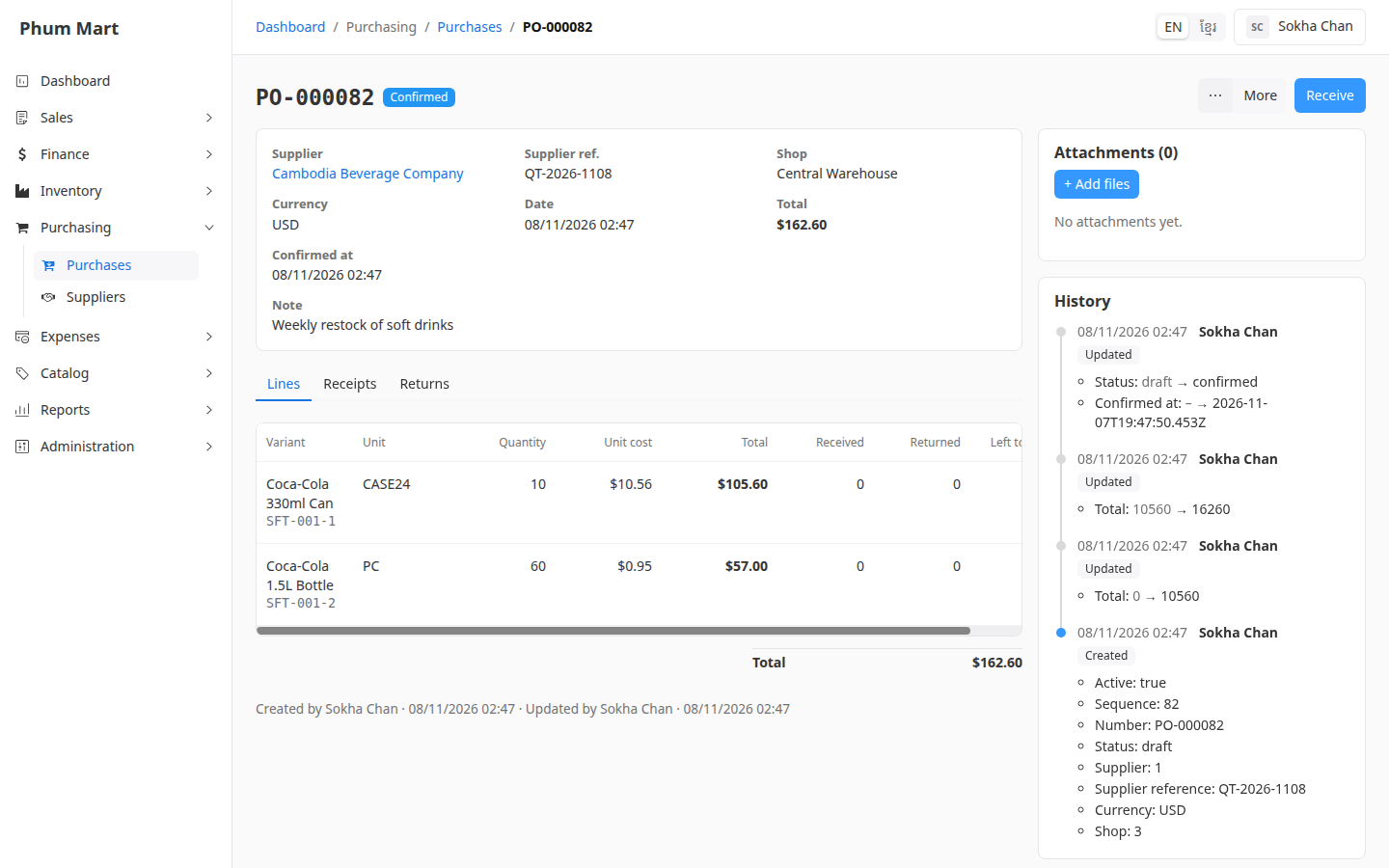
Click Confirm. The status is Confirmed, and Receive appears.
Print or download
Open the purchase and click More › Print. The purchase order opens in a new tab.
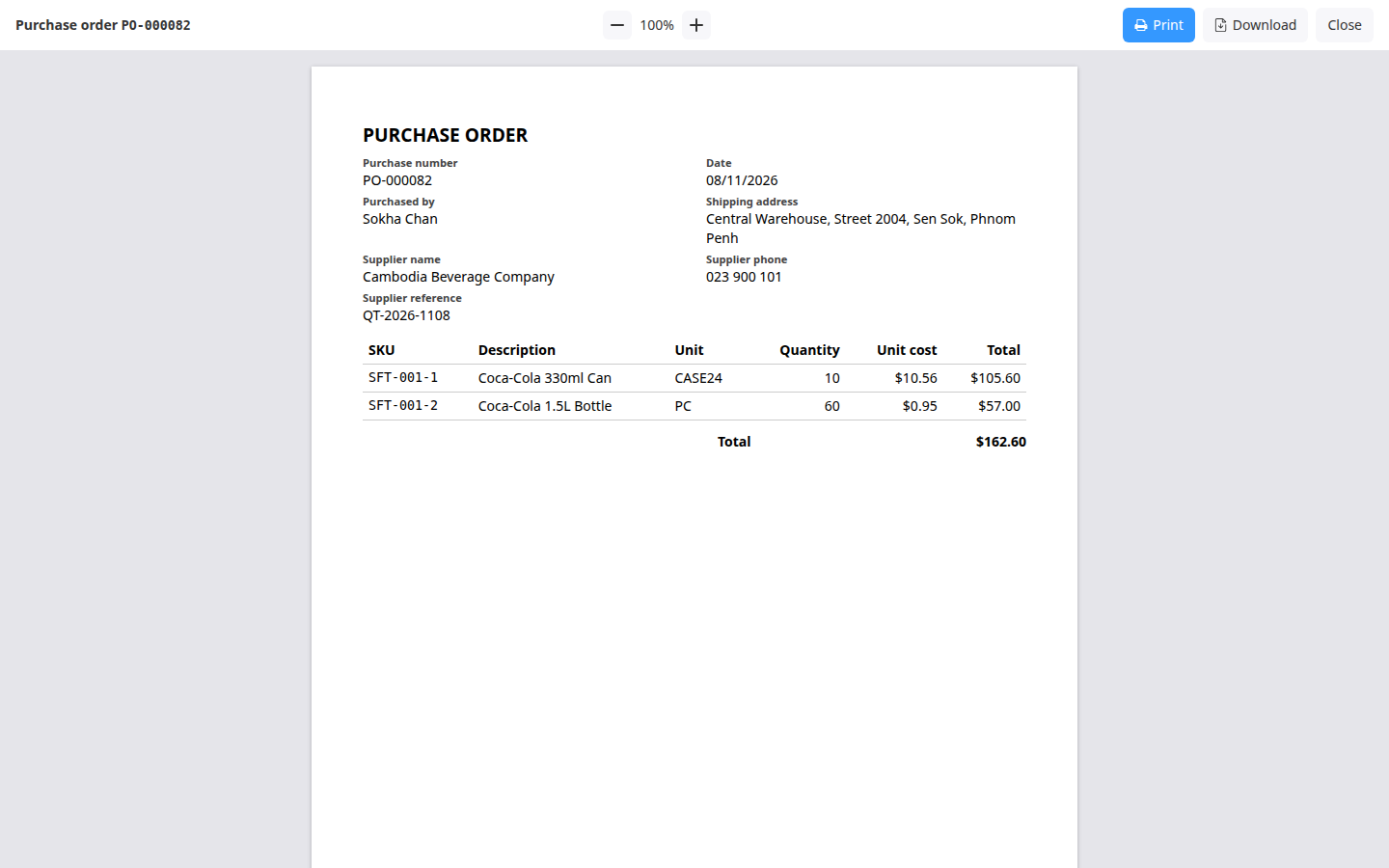
Click Print to print it, or Download to save it as a PDF, for example to send by email or chat.
Click Close to close the tab.
The printout shows the purchase number and date, who made it, the shop's address as the shipping address, the supplier's name, phone and reference, and the lines and total.
Having trouble?
- There's no Confirm button: add at least one line first.
- You need to change a confirmed purchase: it can't be edited. Cancel it if nothing has been received yet, and make a new one. See Cancel or delete a purchase.