Appearance
Create a sales order
Summary
Start an order for a customer who wants to buy, before you add the products.
Description
An order records what a customer buys: who they are, which price list applies, and which shop the goods come from. You create it first as an empty draft, then add products one line at a time. A draft changes nothing yet: no stock leaves and no invoice is issued until you confirm it.
Every order needs a customer. For someone you don't know by name, keep the default Walk-in Customer.
Who can do this: Anyone whose role can create orders, such as Sales staff.
Before you start: For a new customer, add them in Sales › Customers first.
Step by step
Go to Sales › Orders and click New.
Choose the Customer. It starts as the walk-in customer: type a name or phone number to find someone else.
Choose the Price book, for example Retail · USD. It sets the order's currency and the prices of its lines.
Check the Shop the goods come from. It starts as your default shop.
Check the Sales person: the person credited with this sale in the sales reports. It starts as you.
Turn With delivery on if the goods will be delivered later. Leave it off if the customer takes them now. See Confirm an order with delivery.
Check the Date, and add a Note if it helps, for example the customer's reference.
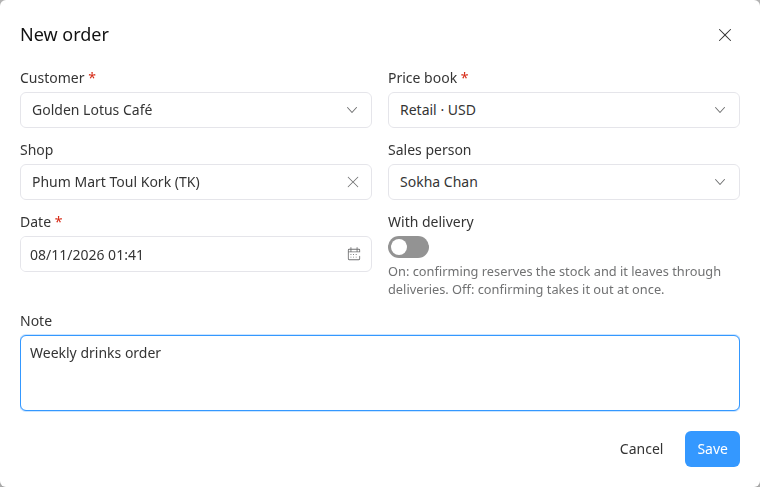
Click Save. The new order opens as a Draft, with an empty Lines tab.
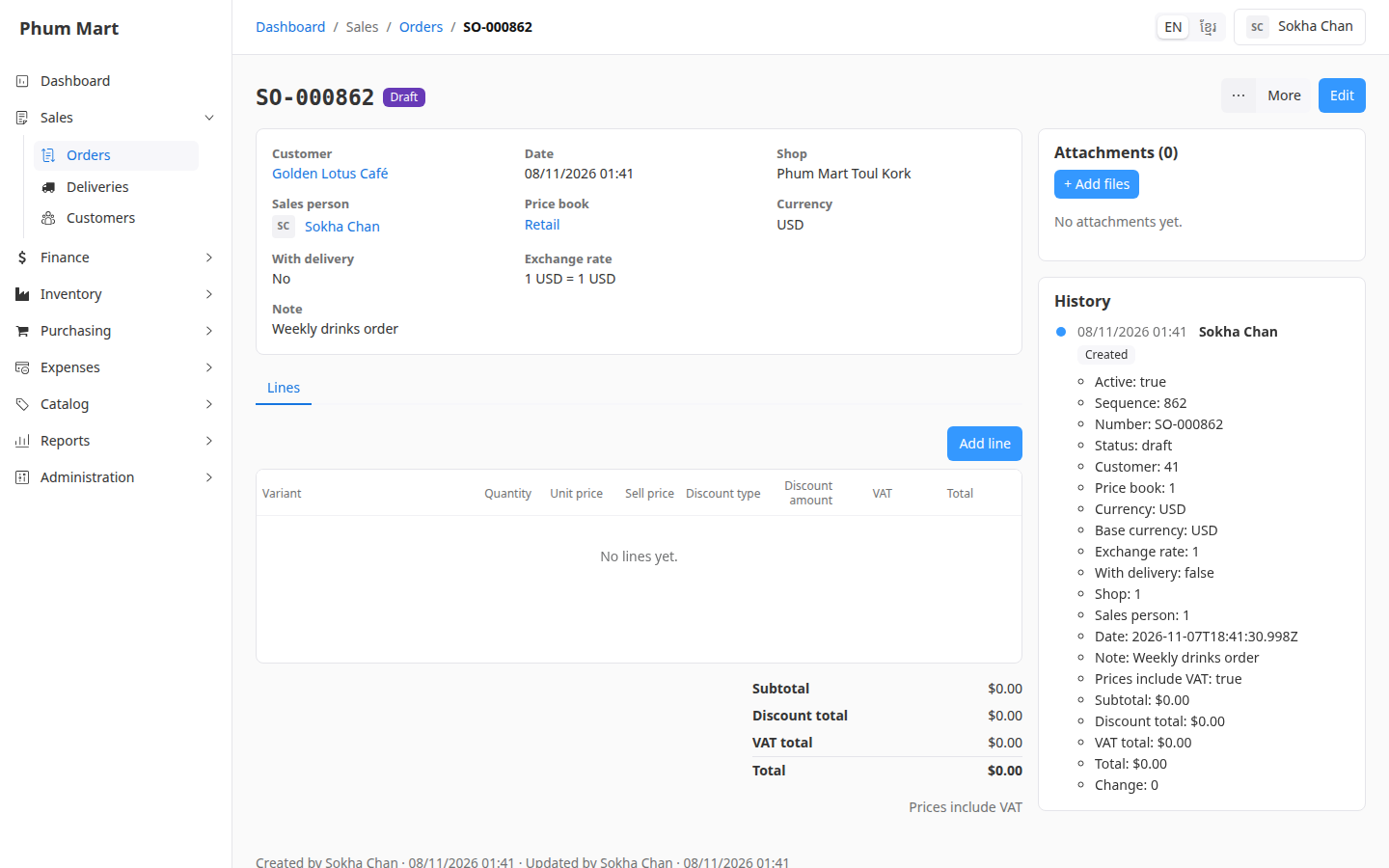
Next, add the products.
You can also start an order from a customer's page: open the customer and click More › New order. The customer is then filled in for you.
Change the order's details
While the order is a draft, click Edit to change the customer, price book, shop, sales person, delivery, date or note.
If you change the price book after adding lines, every line is priced again from the new book. If the new book has a different currency, prices you typed yourself are dropped. The popup warns you before saving.
Having trouble?
- The price book you want isn't offered: it isn't valid on the order's date, or it's inactive. Check the date, or ask whoever manages prices.
- Sales person is greyed out: your role can't see the list of users, so the order is credited to you. Ask a manager if it should be someone else.
- "Required" under Customer: choose a customer. Use the walk-in customer if you don't know who they are.