Appearance
Return a walk-in POS sale
Sales made at a till (the POS app) show up in Sales › Orders with a POS badge. Returns can't be done at the till yet. Do them here in the back office, as a credit note on the POS sale, like any other order.
Most till sales are to the walk-in customer, who can't hold store credit. Their returns are always refunded as money.
Who can do this: Anyone whose role can create and post credit notes, such as Sales staff or a shop manager.
Before you start: Find the sale: ask for the receipt, or look for it in Sales › Orders (filter by Date and Shop). You can also open it from its shift in Administration › Settings › POS sessions, on the session's Sales tab.
Step by step
Open the POS sale. It has a POS badge and shows the POS session it was sold in.
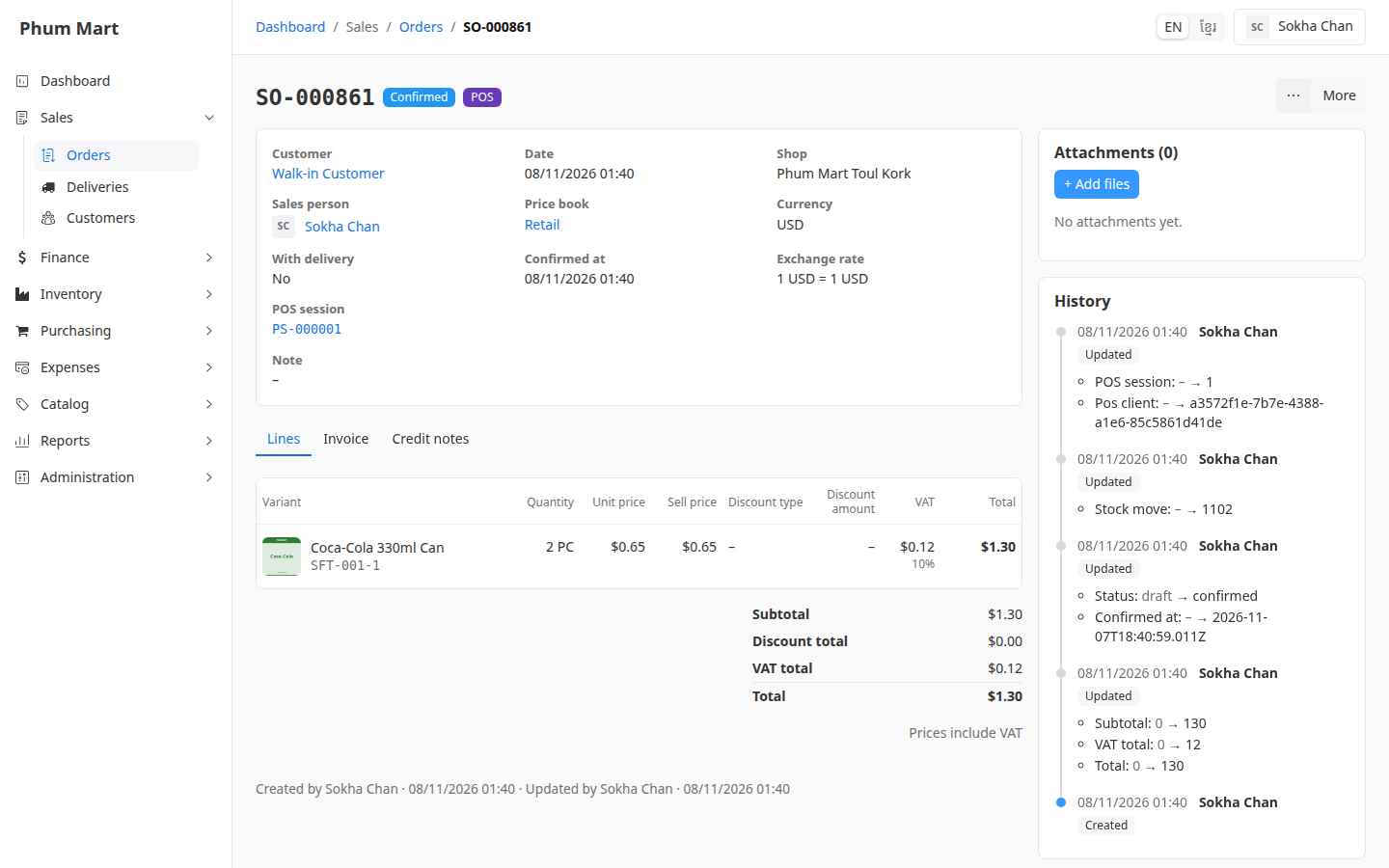
Click More › Return items.
In Return, enter how many come back. Leave Restock ticked if they can be sold again.
Check Settlement: it's Refund, with the help "Walk-in customers get money back only." Choose the Refund method, usually Cash.
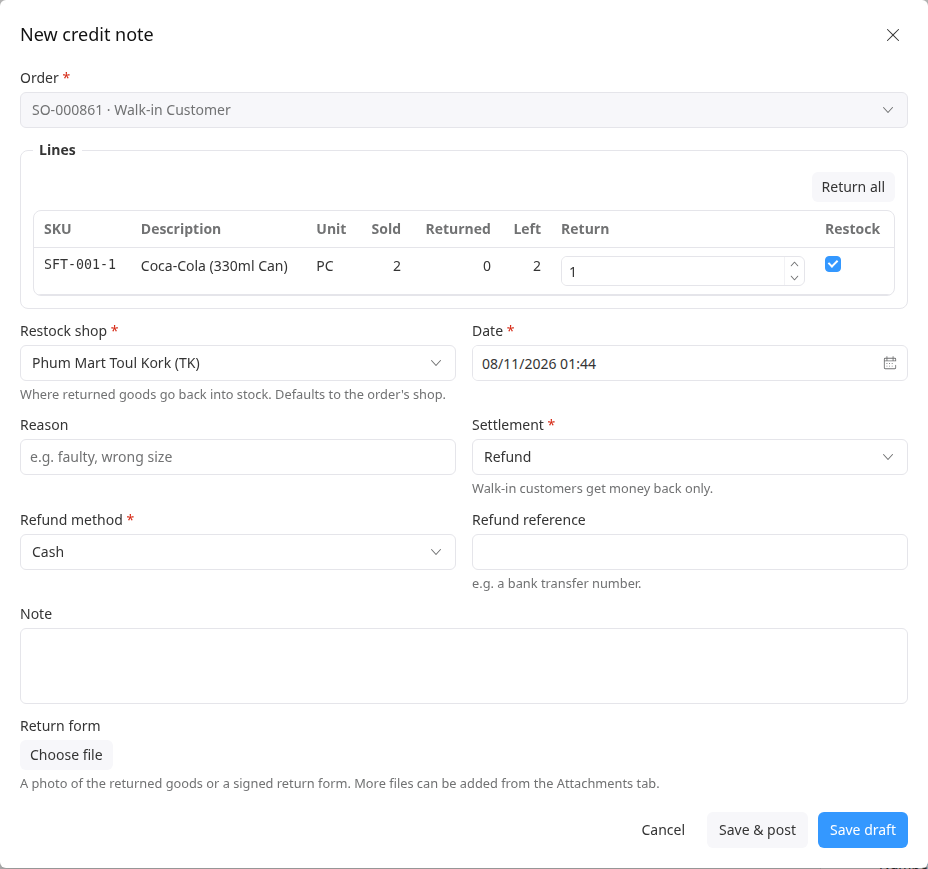
Click Save & post. The credit note opens as Posted, with its refund.
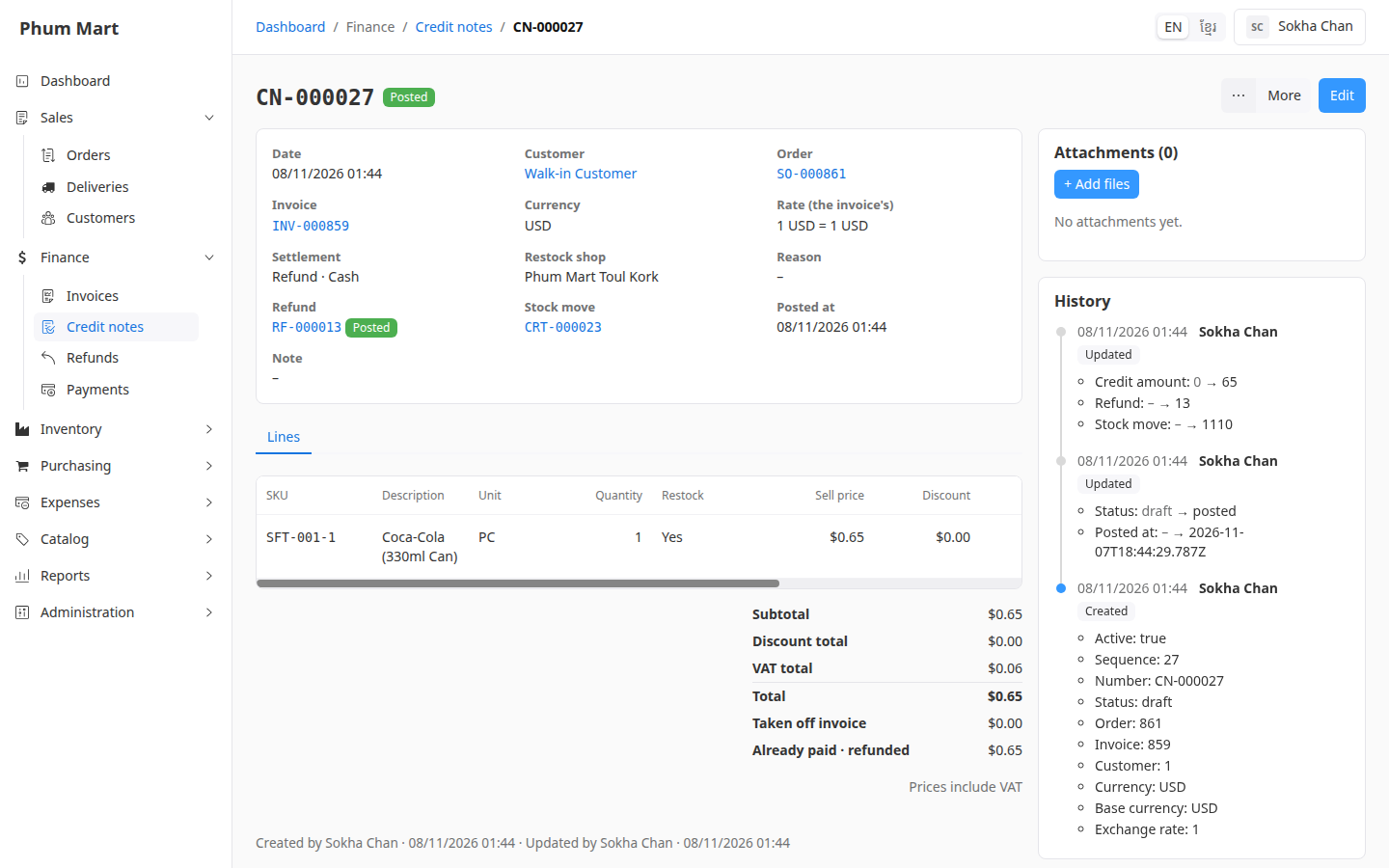
Hand the money to the customer. Print the refund receipt if they want one. See Refund a customer.
The shift's totals don't change: its X and Z reports still show the sale as it was made.
Having trouble?
- You can't find the sale: check the Date filter and the Shop. POS sales have a POS badge after their number.
- The customer has a name on the sale: if the cashier chose a named customer, you can settle the return as store credit too. See Exchange items with store credit.
- The customer wants to return at the till: returns at the till aren't available yet. Record them here.