Appearance
Receive goods from a supplier
When a delivery arrives from the supplier, record what came. The goods are added to the purchase's shop straight away. If only part arrived, receive that part now and the rest when it comes, as many times as needed.
| Status | Meaning |
|---|---|
| Confirmed | Nothing received yet |
| Partially received | Some goods arrived, some to come |
| Received | Everything arrived |
Who can do this: Anyone whose role can edit purchases, such as Warehouse staff.
Before you start: Confirm the purchase.
Step by step
Open the purchase and click Receive.
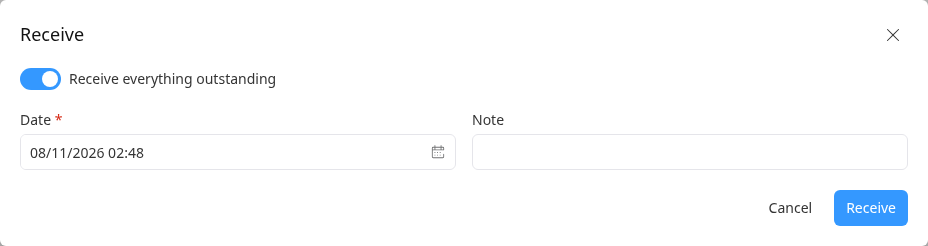
If everything arrived, leave Receive everything outstanding on.
If only part arrived, turn it off. For each line, check what was Ordered, Received and is Left, and enter what arrived in Receive now.
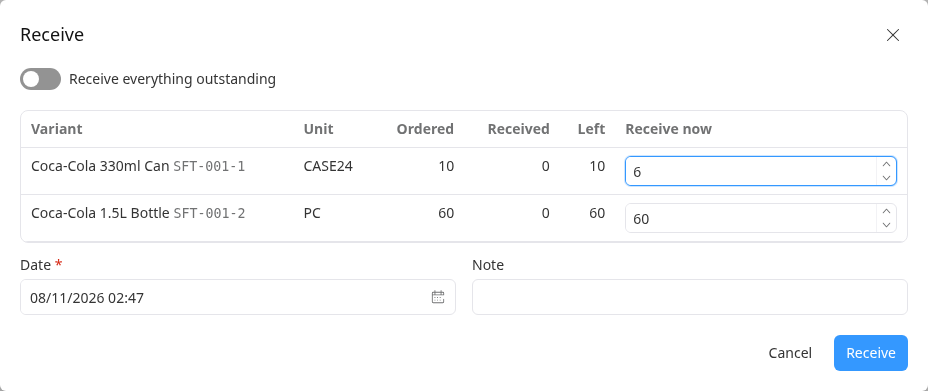
Check the Date, add a Note if needed, and click Receive. The goods are now in stock.
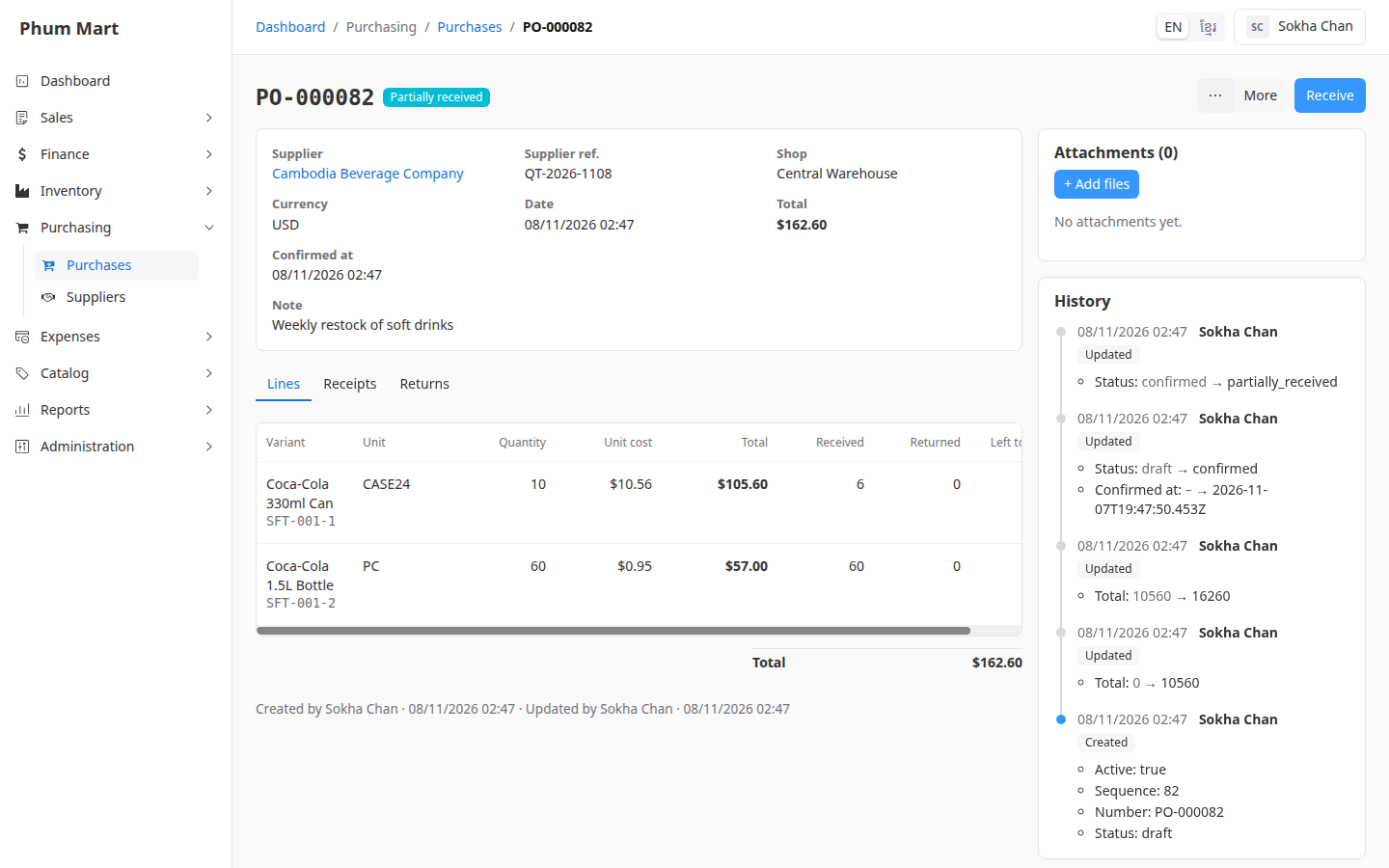
When the rest arrives, click Receive again. With Receive everything outstanding on, it receives everything left.
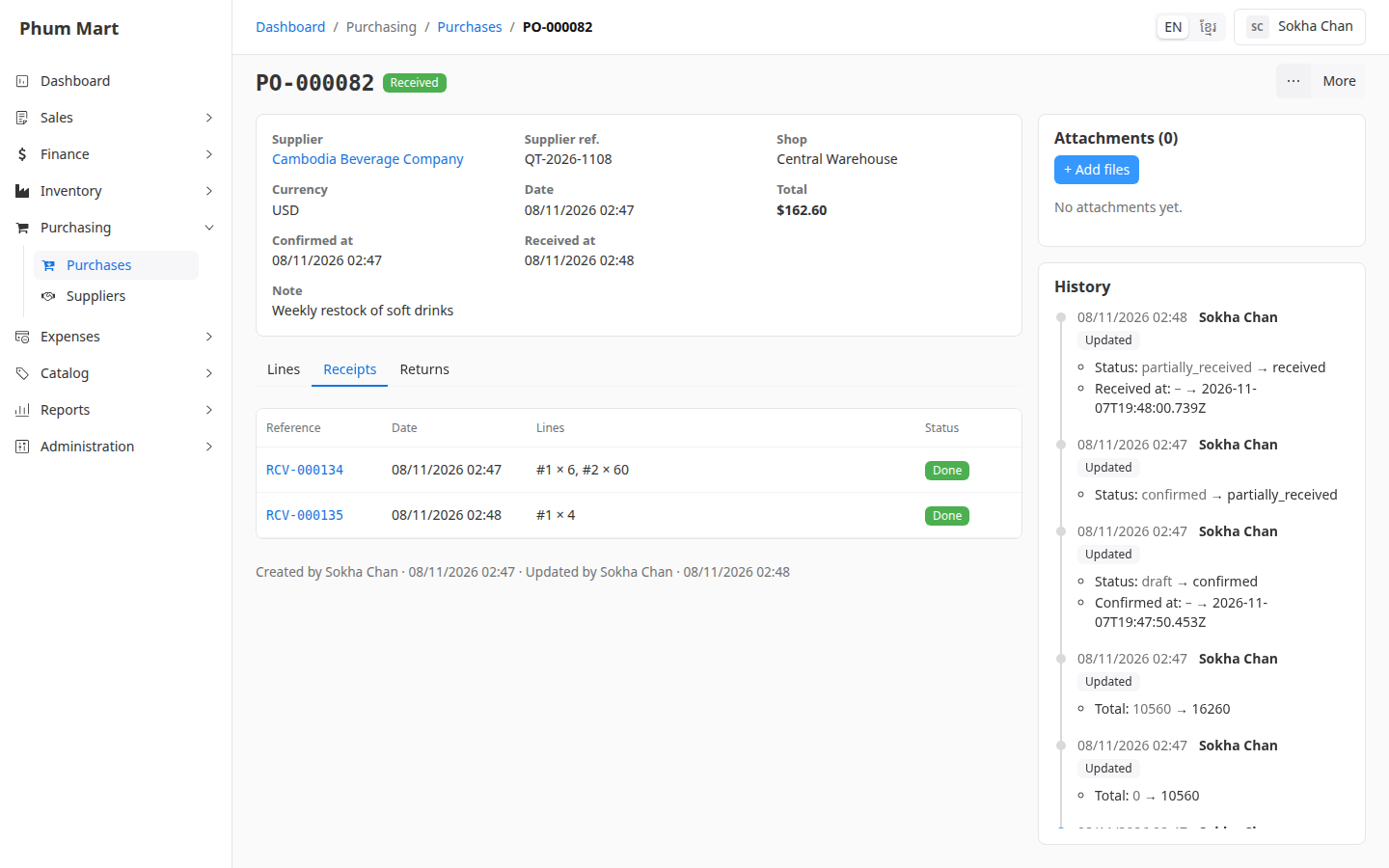
Open the Receipts tab to see each delivery, with its date and quantities. Click a reference to see the stock move.
Having trouble?
- There's no Receive button: the purchase is still a draft, or everything has been received.
- You can't receive more than ordered: Receive now stops at what's left. For extra goods, create a new purchase.
- You received too much by mistake: a receipt can't be undone. Return the extra goods, or correct the stock with an adjustment.