Appearance
Check stock balances
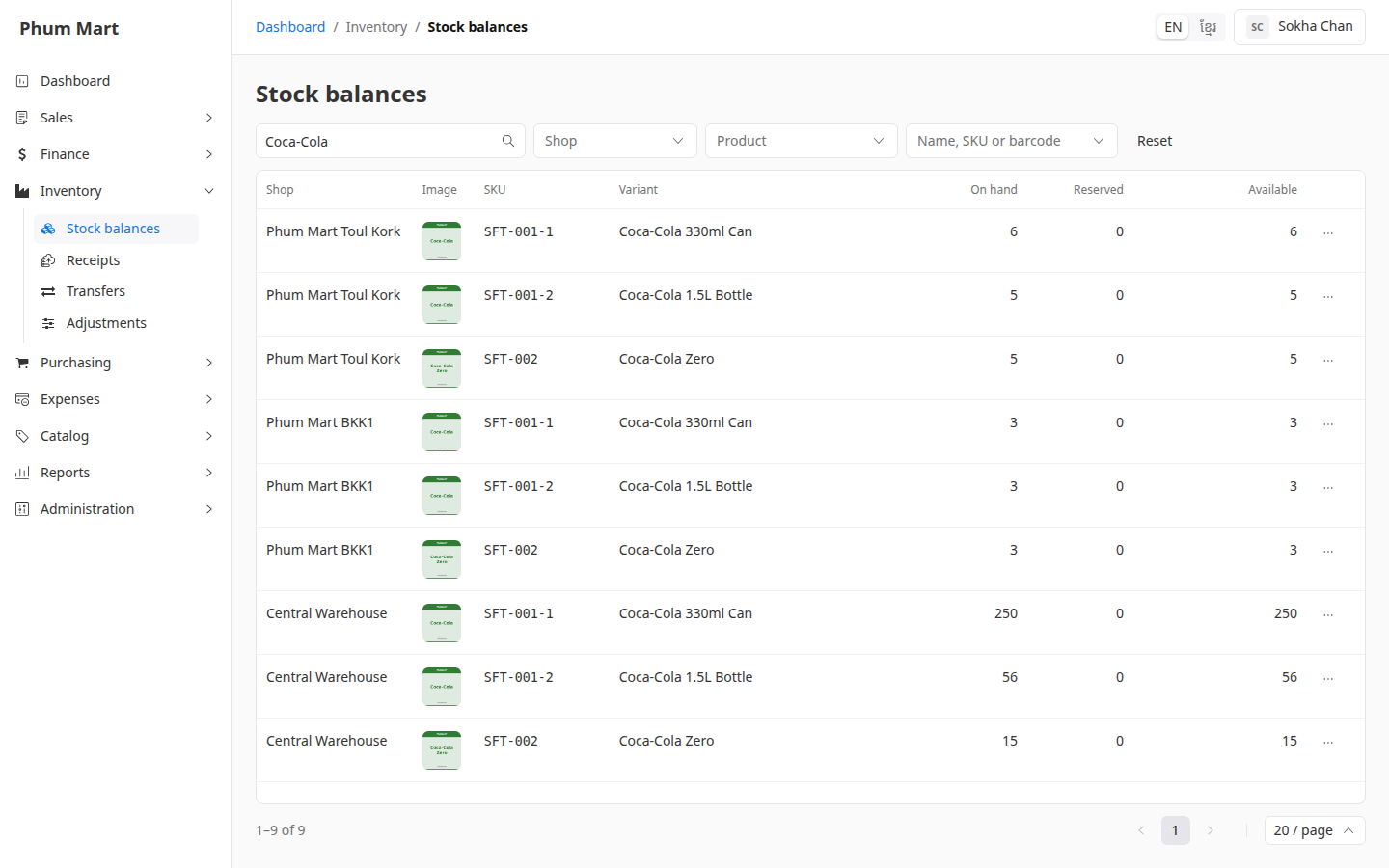
Stock is counted per variant and per shop, always in the product's base unit, such as pieces. Each balance shows three numbers:
| Column | Meaning |
|---|---|
| On hand | What's physically in the shop |
| Reserved | Set aside for confirmed orders waiting for delivery |
| Available | On hand minus reserved: what you can still sell or move |
Stock changes only through documents: orders and deliveries, purchases, receipts, transfers, adjustments and returns. You can't type a number into a balance.
Who can do this: Anyone whose role can see stock balances, such as Warehouse staff.
Step by step
Go to Inventory › Stock balances.
Type a product name, SKU or barcode in Search…, or choose a Shop or Product.
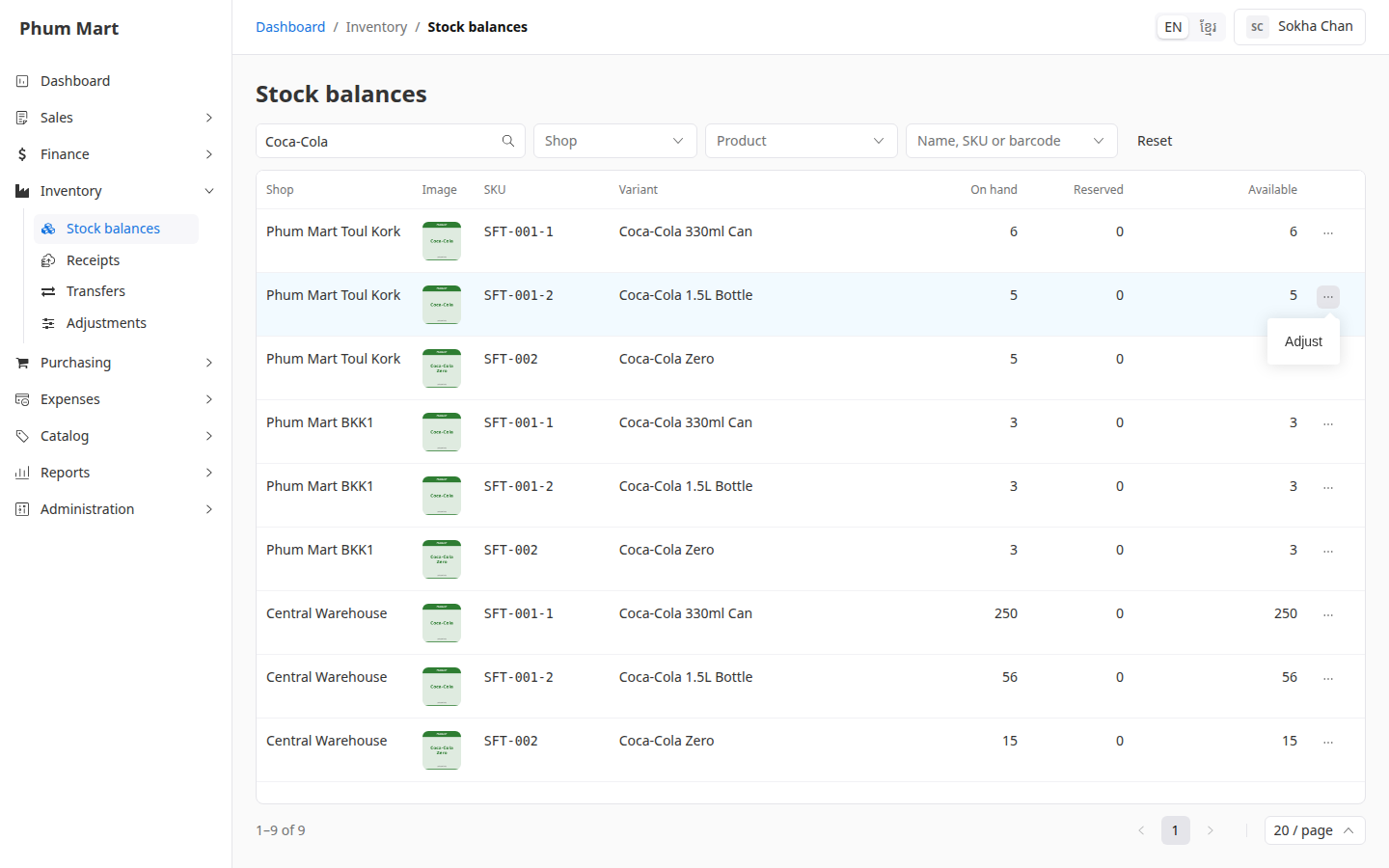
To correct a balance after a count, click ⋯ at the end of its row and choose Adjust. See Adjust stock after a count.
A shop's page and a product's page also have a Stock tab with the same numbers.
Having trouble?
- A balance is highlighted: it's at 0, or more is reserved than is on hand. Receive or transfer stock in, or check the orders waiting for delivery.
- A product isn't listed: it has never had stock in any shop. Combos and services have no stock.
- The numbers don't match a count: adjust them, with the reason in the note.