Appearance
Sign in and choose your language
Summary
Open the Phum Sales back office with your email and password, in English or Khmer.
Description
You need to sign in before you can use the app. Your administrator creates your account and tells you the email and password to use. You can switch the screens between English and Khmer at any time.
Who can do this: Everyone with an account.
Before you start: Get your email and password from your administrator.
Step by step
Open the Phum Sales web address your administrator gave you. The sign-in page opens.
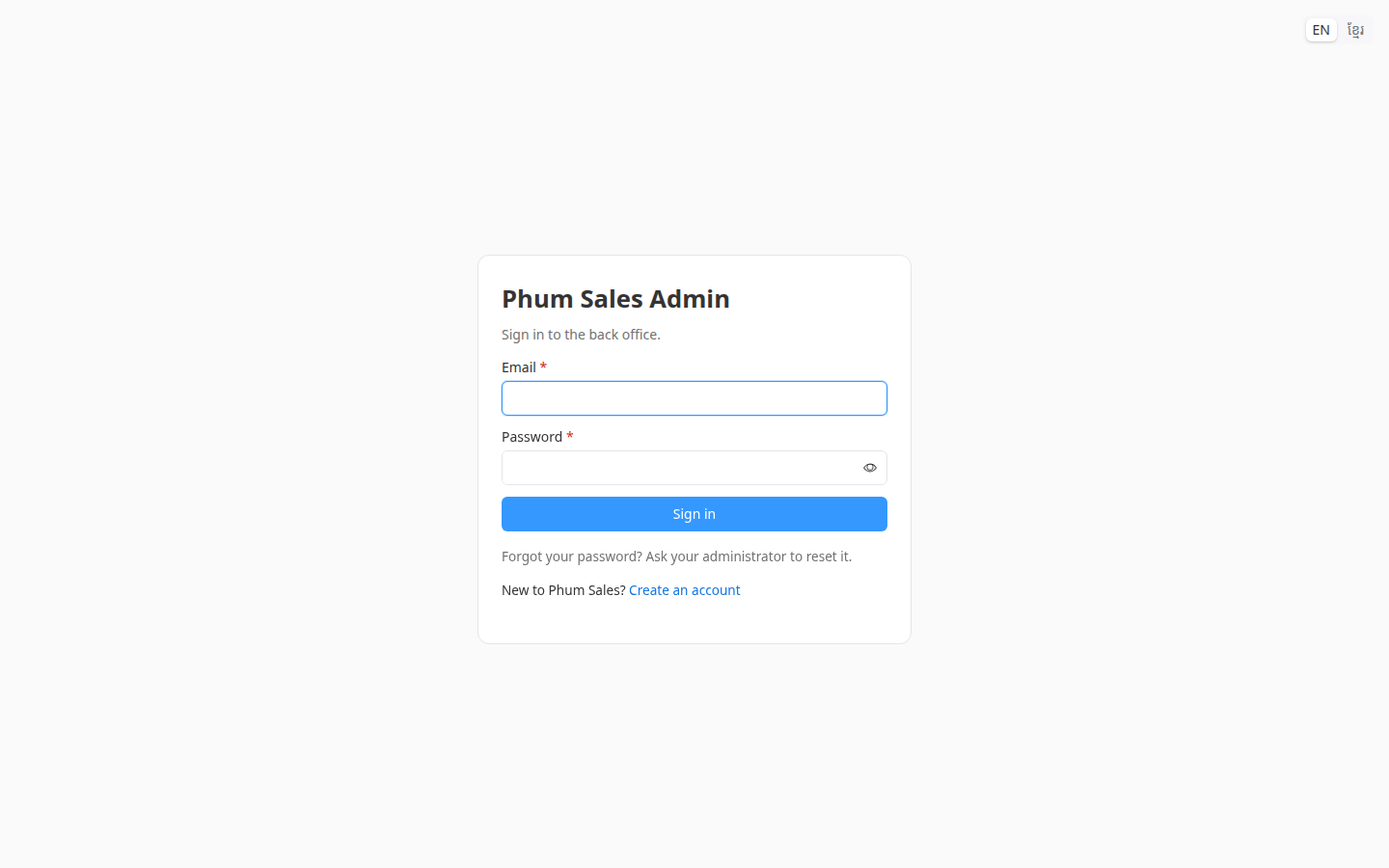
To read the app in Khmer, click ខ្មែរ in the top-right corner. Click EN to switch back to English.
Enter your Email and Password. Click the eye icon to check what you typed.
Click Sign in, or press Enter. The Dashboard opens.
To switch language after signing in, click EN or ខ្មែរ in the header. Your choice is saved, so the app opens in that language next time. You can also change it in My profile.
To sign out, click your name in the top-right corner, then click Sign out.
Having trouble?
- "Invalid email or password": check the email for typos, and check that Caps Lock is off. The password is cleared after each failed try, so type it again.
- You forgot your password: there's no reset by email. Ask your administrator to reset it.
- Your account or organization is disabled: the page says so. Ask your administrator.
- You opened a link and landed on the sign-in page: sign in, and the app takes you to the page from the link.