Appearance
Add and manage customers
Summary
Keep the details of the people and businesses you sell to, and see everything they've bought and paid.
Description
A customer's name, phone and address are copied onto their orders, invoices and deliveries. Their page also shows their orders, invoices, payments, returns and store credit in one place.
For people you don't know by name, use the Walk-in Customer. See Set the default customer.
Who can do this: Anyone whose role can create or edit customers, such as Sales staff.
Step by step
Add a customer
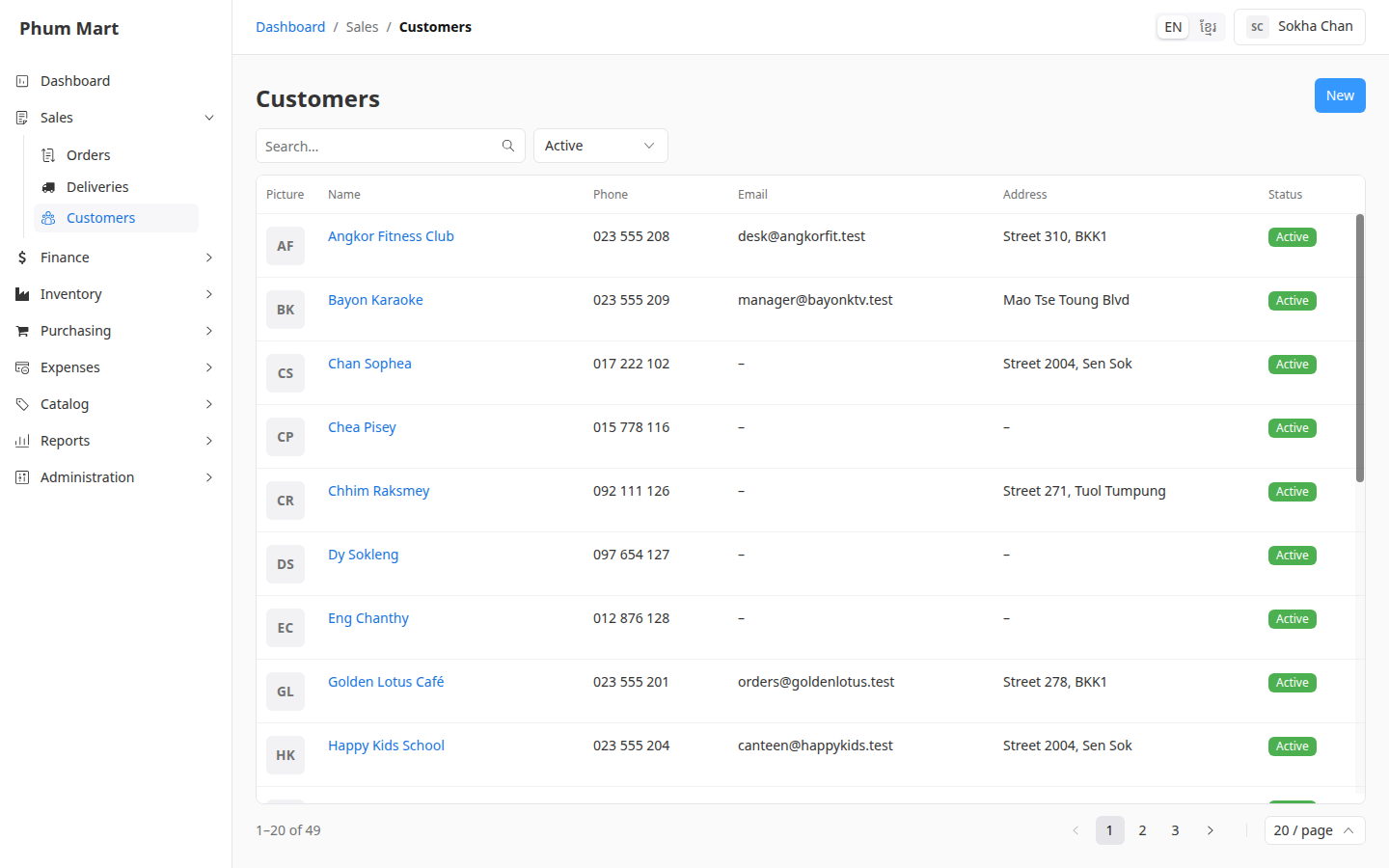
Go to Sales › Customers and click New.
Enter the Name.
Enter the Phone. A local number starting with 0 is saved with +855, for example
012 888 456becomes+85512888456.Enter the Email and Address if you have them. The address is printed on invoices and copied to new deliveries.
Add a Note for your staff, such as how they pay. It isn't printed.
To add a photo or logo, click Choose image under Picture.
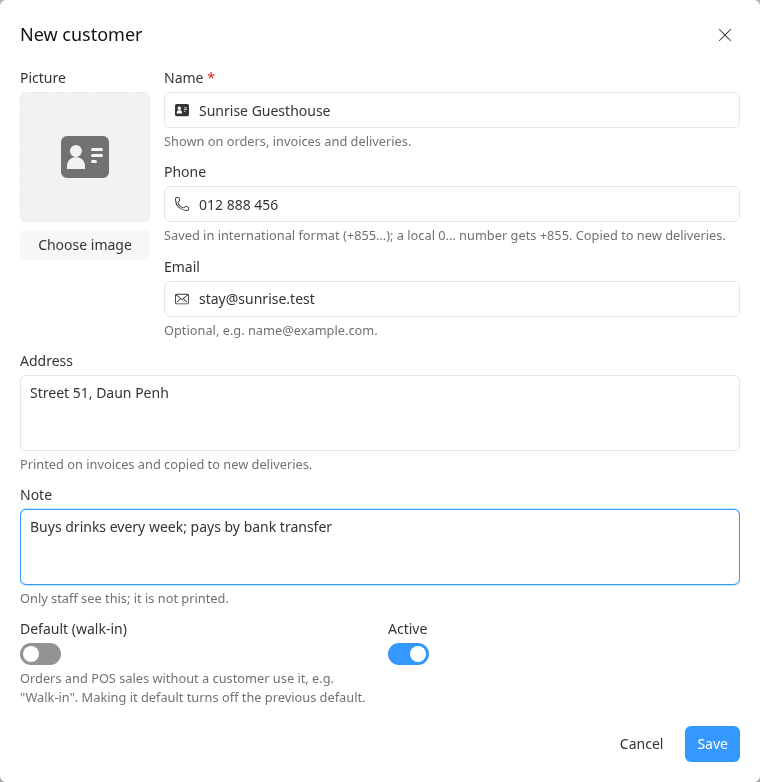
Click Save.
See a customer's history
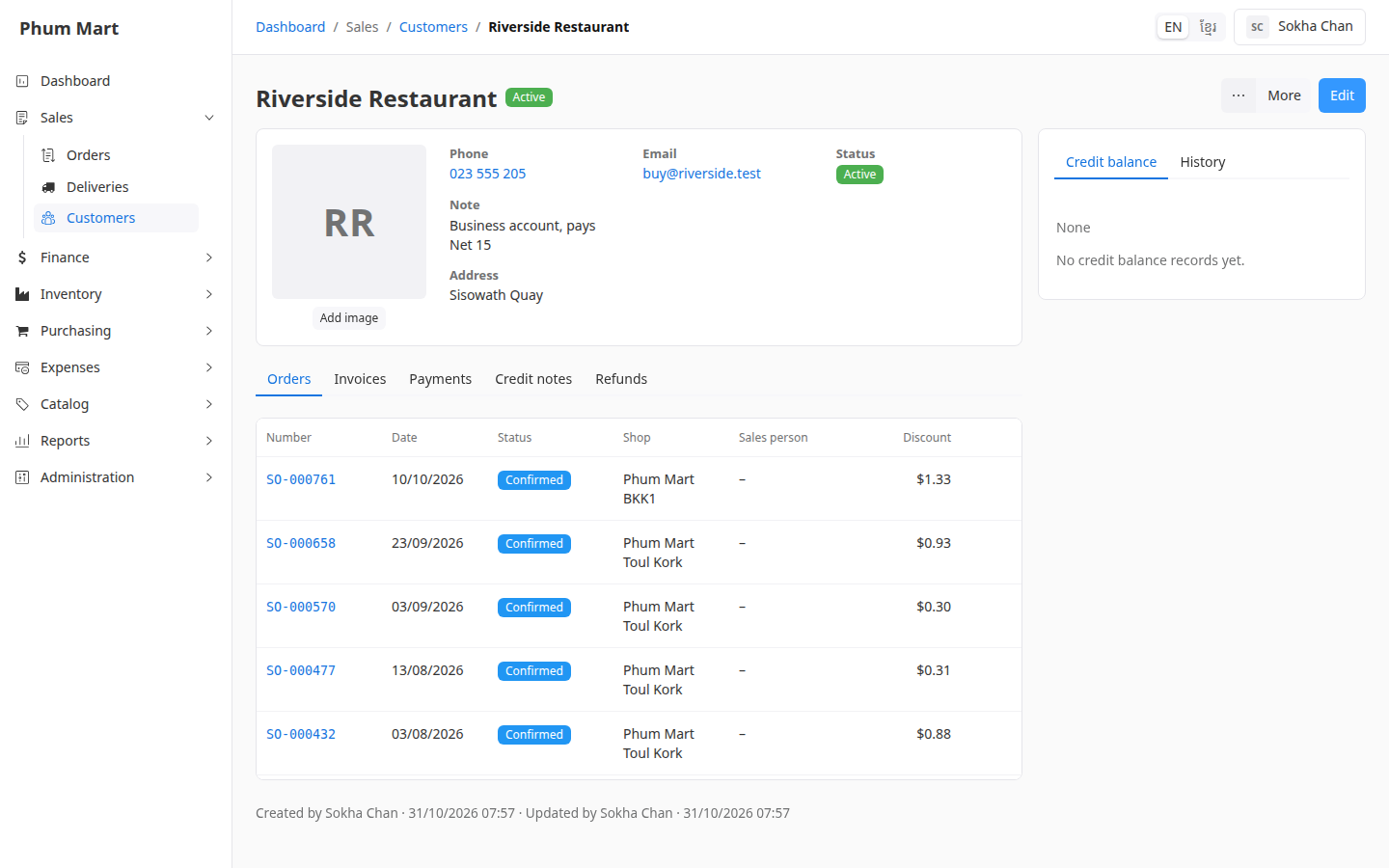
Click the customer. The tabs show their Orders, Invoices, Payments, Credit notes and Refunds, newest first. Click a row to open it. On the right, Credit balance shows their store credit.
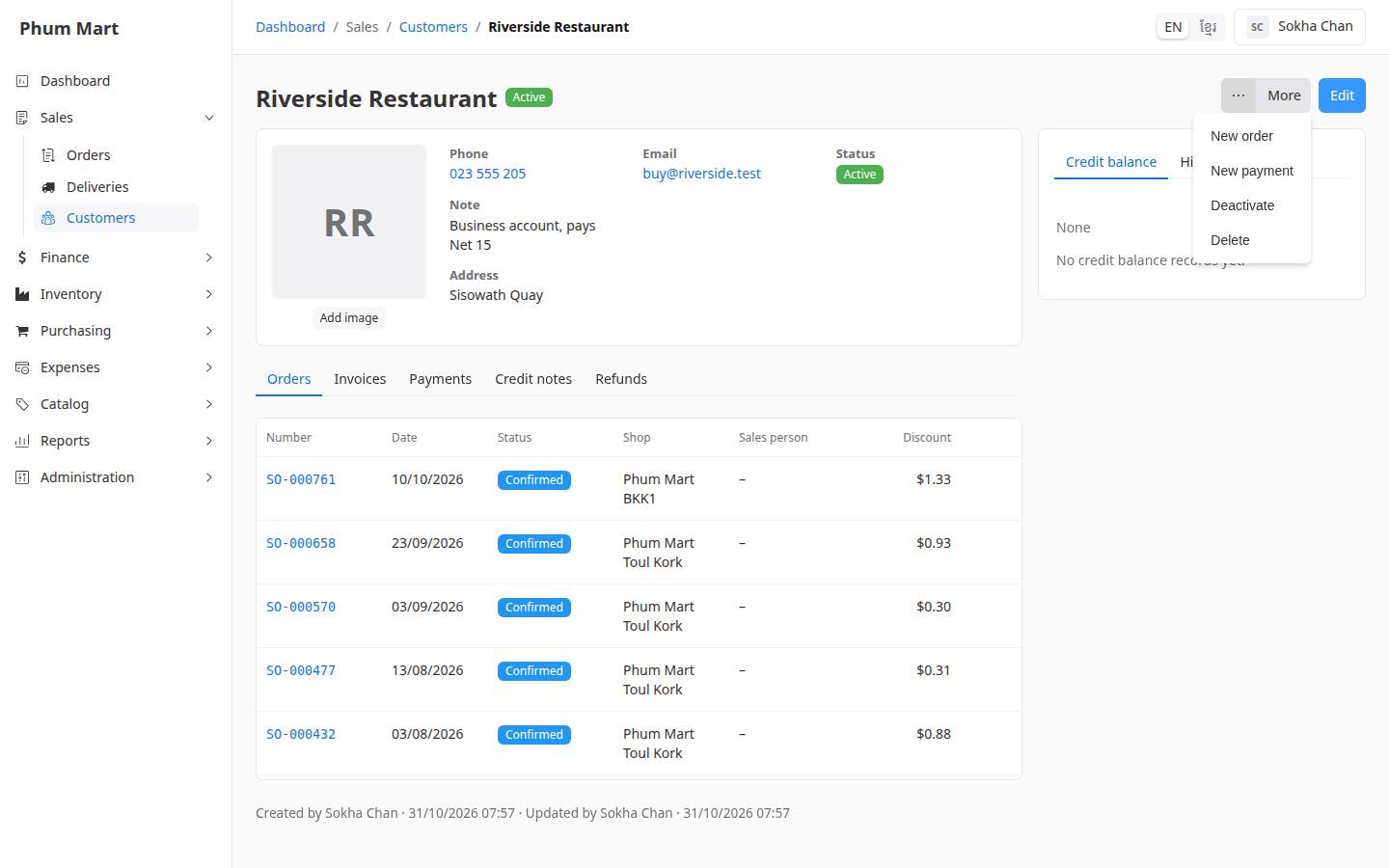
From the More menu you can start a New order or New payment for this customer, already filled in.
Change or remove a customer
- Edit changes their details.
- More › Deactivate stops offering them on new orders. Their documents stay.
- More › Delete removes a customer with no documents, for example one added twice.
Having trouble?
- A customer can't be found by phone: search the digits without the leading 0 or +855, for example
12888456. - A message says the customer is in use: they have orders or payments, so they can't be deleted. Deactivate them instead.
- A customer isn't offered on a new order: they're inactive. Activate them with More › Activate.