Appearance
Add a user
Each person should have their own account, so the app records who did what, such as who confirmed an order or took a payment. What they can do depends on their roles.
Who can do this: Anyone whose role can create users, usually an Administrator.
Before you start: The role they need exists. See Create a role and set its permissions.
Step by step
Go to Administration › Users.
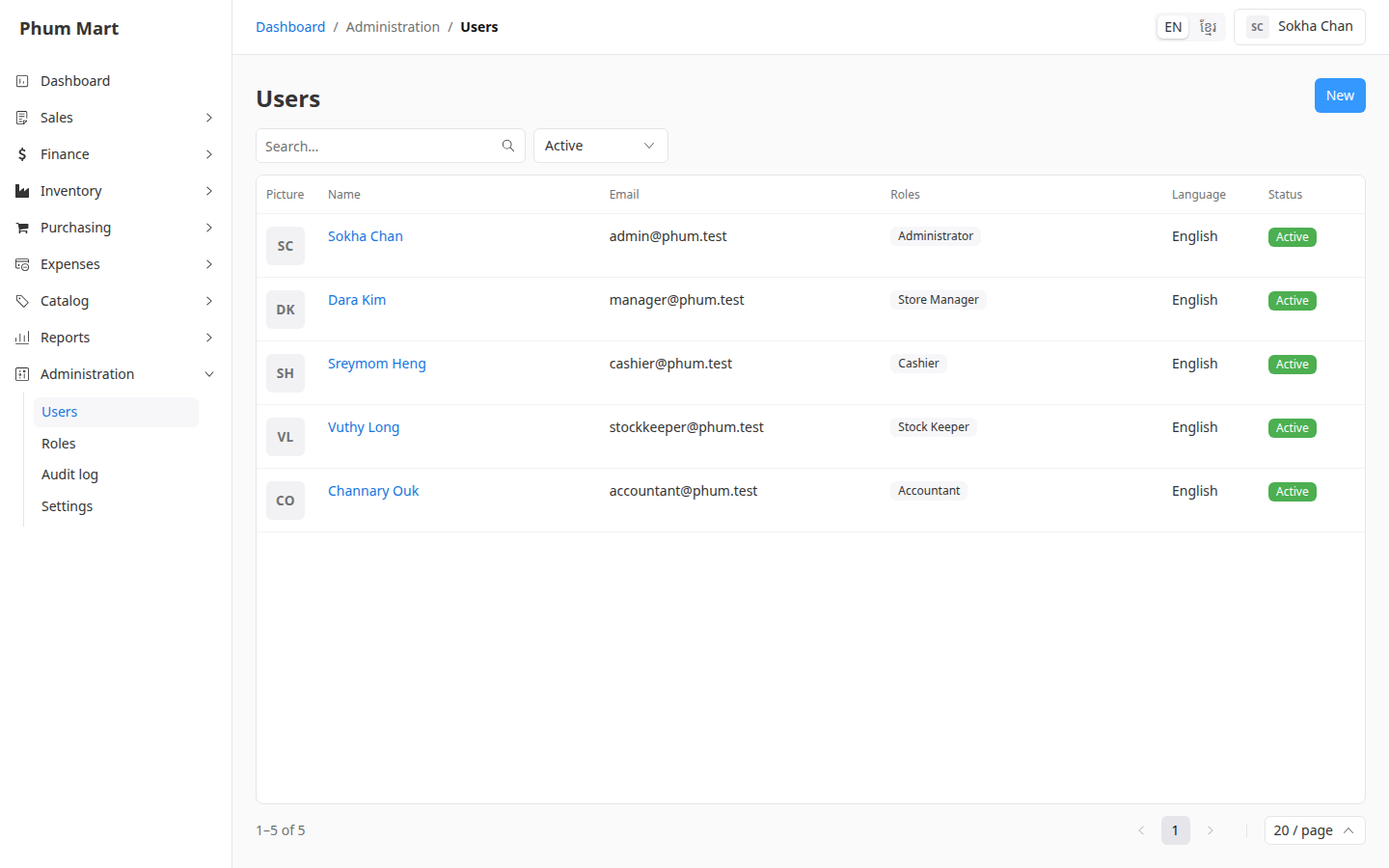
Click New.
Enter their Name and Email. They sign in with this email.
Choose a Password of at least 8 characters, and type it again in Confirm new password.
Choose their Roles. You can pick more than one.
Choose their Language: English or ខ្មែរ. They can change it later themselves.
To add their photo, click Choose image under Picture.
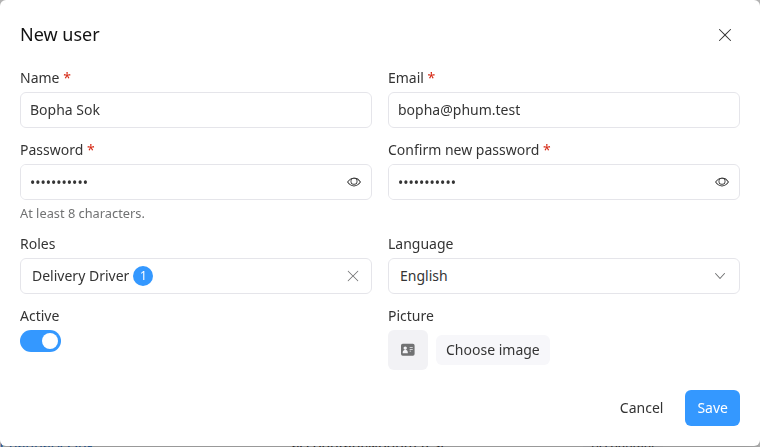
Click Save.
Give the person their email and password, and ask them to change the password the first time they sign in.
Having trouble?
- A message says the email is already used: someone already has an account with it. Search the list, including Inactive users.
- The role you want isn't offered: it's inactive. Activate it in Administration › Roles.