Appearance
Add and manage suppliers
You choose a supplier on each purchase order. The supplier's name, contact, phone and address are printed on your purchase orders.
Who can do this: Anyone whose role can create or edit suppliers, such as a Purchaser.
Step by step
Add a supplier
Go to Purchasing › Suppliers and click New.
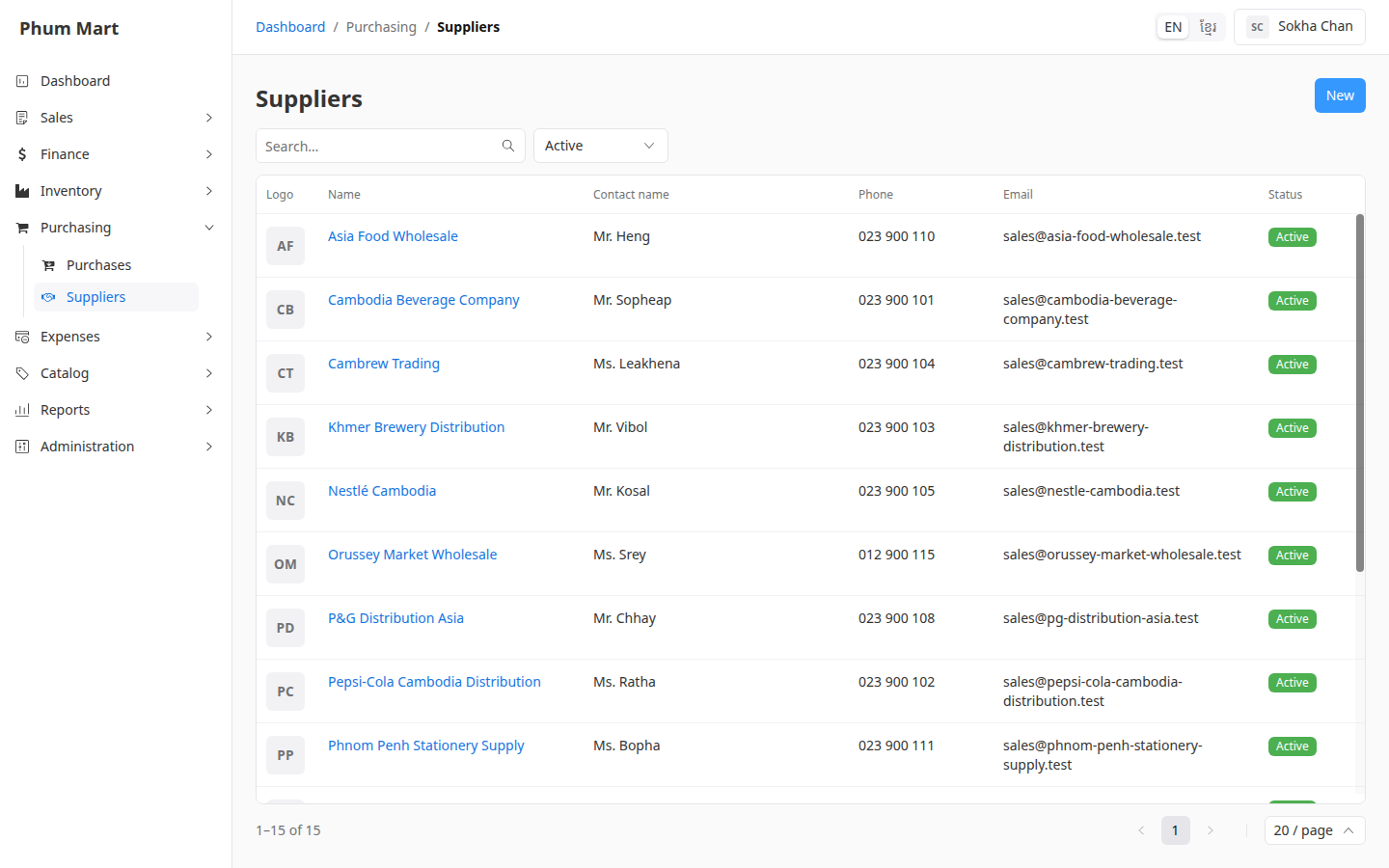
Enter the Name and the Contact name: the person you deal with.
Enter the Phone. A local number starting with 0 is saved with +855.
Enter the Email and Address if you have them. Add a Note for your staff. It isn't printed.
To add their logo, click Choose image under Logo.
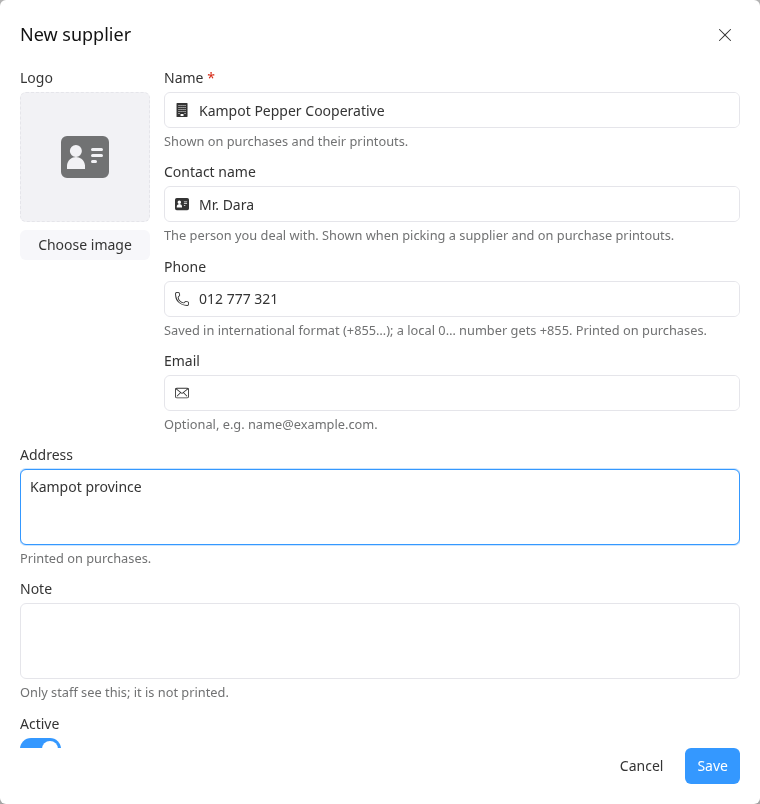
Click Save.
See a supplier's purchases
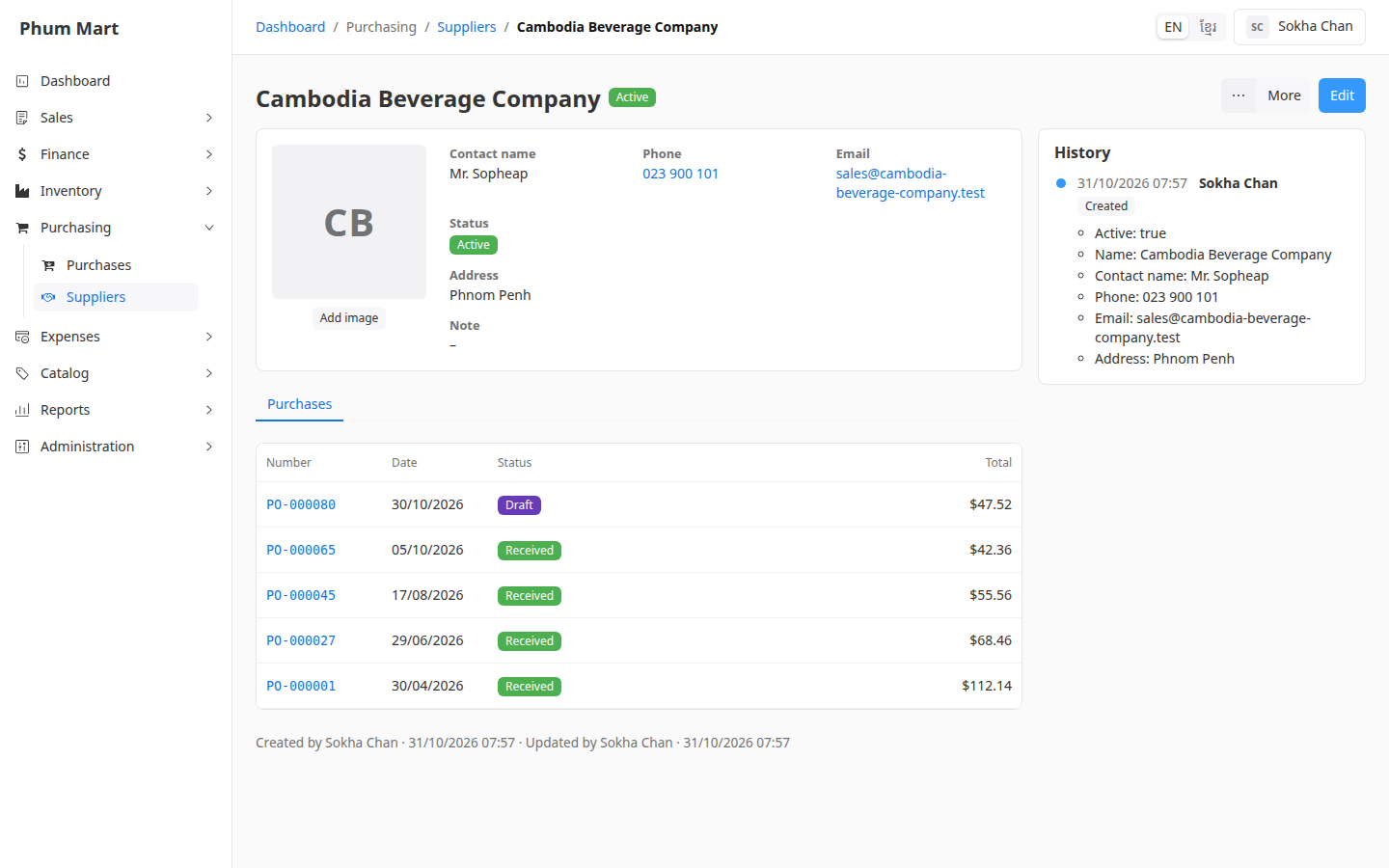
Click the supplier. Its Purchases tab lists the purchase orders made with it. To start one, click More › New purchase.
Change or remove a supplier
- Edit changes their details.
- More › Deactivate stops offering them on new purchases. Their purchases stay.
- More › Delete removes a supplier with no purchases.
Having trouble?
- A message says the supplier is in use: they have purchases, so they can't be deleted. Deactivate them instead.
- A supplier isn't offered on a new purchase: they're inactive. Activate them with More › Activate.