Appearance
Confirm a payment
A draft payment is a note that money is expected. Confirming it posts it: the amounts come off the invoices, which become Paid or Partially paid, and the payment counts in the reports. It's usually the accountant who confirms, after checking the bank or the cash drawer.
Who can do this: Anyone whose role can edit payments, such as Accountants.
Before you start: Record the payment as a draft.
Step by step
Open the payment, for example from Finance › Payments with Status set to Draft.
Check the amount and the invoices it pays, and that the money really arrived.
Click Confirm. The message shows the amount and how many invoices it pays.
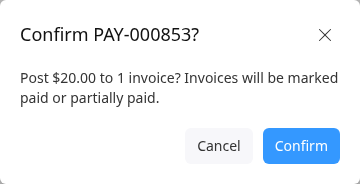
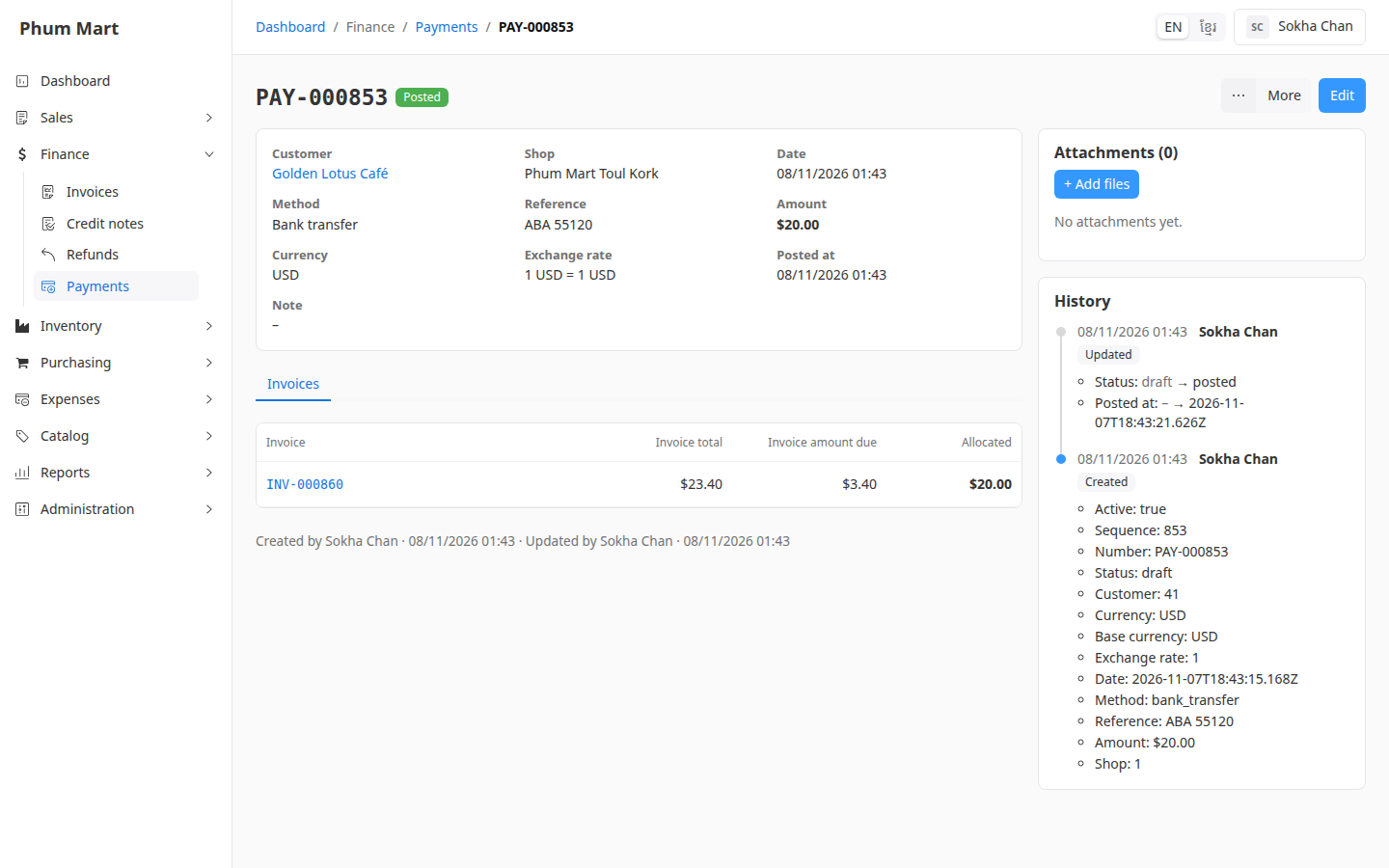
Click Confirm. "Payment posted" appears, and the status is Posted.
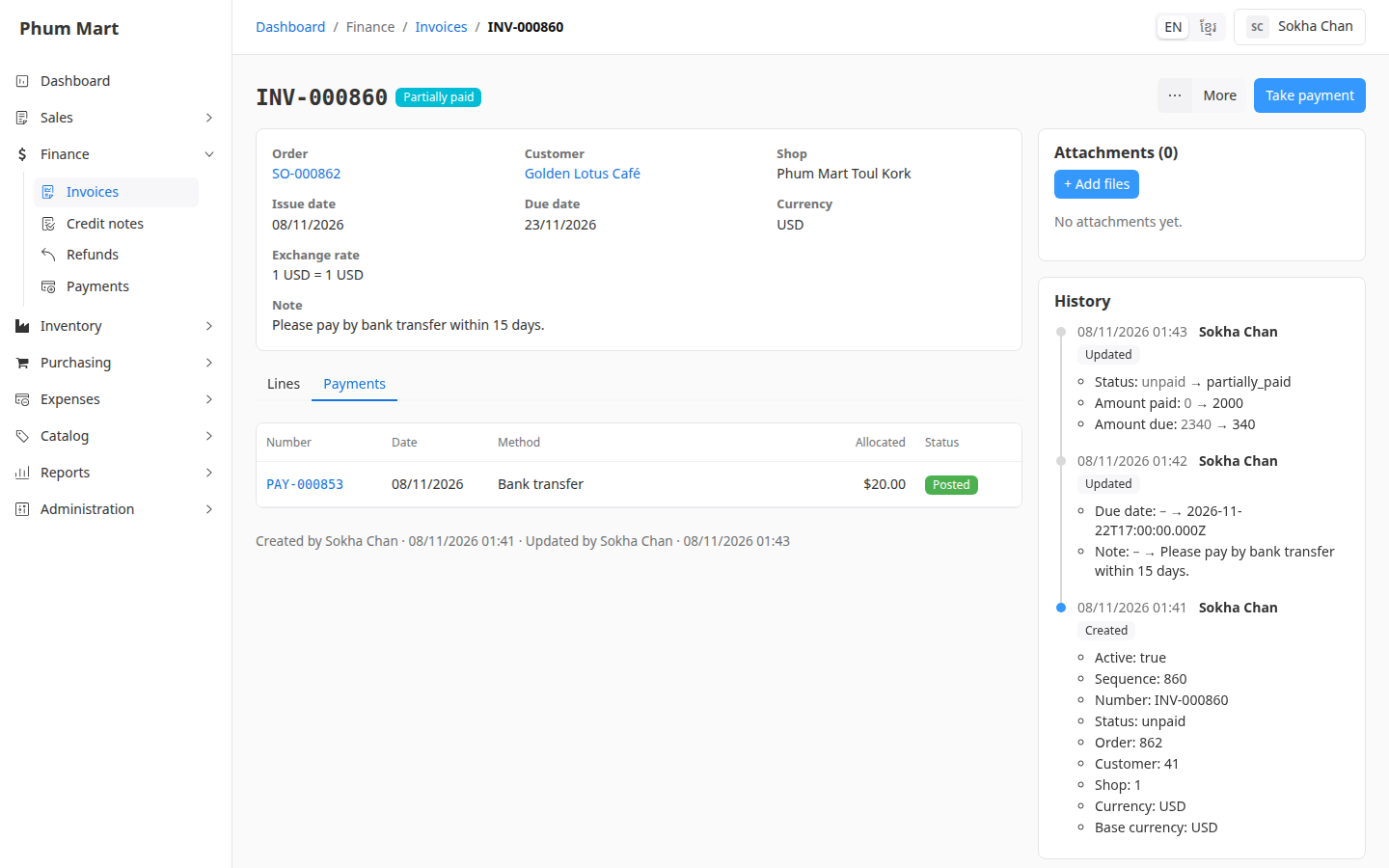
Open the invoice to check it. Its status is Partially paid or Paid, and its Payments tab lists the payment.
Having trouble?
- The payment stays a draft and a message says an amount is more than what's due: the invoice was paid in the meantime, for example by someone else. Click Edit, lower the amount, then confirm again.
- A message says there isn't enough store credit: a store credit payment can't take more than the customer has. Lower the amount, or record the rest with another method.
- You confirmed the wrong payment: void it. See Correct or void a payment.