Appearance
Manage categories
Categories form a tree: a category can have sub-categories, as deep as you need. Each product belongs to one category. Categories are used to find products and in the Sales by category report.
Who can do this: Anyone whose role can create or edit categories, such as a Catalog manager.
Step by step
See the categories
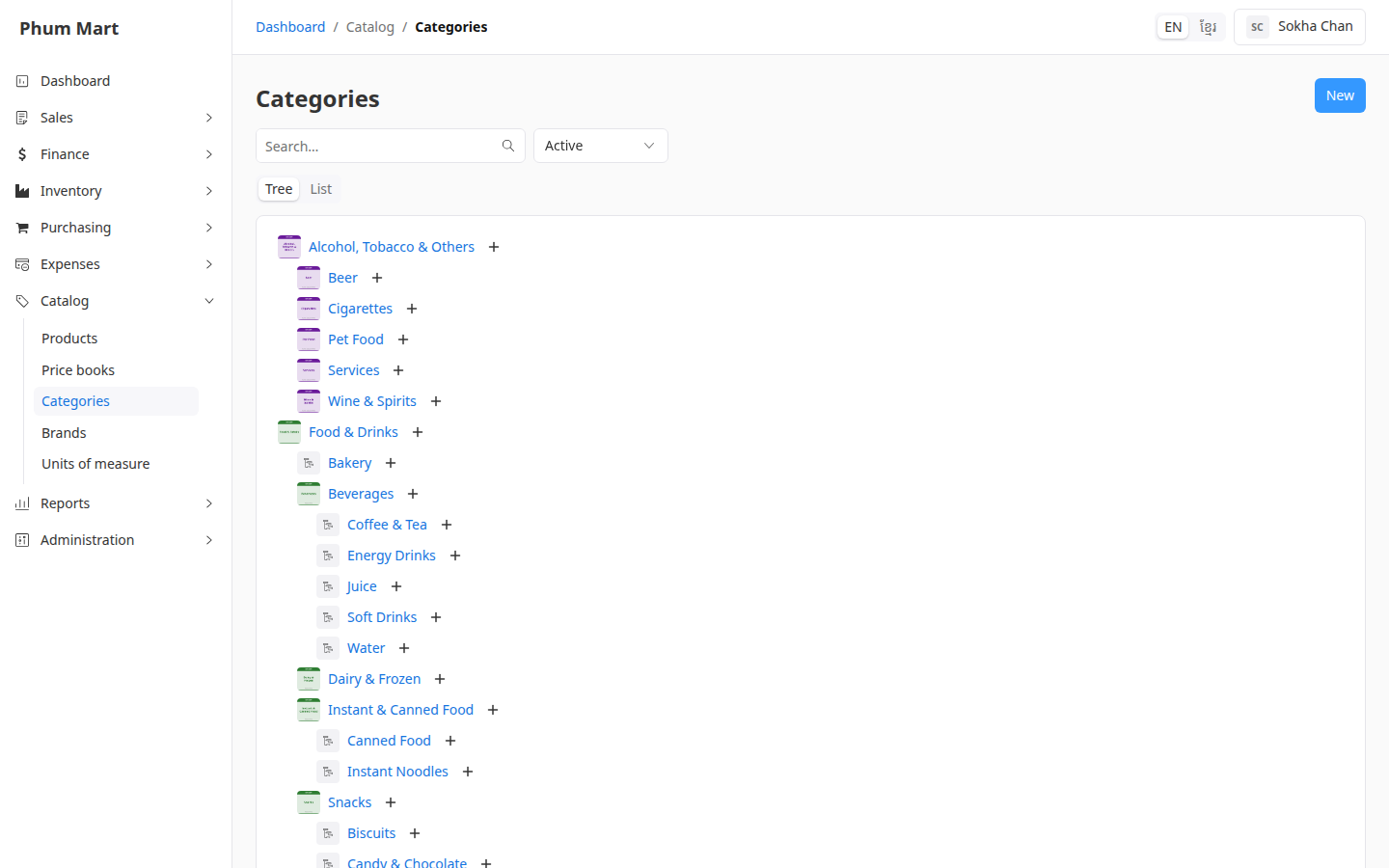
Go to Catalog › Categories. The Tree view shows how categories fit inside each other.
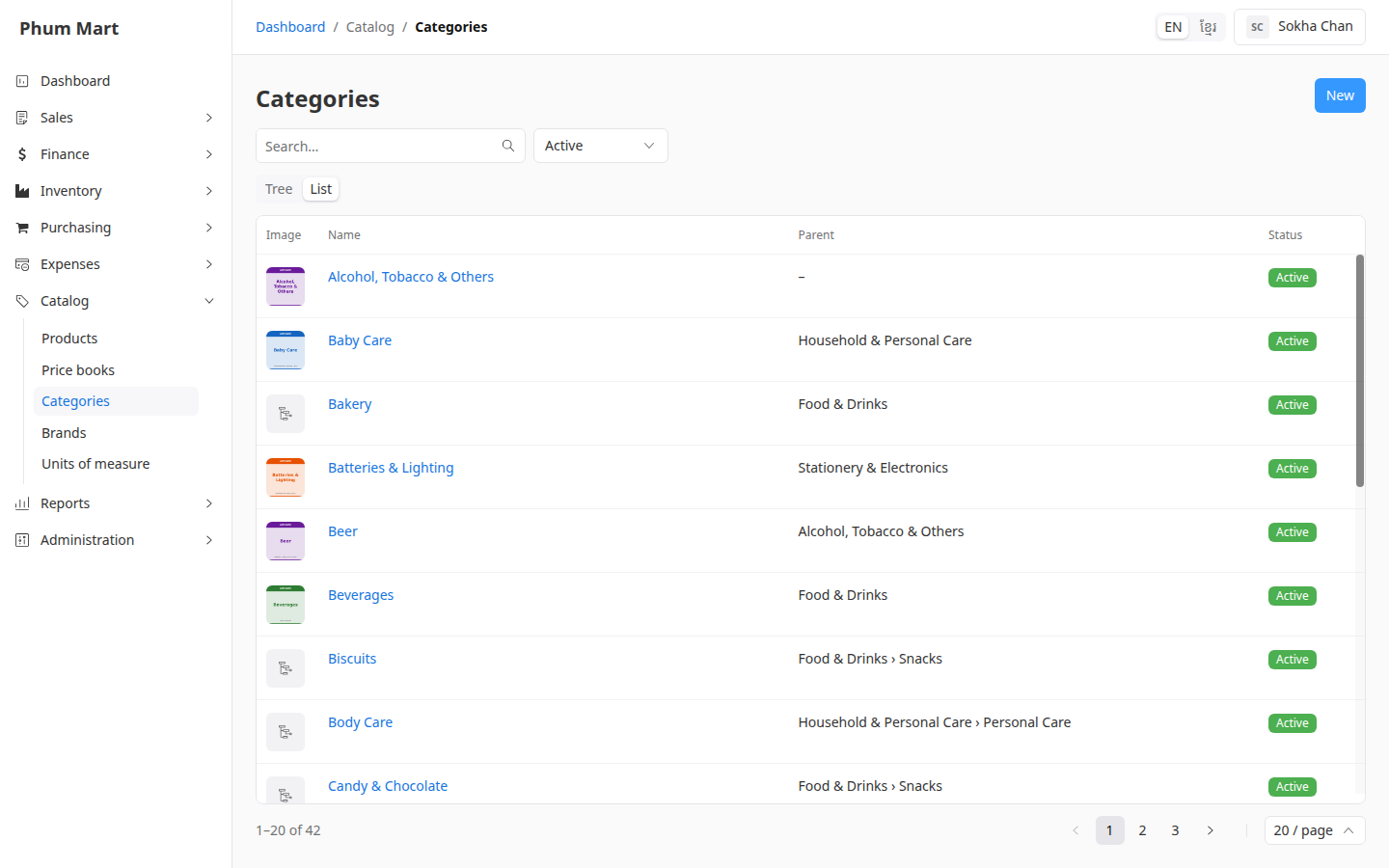
Click List to see them as a table instead, with each category's parent.
Add a category
To add a sub-category, click + next to its parent in the tree. To add a top-level category, click New.
Enter the Name. Check the Parent, or leave it empty for a top-level category.
Add a Description and an image if you want.
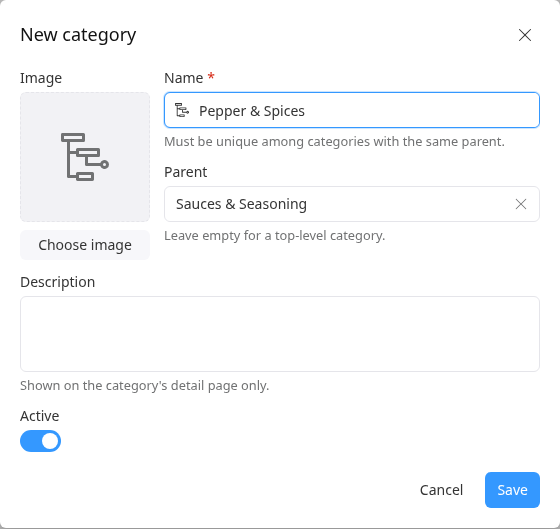
Click Save.
Move, change or remove a category
- Edit changes its name or description. Change Parent to move it, with its sub-categories, under another category.
- Open a category to see its Sub-categories and Products tabs.
- More › Deactivate stops offering it on products. More › Delete removes a category nothing uses.
Having trouble?
- A category isn't offered as a parent: a category can't be its own parent, or the parent of a category above it.
- A message says the name is already used: two sub-categories of the same parent need different names.
- A message says the category is in use: products or sub-categories use it. Move them first, or deactivate it.