Appearance
Adjust stock after a count
An adjustment adds or removes stock in one shop, with a note saying why. Use a positive quantity to add stock, and a negative one to remove it. For example, −2 for two bottles broken on the shelf.
Who can do this: Anyone whose role can create stock moves, such as Warehouse staff.
Step by step
Go to Inventory › Stock balances and find the product.
Click ⋯ at the end of its row for the right shop, and choose Adjust. The adjustment opens with the shop and product filled in.
You can also go to Inventory › Adjustments and click New.
Enter the Quantity to add, or a negative number to remove.
Type a Note that says why, for example "2 bottles broken on the shelf" or "Count of 8 Nov".
To adjust more products in the same shop, click Add line.
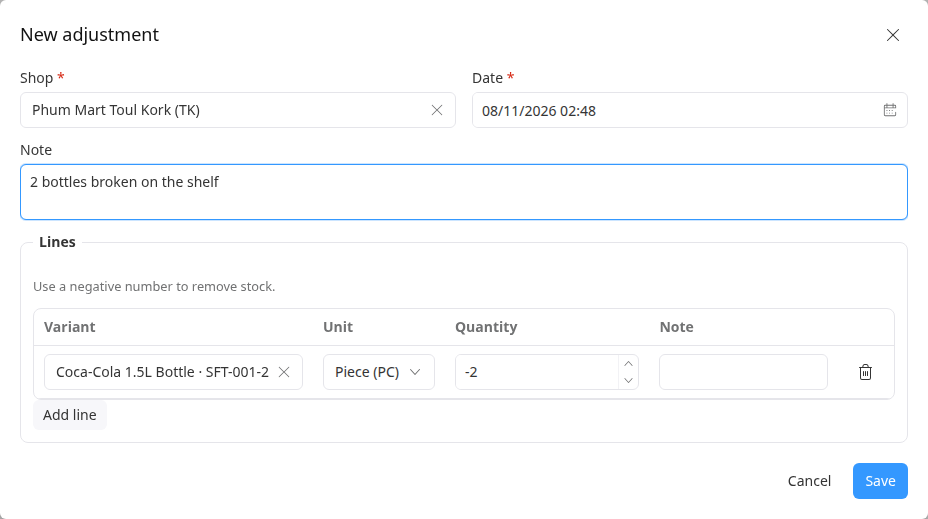
Click Save, check the adjustment, then click Validate. See Validate or cancel a stock move.
Having trouble?
- "The quantity can't be 0.": enter the difference to add or remove, not the new total.
- You want to set a new total: work out the difference first. For example, if the shop shows 10 and you counted 7, enter −3.