Appearance
Add product variants
A variant is one version of a product, such as Kampot Pepper 100g. Variants are what appear on orders, purchases and receipts, and stock is counted per variant. Each variant needs:
- A SKU: your own stock code, unique across all products.
- A Price: its list price per base unit, in the base currency. Price books can set other prices. See Create a price book.
- Optionally, a Barcode, so it can be scanned, and a Cost, used in the profit reports.
A product can have one variant for each combination of its attribute values. A product without attributes has one variant only.
Who can do this: Anyone whose role can edit products, such as a Catalog manager.
Before you start: Create the product, with its attributes.
Step by step
Open the product and click its Variants tab.
Click Add variant.
Choose the attribute values, for example Pack: 100g. The Name is suggested from the product name and the values. Change it if you want.
Enter the SKU and, if it has one, the Barcode. Click in Barcode and scan it with a USB scanner, or type it.
Enter the Price and the Cost.
To give this variant its own photo, click Choose image. Without one, it uses the product's photo.
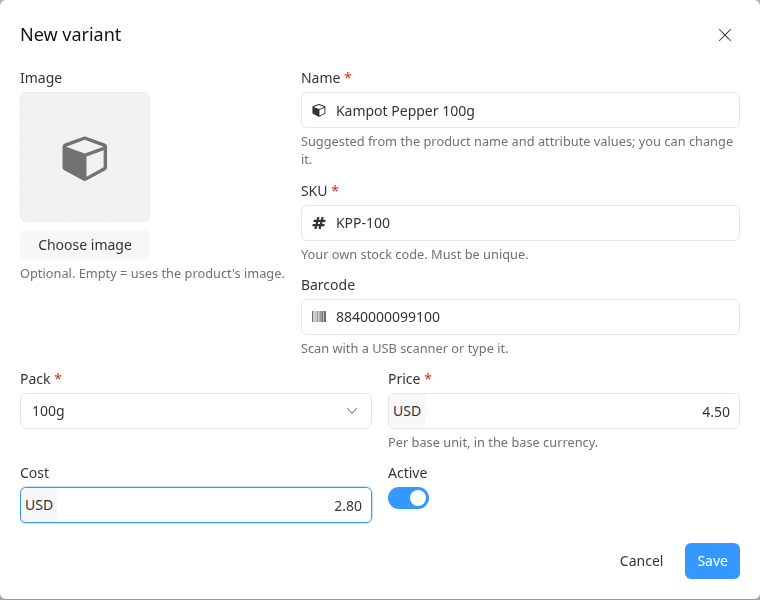
Click Save. Add the other variants the same way.
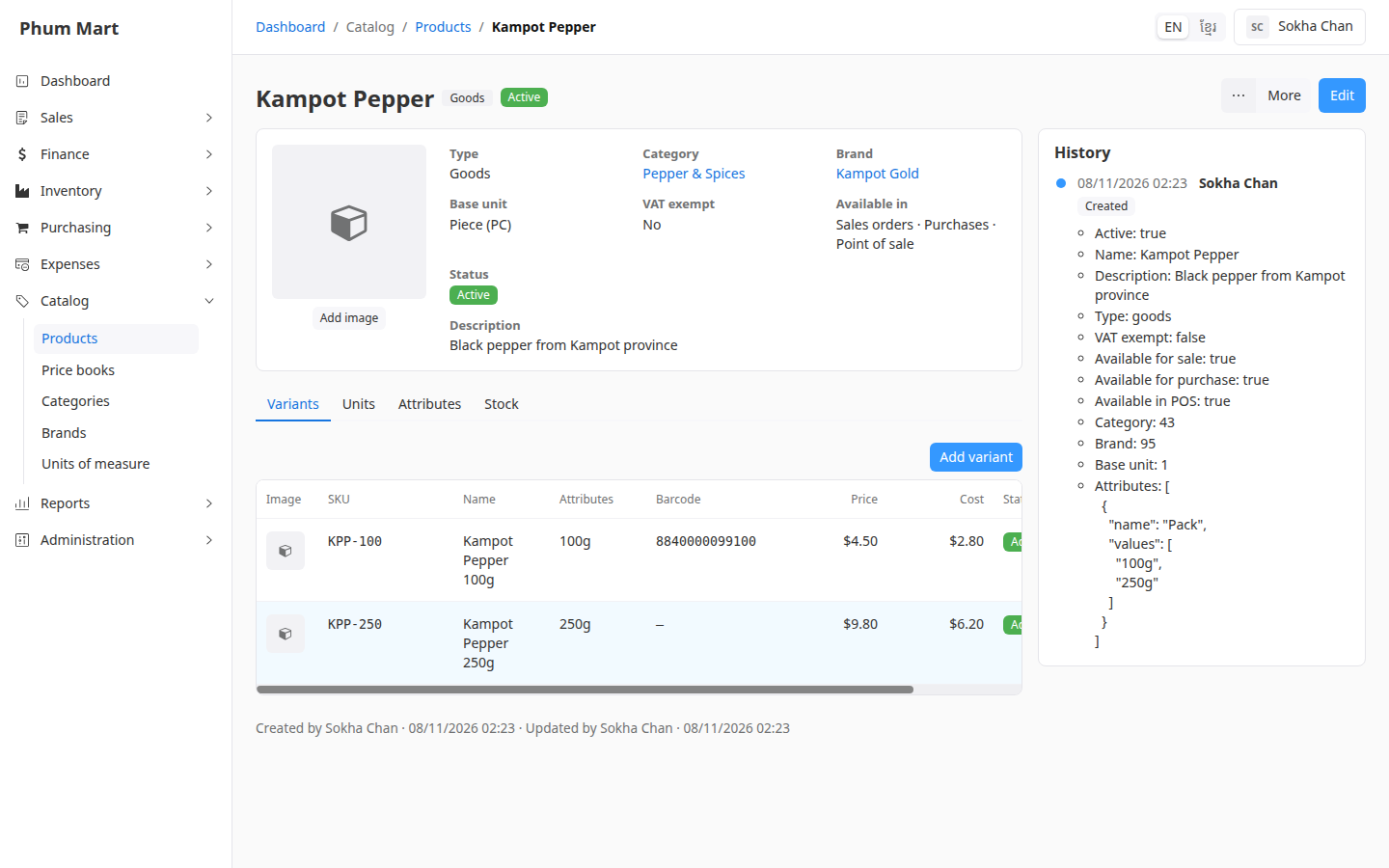
To change a variant, click ⋯ on its row and choose Edit. The same menu lets you add or remove its photo, deactivate it, or delete it if nothing uses it.
Having trouble?
- There's no Add variant button: the product has no attributes, and its one variant exists already. To add more, edit the product and add an attribute.
- A message says the SKU or barcode is already used: each variant needs its own. Search the products to find the other one.
- Profit shows a warning about cost: some variants have no Cost. Edit them and add it.