Appearance
Close a forgotten shift
Cashiers normally close their own shift in the POS app. If one forgets, a manager can close it here. You count the cash in the drawer, and the app compares it with what should be there.
Once a shift is closed, the cashier can't sell in it any more, and the register is free for a new shift.
Who can do this: Anyone whose role can edit POS sessions, such as a shop manager.
Step by step
Go to Administration › Settings › POS sessions and open the shift. Its status is Open.
Click Close session.
Count the drawer, and enter the amount for each currency in Counted, for example Counted (USD). Add a Note, such as who counted it and when.
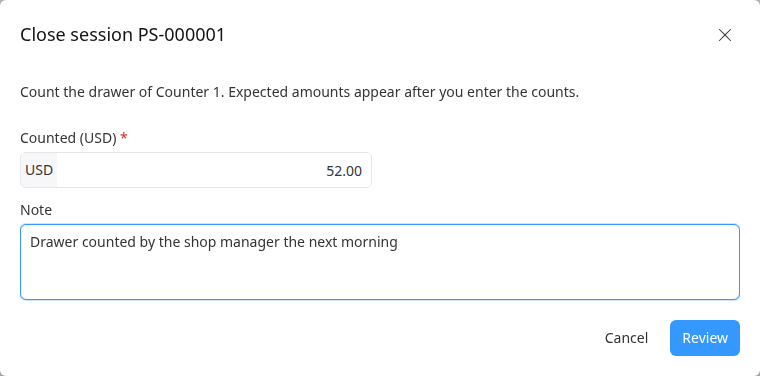
Click Review. For each currency, you see the Opening float, the Expected amount, what you Counted, and the Difference.
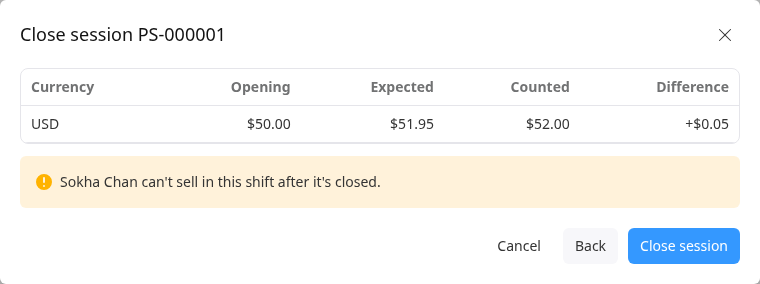
To fix a count, click Back. Your counts are kept.
Click Close session. The status is Closed, and the report becomes the Z report.
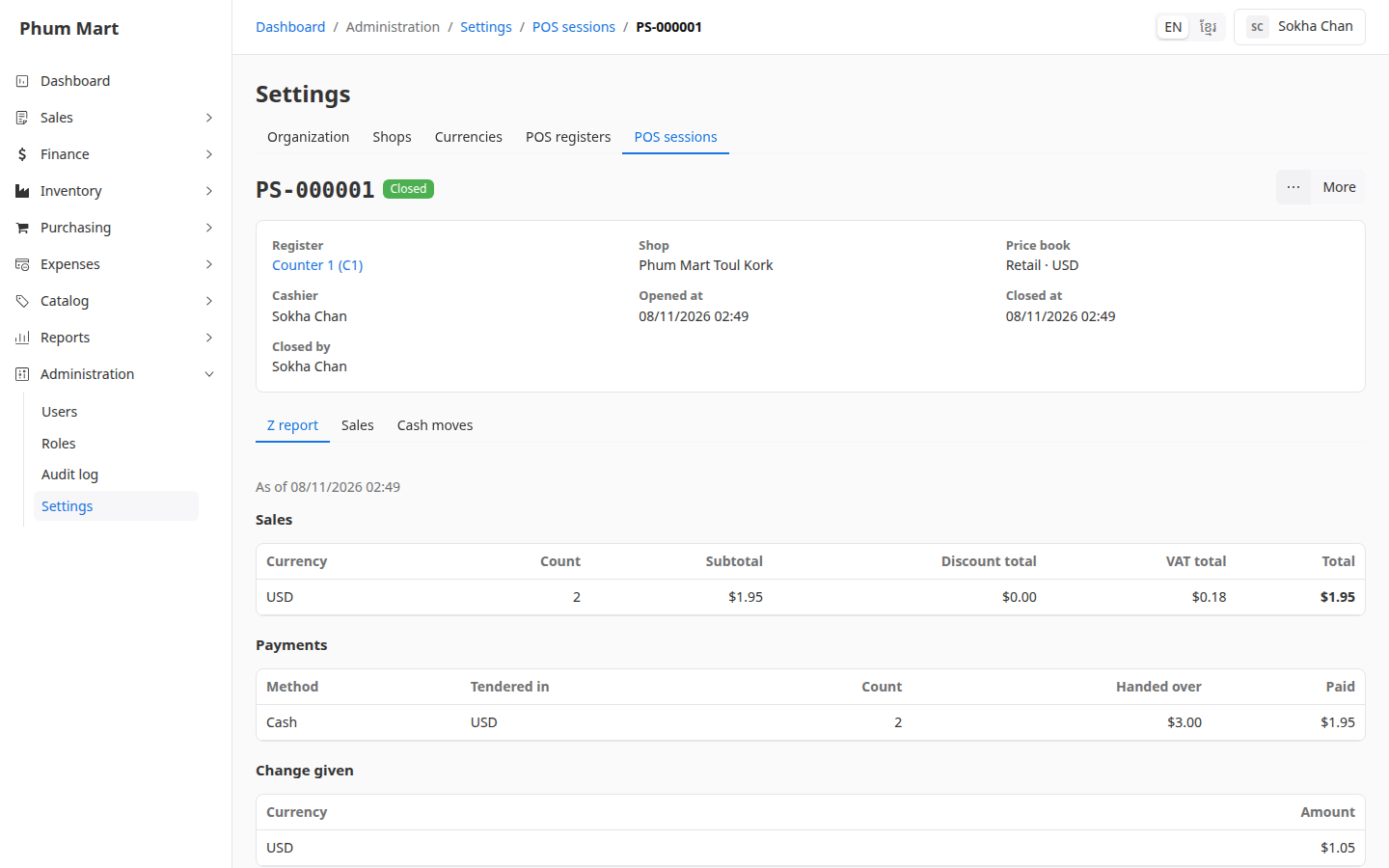
To print it, click More › Print report (A4) or Print report (80 mm).
Having trouble?
- There's no Close session button: the shift is already closed.
- The difference isn't zero: a positive difference means extra cash, a negative one means cash is missing. Write what you know in the note, then check the shift's sales and cash moves.