Appearance
Add and edit order lines
Each line is one product (or variant, such as a size or flavour) with its quantity. The price comes from the order's price book, so you normally don't type prices. If you've agreed a different price or a discount with the customer, you can override it on the line.
You can add, edit and delete lines only while the order is a draft.
Who can do this: Anyone whose role can edit orders, such as Sales staff.
Before you start: Create the order.
Step by step
Add a line
Open the draft order and click Add line.
In Variant, type the product's name or SKU, or scan its barcode with a barcode scanner. Pick the product.
Check the Unit, for example Piece or Box. It starts as the product's base unit.
Enter the Quantity. The grey box shows the price from the price book: Sell price, Discount and Unit price.
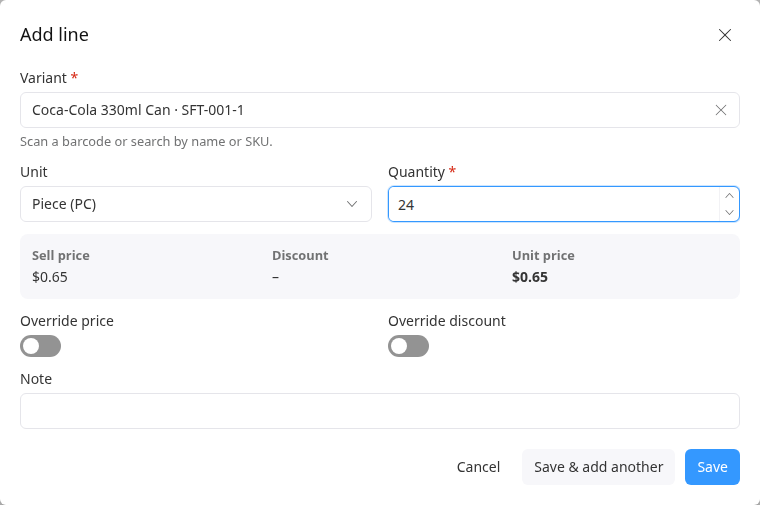
Click Save. The line appears, and the totals under the lines update.
To add several lines quickly, click Save & add another, or press Enter in Quantity. The line is saved, and a new empty line opens. With a barcode scanner: scan, type the quantity, press Enter, then scan the next product.
Change the price or discount on a line
While adding or editing a line, turn on Override price and enter the new Sell price, per unit, in the order's currency.
Or turn on Override discount, choose a percentage or an amount, and enter it.
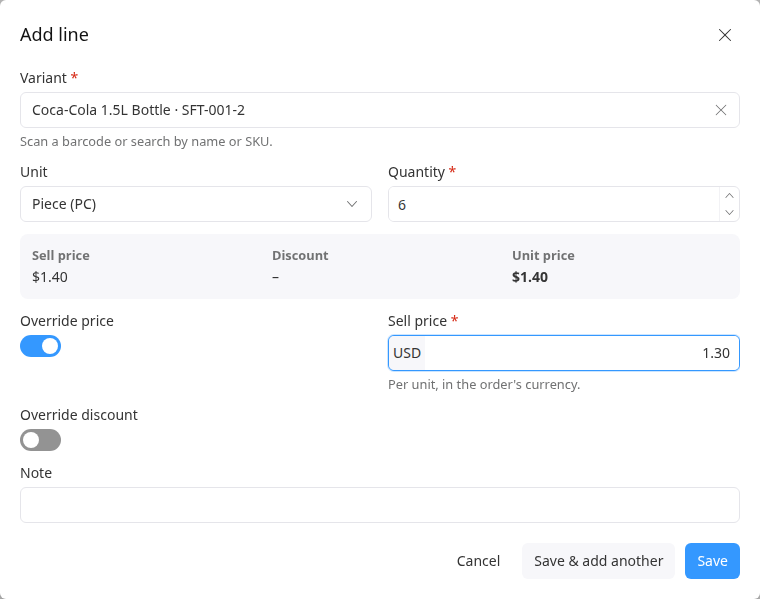
Click Save. The line shows Overridden under the price.
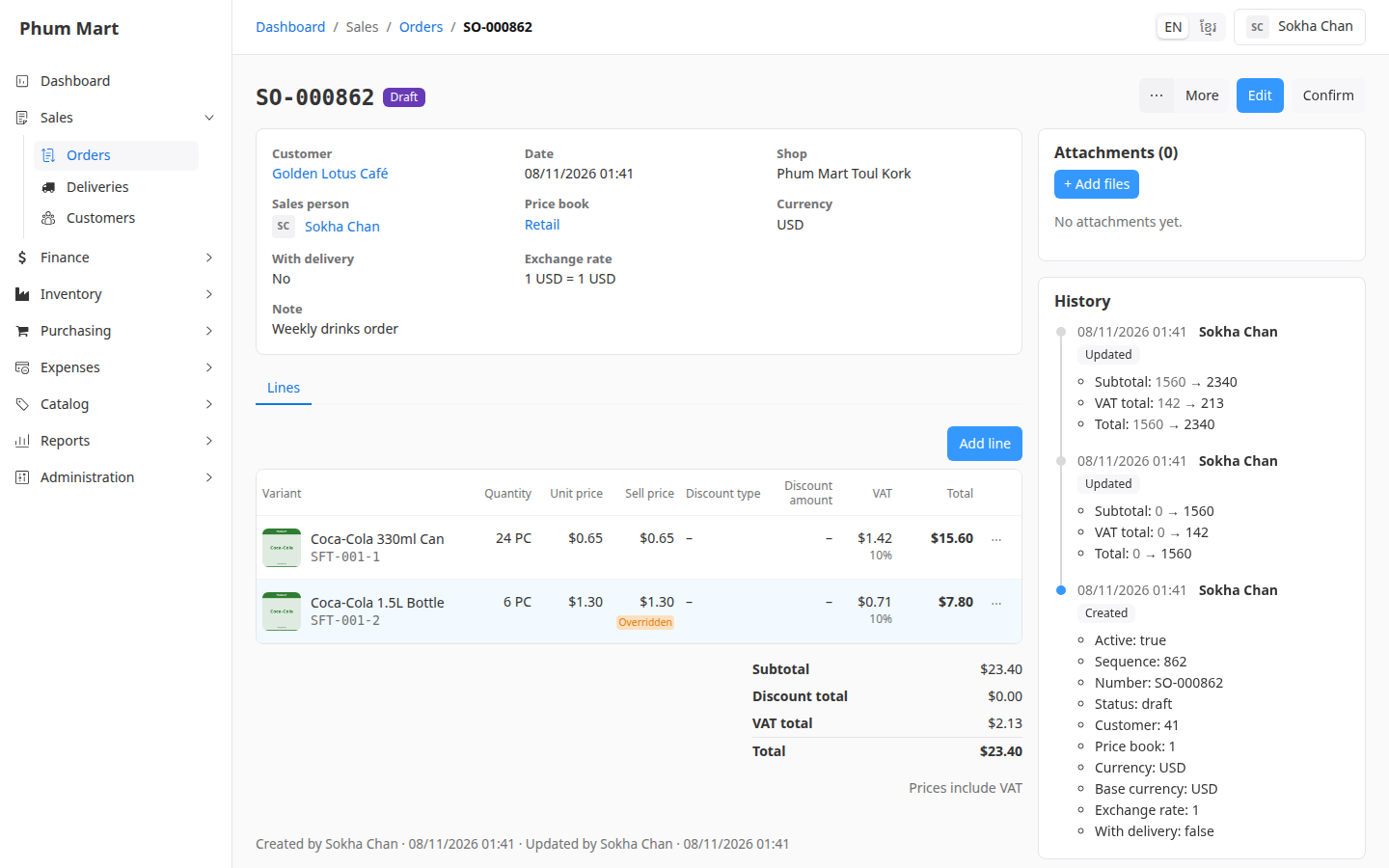
To go back to the price book's price, edit the line and turn the override off.
Edit or delete a line
Click ⋯ at the end of the line.
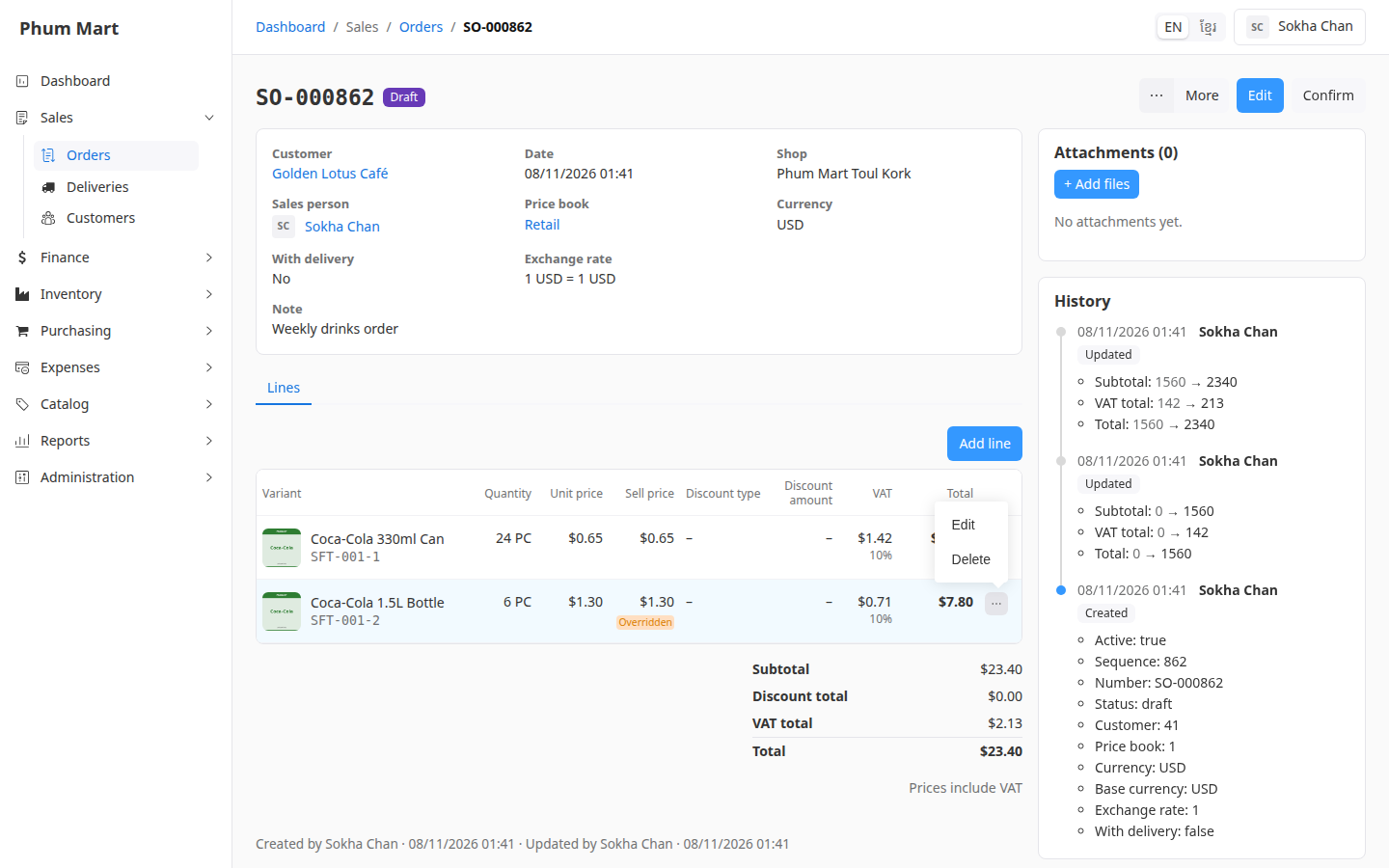
Click Edit to change it, or Delete to remove it.
Having trouble?
- The product isn't offered: it may be inactive, or not sold through orders. Some products are for purchases or the POS only. Ask whoever manages products.
- "No price" in the line popup: the price book has no price for this product in its currency. Ask whoever manages prices to add one, or override the price.
- You can't add or change lines: the order isn't a draft any more. A confirmed order can't change. See Return items from a sale if goods come back.
- The totals look different from your own sum: VAT and discounts are calculated by the app. Under the totals, the order says whether its prices include VAT.