Appearance
Set the default customer
Every order needs a customer. For a walk-in sale, use the default customer, called Walk-in Customer when your business is set up. New orders start with it, and the POS app uses it for every sale without a named customer.
The default customer can't hold store credit, so their returns are always refunded as money.
Who can do this: Anyone whose role can edit customers.
Step by step
See the default customer
Go to Sales › Customers. The default customer has a Default badge. Its page shows the same badge.
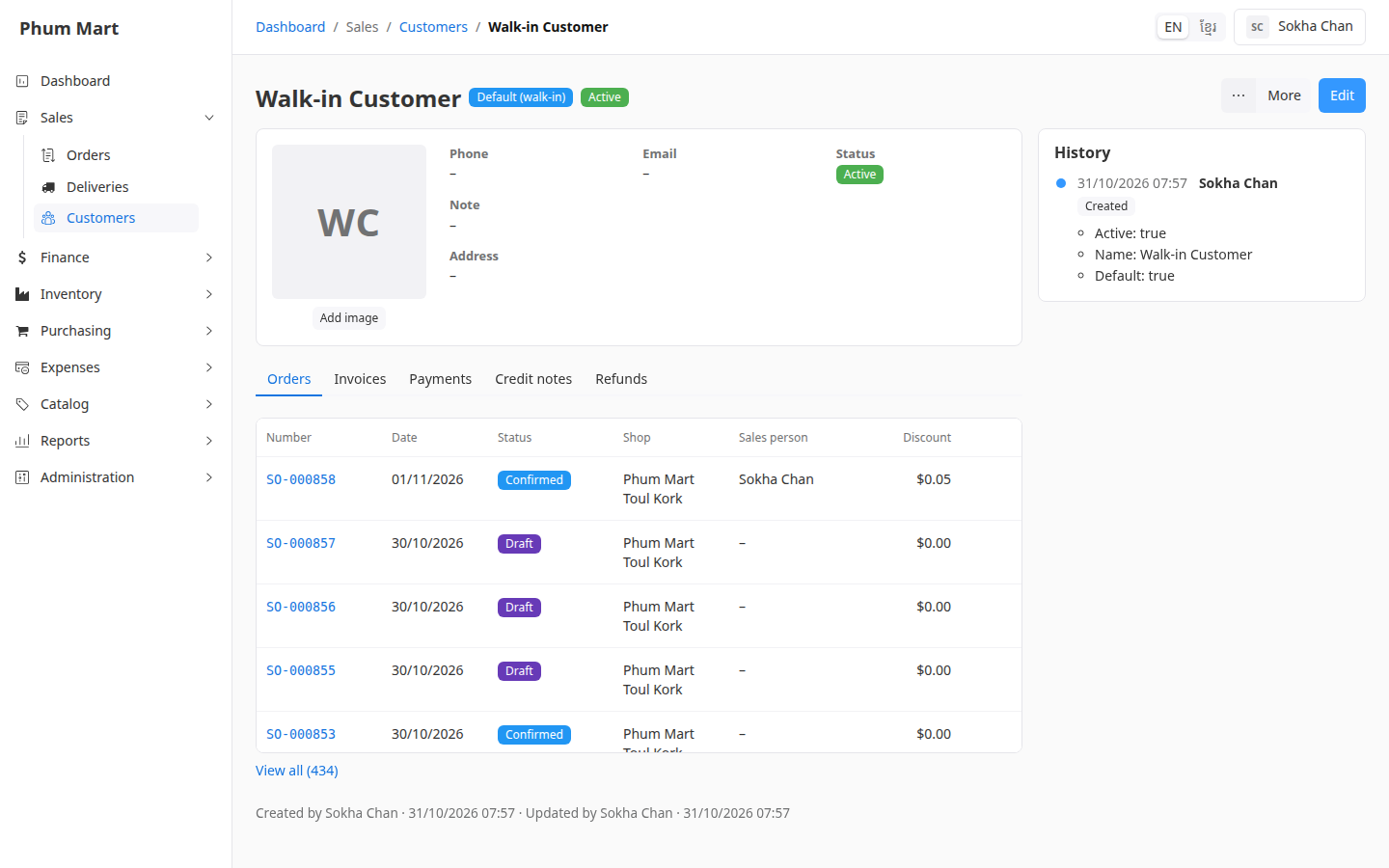
Make another customer the default
Open the customer and click Edit.
Turn on Default (walk-in). The previous default customer stops being the default.
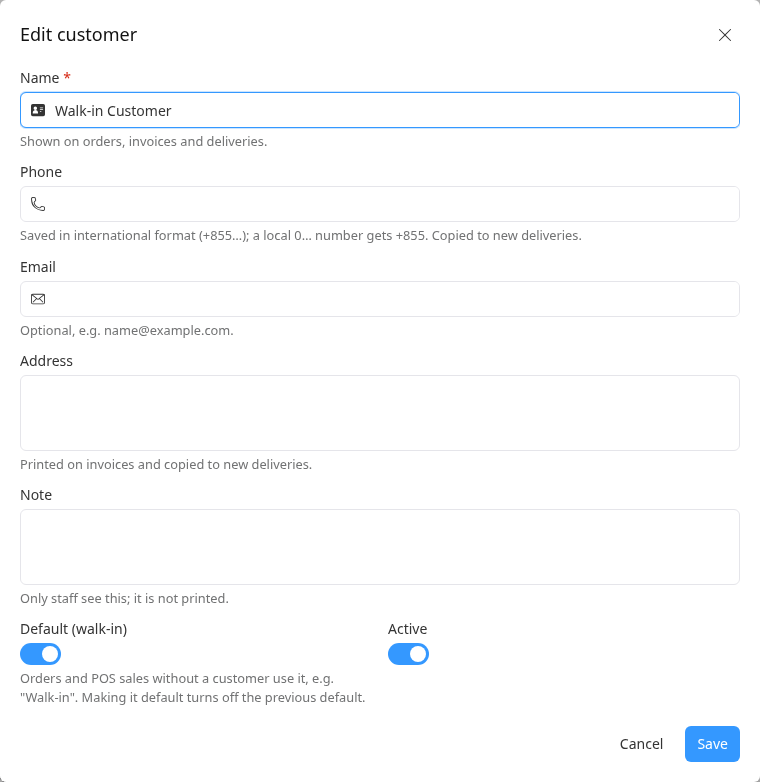
Click Save. New orders now start with this customer.
You can rename the default customer, for example to Guest, in the same popup.
Having trouble?
- You can't turn off Default (walk-in): there must always be a default customer. Turn it on for another customer instead.
- You can't deactivate or delete the default customer: make another customer the default first.
- Old orders show "Walk-in" without a link: they were made before the default customer existed. They get the default customer when their draft is edited.