Appearance
Set up units of measure
There are two kinds of units:
- Base units, such as Piece or Kilogram. Stock is counted in a base unit.
- Units made of a base unit, such as Box (12) = 12 pieces. The factor says how many base units one of them holds.
Each product has one base unit. You can then sell or buy it in the other units, and the app converts to the base unit. Common units are set up for you when you sign up.
Who can do this: Anyone whose role can create or edit units of measure, such as a Catalog manager.
Step by step
See the units
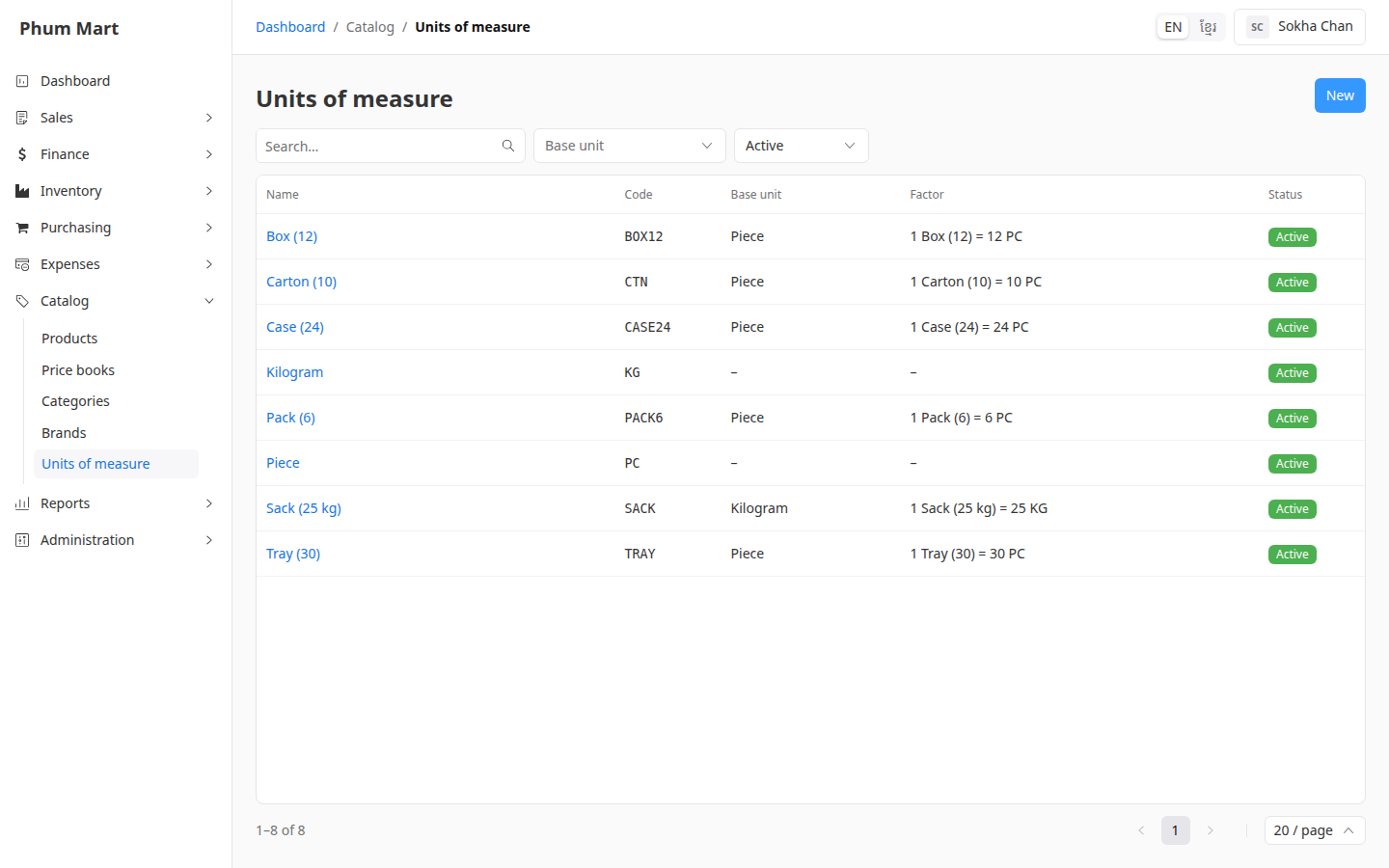
Go to Catalog › Units of measure. The Factor column shows each unit's conversion, for example "1 Case (24) = 24 PC".
Add a unit
Click New.
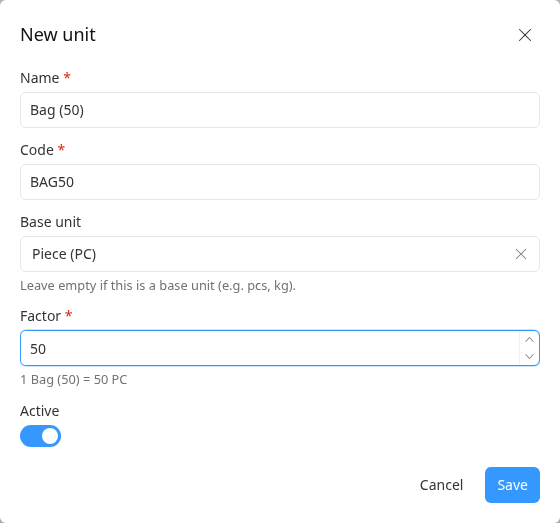
Enter the Name, for example Bag (50), and a short Code, such as
BAG50.For a base unit, leave Base unit empty. Otherwise, choose the base unit it's made of, for example Piece.
Enter the Factor: how many base units one of this unit holds. The line under it checks it for you, for example "1 Bag (50) = 50 PC".
Click Save.
A product can use a different factor for the same unit, for example a box of 24 cans instead of 12. Set it on the product. See Add product units.
Change or remove a unit
Open the unit to see its details and the units made from it. Edit changes it. More › Deactivate stops offering it, and More › Delete removes a unit nothing uses.
Having trouble?
- There's no Factor field: choose a Base unit first. Base units have no factor.
- A message says the unit is in use: products or documents use it. Deactivate it instead.