Appearance
Void a refund or credit note
Posted credit notes and refunds are never deleted. To undo one, you void it. Voiding a credit note reverses everything posting did:
- The returned quantities go back to zero on the order.
- Restocked goods leave the shop's stock again.
- The amount taken off the invoice is owed again.
- Store credit it added is removed.
Do it in this order, because each step depends on the one before:
- Void the refund first, if the credit note made one. The money goes on the customer's store credit for now.
- Void the credit note, with a reason. That store credit is removed again.
Who can do this: Anyone whose role can edit credit notes and refunds, such as Accountants.
Step by step
1. Void the refund
Open the credit note. If it has a refund, More › Void is greyed out, with "Void refund RF-… first".
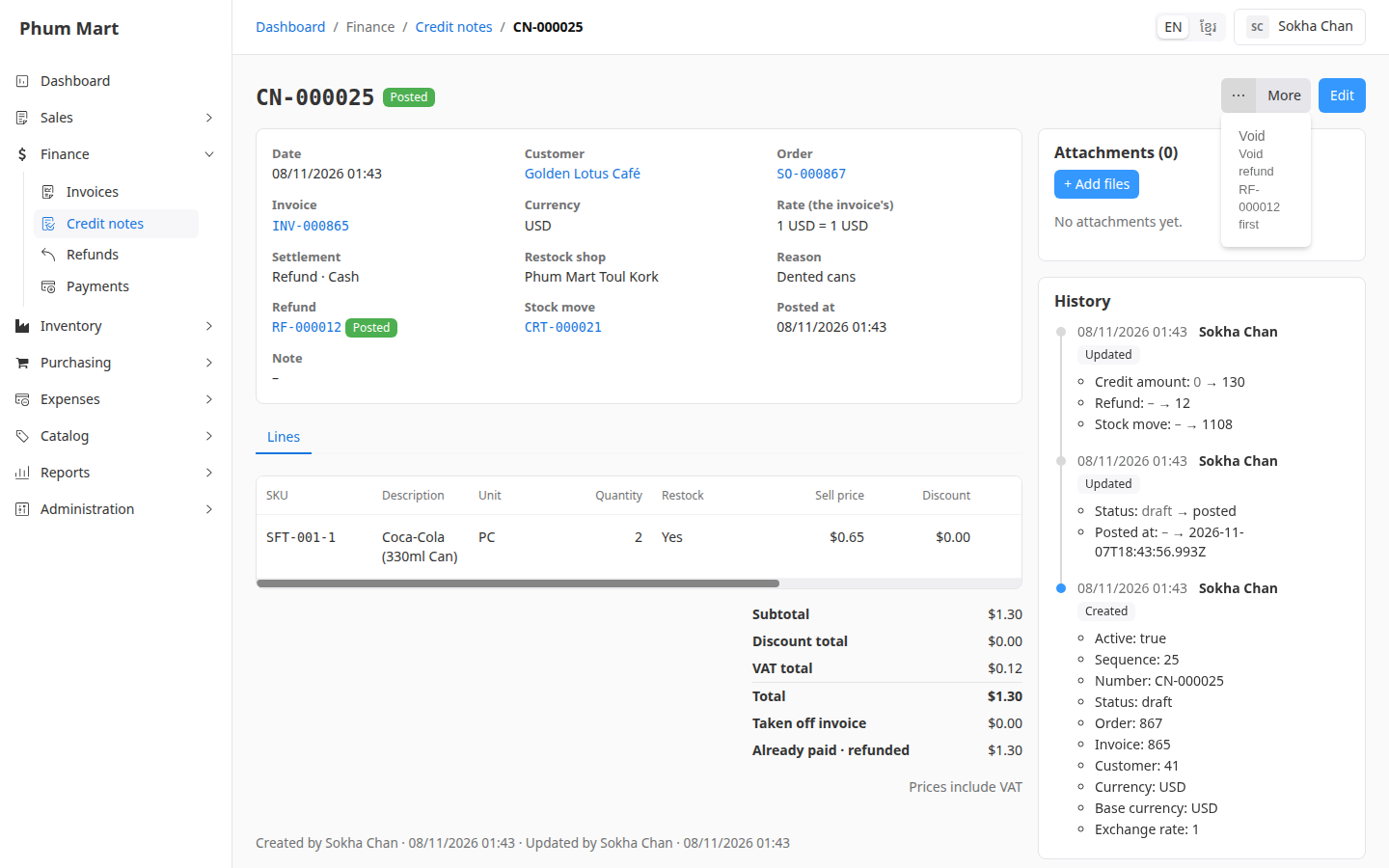
Click the refund number in the summary to open it.
Click More › Void. The message says the amount goes back on the customer's store credit, and that the credit note can then be voided.
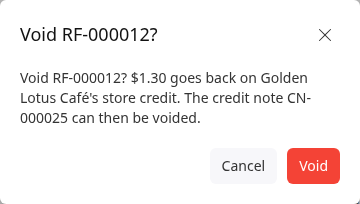
Click Void. The refund shows Void and "This refund is void."
2. Void the credit note
Go back to the credit note and click More › Void.
Type the Void reason, for example "Entered on the wrong order". It's required.
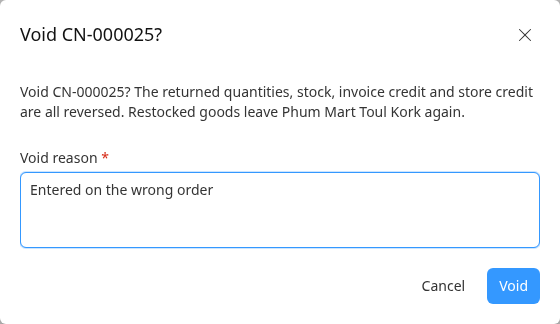
Click Void. The credit note shows Void, with "This credit note is void." and the reason.
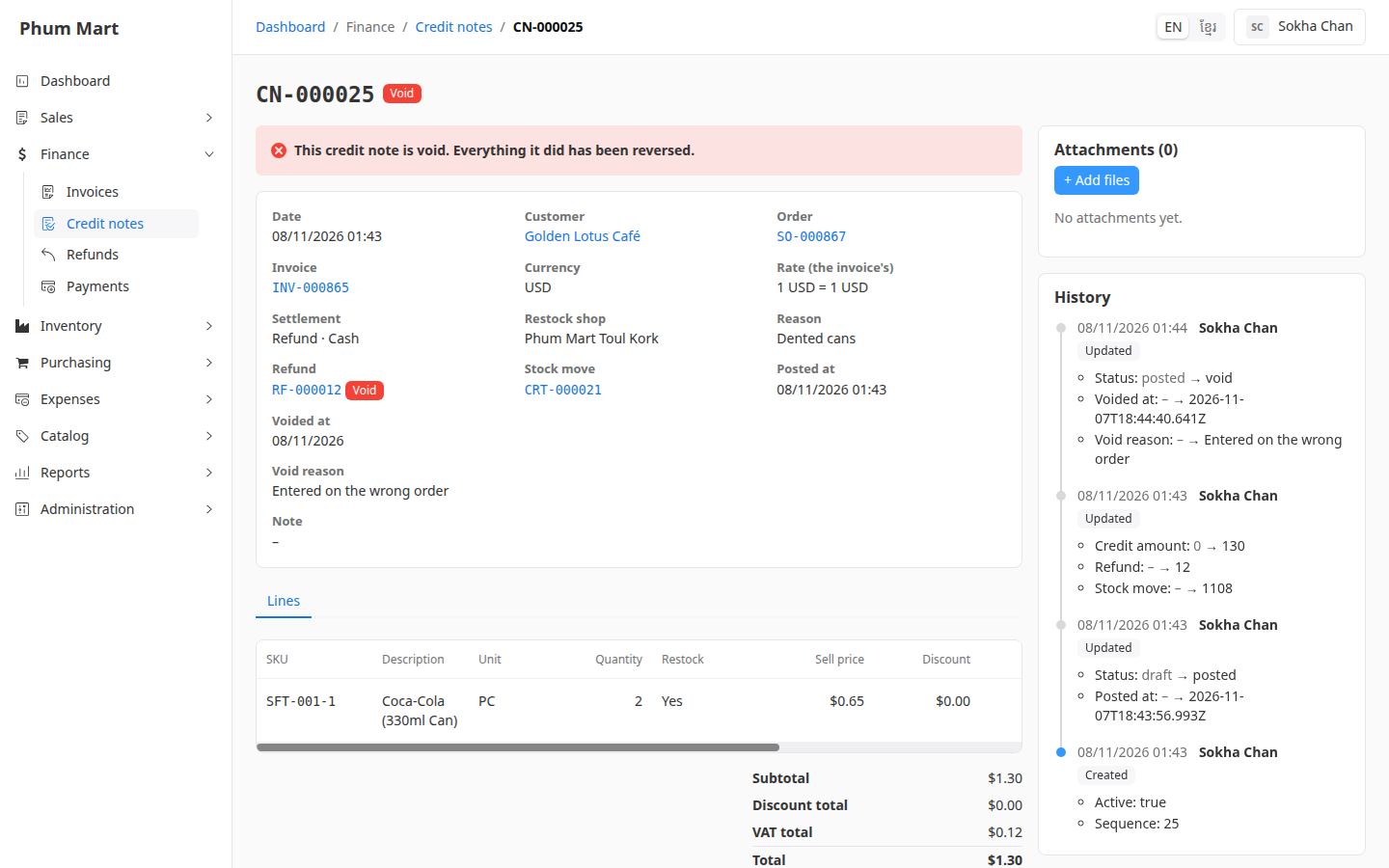
If the return was real but entered on the wrong order, record it again on the right order.
Having trouble?
- Void is greyed out because of store credit: the store credit from this credit note was already spent or paid out. Void that payment or payout first.
- A message says items are short of stock: the restocked goods were sold again, so they can't leave stock. Record the stock that's actually there in Inventory, then try again.
- You only need to change the note: click Edit on the posted credit note. Only the note can change.