Appearance
Record a customer payment
Summary
Record money a customer paid, against one or more of their invoices.
Description
A payment says how much a customer paid, how (cash, bank transfer and so on) and which invoices it pays. One payment can pay several invoices of the same customer, in full or in part.
You can save a payment as a draft first, for example while you check that a bank transfer arrived. A draft changes nothing on the invoices. When the payment is confirmed, the invoices become paid or partially paid.
Who can do this: Anyone whose role can create payments, such as Sales staff and Accountants.
Before you start: The customer has an invoice with something still due.
Step by step
Start the payment in one of two ways:
- From the invoice: open it and click Take payment. The customer and the invoice are filled in for you.
- From the list: go to Finance › Payments, click New, and choose the Customer.
In the table, tick each invoice the customer is paying. Its Amount fills in with what's due. Change it if the customer is paying only part. Total (preview) shows the sum.
Choose the Method: Cash, Bank transfer, Card, Mobile wallet, Cheque, Other or Store credit.
Check the Shop where the money was received.
Check the Date, and type the Reference, for example the bank transfer number or cheque number.
Under Proof of payment, click Choose file to attach the transfer slip or a photo of the cheque, if you have one.
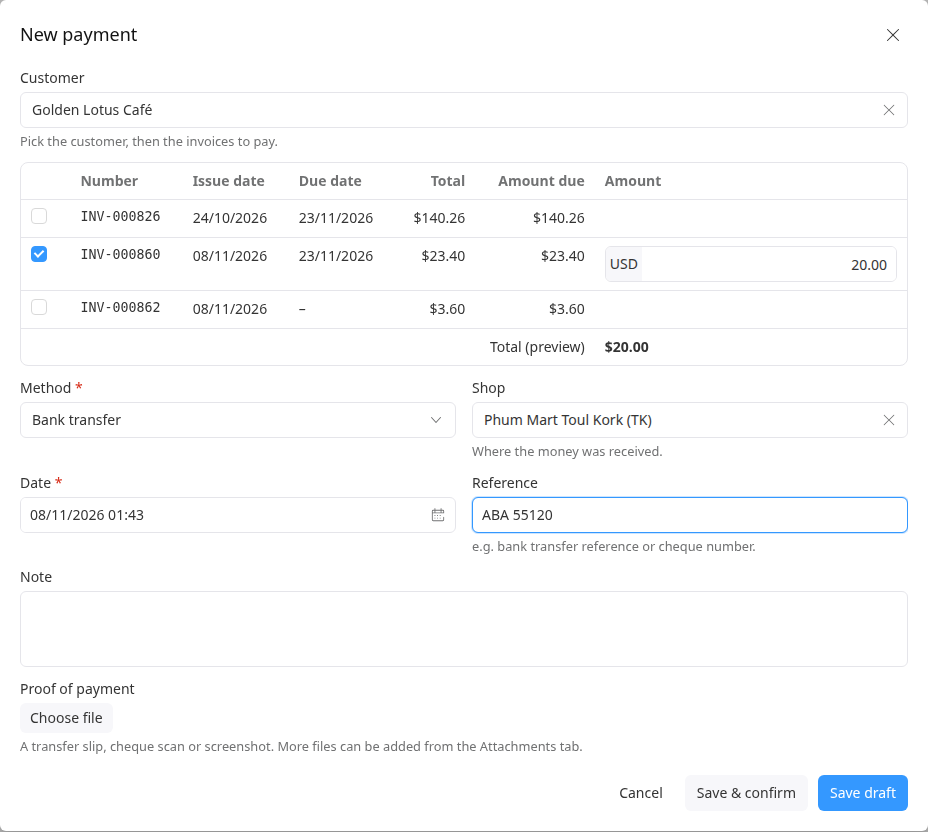
Click one of:
- Save & confirm, if the money is in. The invoices are updated at once.
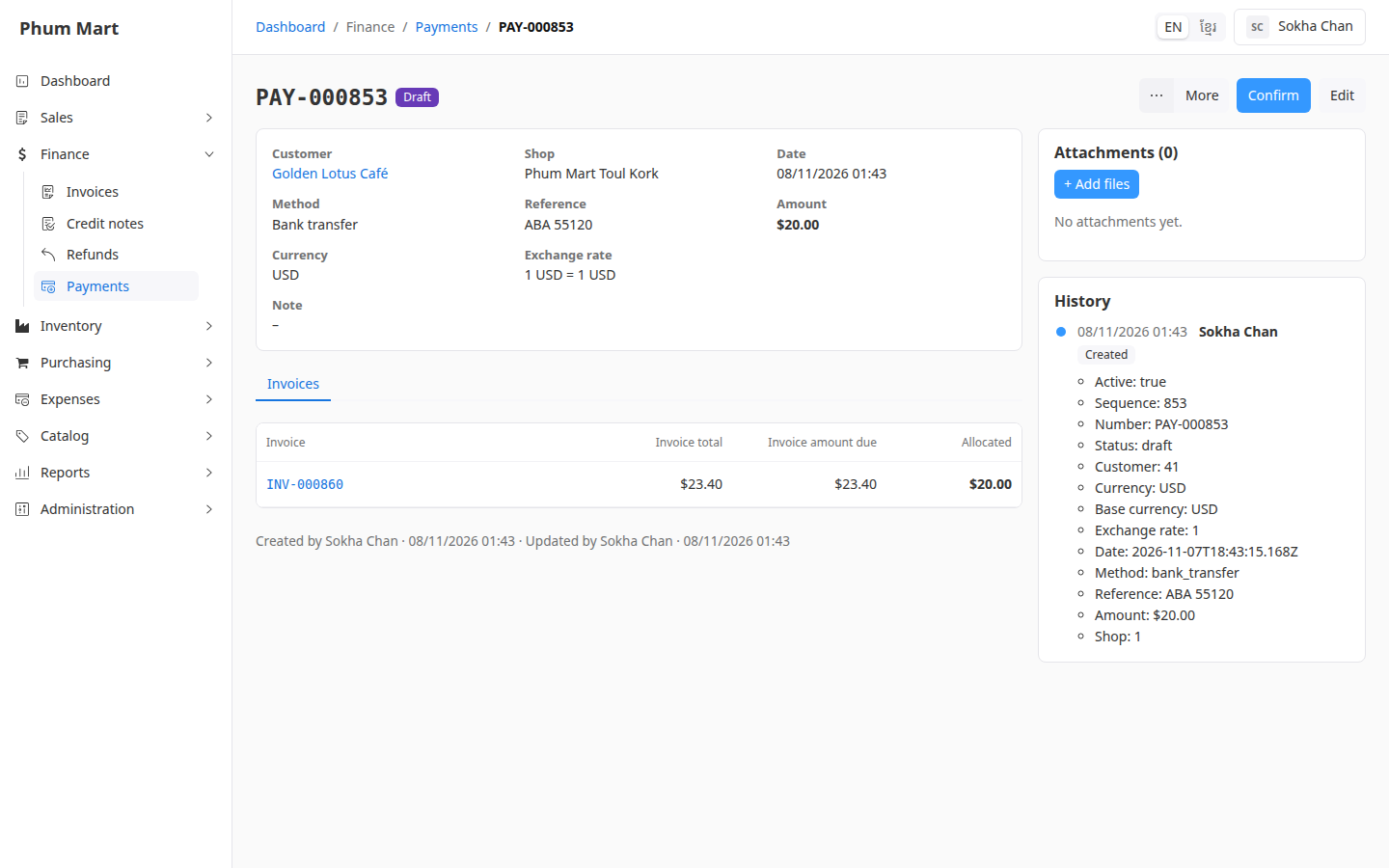
- Save draft, to check it first. Then confirm it later.
The payment opens. Its Invoices tab shows what it pays.
Good to know
- Part cash, part store credit: record two payments, one for each method.
- Several currencies: one payment can only pay invoices in the same currency.
- Store credit pays from credit the customer has from earlier returns, instead of new money. See Use or pay out store credit.
Having trouble?
- The invoice isn't in the table: it's paid already, void, or belongs to another customer. Check the customer.
- A message says the amount is more than what's due: a payment can't pay more than an invoice owes. If the customer paid too much, record what's due and hand back the change.
- You picked the wrong customer on a draft: the customer can't be changed after saving. Void the draft and record a new payment.