Appearance
Create a price book
A price book is a list of prices in one currency. Every order uses one price book, and its lines are priced from it. You might have:
- Retail for walk-in and regular customers
- Wholesale for shops and restaurants that buy in bulk
- Retail KHR for prices in riel
- A promotion, such as Khmer New Year 2026, valid for a few days only
A book doesn't need a price for every product. Without a rule, a product sells at its variant's list price, as long as the book is in your base currency. Rules set different prices or discounts. See Add price rules and discounts.
Who can do this: Anyone whose role can create price books, such as a Catalog manager.
Step by step
Go to Catalog › Price books. The list shows each book's currency, validity and number of rules.
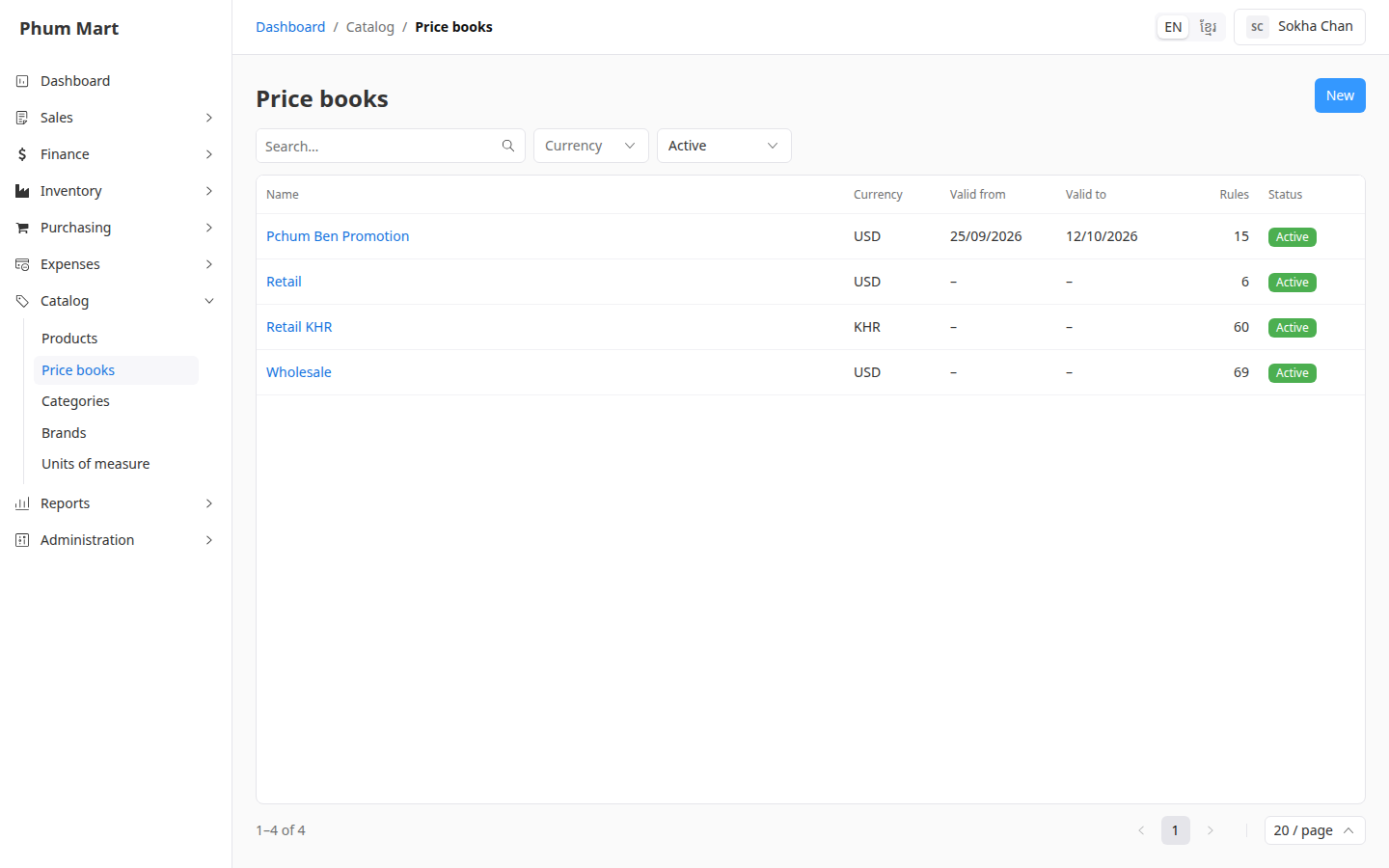
Click New.
Enter the Name, for example VIP Customers.
Choose the Currency.
For a promotion, set Valid from and Valid to. Leave them empty for a book that's always valid.
Add a Description to say who it's for.
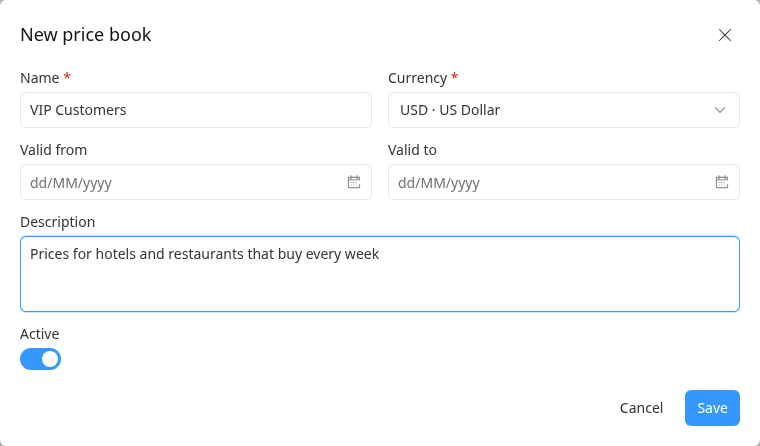
Click Save. The book opens, with its Rules tab and Price check.
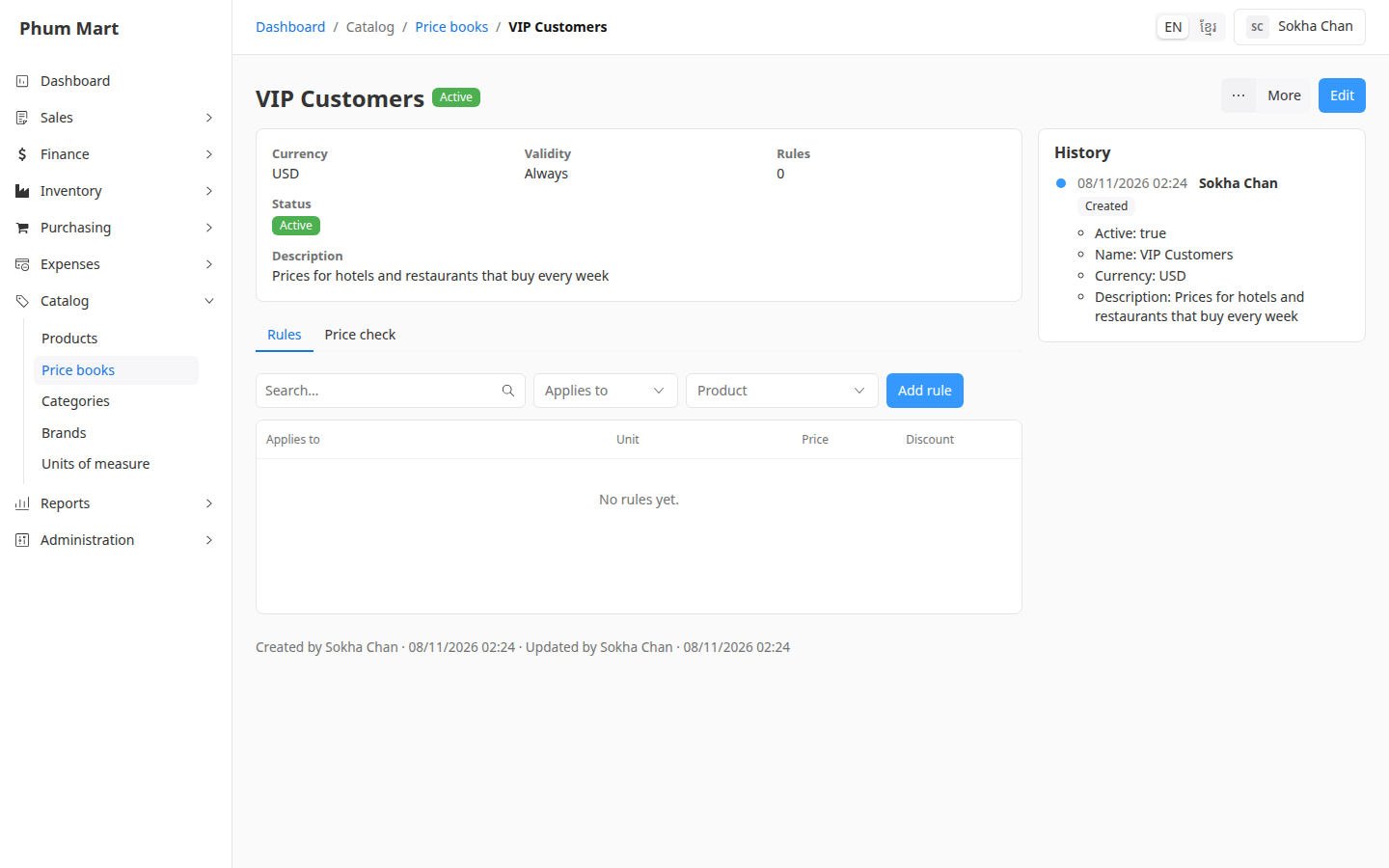
Next, add its rules.
Change or stop using a book
- Edit changes its name, dates or description. Its currency can change only while it has no rules.
- More › Deactivate stops offering it on new orders. More › Delete removes a book no order uses.
Having trouble?
- The book isn't offered on an order: it's inactive, or the order's date is outside its Valid from and Valid to.
- "No price" on an order line: the book is in another currency than your base currency, and has no rule for that product. Add a rule with a price.
- The currency can't be changed: remove all the book's rules first, or create a new book.